Author: Matt Mancini
vSphere 5.5 Product Guide 02-2014 is Released!
Folks this is a must read document packed with all kinds of detailed information around VMware products and how they relate to licensing.
Fair warning – This is document is very detailed, but once you start getting into it lots of gold nuggets can be found.
http://www.vmware.com/files/pdf/vmware-product-guide.pdf
Enjoy!
vExpert 2014 Submissions Now Open!
vExpert 2014 applications are open! I’ve been part of this program since inception, it’s a great community of technical folks who enjoy spreading the word of virtualization!
Please feel free to submit and if you need some tips please post up!
Think you’re one of the best? Have you been supporting and contributing to the VMware Community? Have you excelled and completed the latest certification & accreditation training? If Yes then I would encourage you to apply for the 2014 vExpert Program! http://bit.ly/MtDKff
Each year, we bring together in the vExpert Program the people who have made some of the most important contributions to the VMware community. These are the bloggers, book authors, VMUG leaders, speakers, tool builders, community leaders and general enthusiasts. They work as IT admins and architects for VMware customers, they act as trusted advisors and implementers for VMware partners or as independent consultants, and some work for VMware itself. All of them have the passion and enthusiasm for technology and applying technology to solve problems. They have contributed to the success of us all by sharing their knowledge and expertise over their days, nights, and weekends.
vExperts who participate in the program have access to private betas, free licenses, early access briefings, exclusive events, free access to VMworld conference materials online, and other opportunities to interact with VMware product teams. They also get access to a private community and networking opportunities.
VPN (VMware Partner Network) Path
The VPN Path is for YOU, members of our partner companies, who lead with passion and by example, who are committed to continuous learning through accreditations and certifications and to making their technical knowledge and expertise available to many. This can take shape of event participation, video, IP generation, as well as public speaking engagements. A VMware employee reference is required for VPN Path candidates.
Read more about the 2014 vExpert program at http://bit.ly/MtDKff
@VMwareCertifiedProfessionalVCP
Caching your Windows 8 / 10 Domain Credentials via VPN
I was setting up a fresh Windows 8 Fusion 6 VM last weekend and realized I needed to cache my home domain credentials. I was remote to my home office and the only way I could access the domain was via VPN.
With only the ability to logon locally and then launch the VPN I was prompted for my password and security keys multiple times a day – Not a fun experience. To fix this I really needed my domain user account credentials cached so that I could initially log on to Windows 8 without the VPN, and then launch the VPN connection after logon.
Here is how I solved this issue…
- Logged in with my local account
- Attached to the VPN
- Added my Windows 8 VM to the domain
- Added my domain account to a Local group
- Rebooted (Just adding my Win 8 VM to domain, doesn’t cache my credentials)
- Logged in with my local account
- Attached to the VPN
- Closed all Internet Explorer (IE) windows, held down CTRL+Shift, right click on IE, and finally choose ‘Run as Different User’ (PIC1)
- I typed in my domain user account/password and allowed IE to load << This should cache your credentials (PIC2)
- Close all windows, restart, and I was able to logon with my Domain Account
- Attached to the web based VPN and viola… all is working well
Pic 1 – hold down CTRL+Shift then right click on IE, and finally choose ‘Run as Different User’

PIC 2 – Enter your Credentials

Summary – Using ‘Run as Different User’ ensures you have a local account cached from the domain your attempting to log on to. Your experience may vary depending on your rights as a domain user and the security policies enforced in your domain.
** Update 12/18/2017**
Recently I tired this same process with Windows 10 and it worked like a charm!
VMworld 2013 – A Quick Rundown…
I’ve been lucky enough to make the past 6 VMworlds and to date this year was my favorite.
Here are some quick notes that a few colleges and I put together, I hope you enjoy it!
Quick Facts about VMworld
- 350 breakout sessions
- 70,000+ VM deployed (also a peek at vC Operations at scale)
- Over 23,000 attendees
Where to start? The best recap is this 11-minute full coverage Demo here. The entire video is 1.5 hours and is part of the Keynote presentation from day 2. Both VMworld General Sessions are available online as well, as are the top 10 sessions from VMworld (hint: click the ‘play’ button on the thumbnail image).
Announcement Highlights
vCloud Suite Sphere 5.5:
vCloud Suite provides all components for building and running a private cloud infrastructure, based on VMware vSphere, that leverages the software-defined data center architecture. This architectural approach delivers virtualized infrastructure services (compute, network, security and availability) with built-in intelligence to automate the on-demand provisioning, placement, configuration and control of applications based on defined policies. vCloud Suite Datasheet
vCloud Suite 5.5 is composed of the following integrated products:
- VMware vSphere®: Compute virtualization platform with policy-based automation
- VMware vCenter™ Site Recovery Manager™: Automated disaster recovery planning, testing, and execution
- VMware vCloud Networking and Security™: Networking and security with ecosystem integration for a virtualized compute environment.
- VMware vCloud® Automation Center™: Self-service and policyenabled cloud service provisioning.
- VMware vCenter™ Operations Management Suite™:integrated, proactive performance, capacity, and configuration management for dynamic cloud environments.
- VMware vCloud Director®: Virtualized data centers with multitenancy and public cloud extensibility
-2x performance and scale improvements (including 64TB VMDK’s)
-Focus on application performance and availability with Big Data Extensions, improved App HA, vFLASH and drastic improvements to SRM including vSphere replication integration
-A whole host of other improvements further validating that the “Compute Layer” of VMware’s SDDC continues to extend its market leadership position
- vSphere 5.5 datasheet
- What’s new in vSphere 5.5
- vCloud Suite 5.5 clickable demos
- It’s all about the applications
- Big Data at VMworld
- vSphere Install, Config, Upg: http://bit.ly/11Qyp24
- Virtualizing Oracle, SQL, Exch, SAP: http://bit.ly/17rZOi8
- vCenter Orchestrator: http://bit.ly/14Q55Ae
- Free Efficiency Tools: http://bit.ly/Zs1dBW
- vSphere w/ Ops Management: http://bit.ly/ZrZtsw
- vCenter/vSphere Upgrades: http://bit.ly/17iPBSC
- http://www.vmware.com/files/pdf/products/vCloud/VMware-vCloud-Suite-Datasheet.pdf
NSX and Network Virtualization:
-NSX does for the network what ESX did for compute: abstract, pool, make automation much easier. This is about agility and simplicity, and services, not the physical medium of the network.
-NSX is a bridging technology just like ESX. It sits on top of the physical Network and doesn’t replace it… just extends and makes it better.
- Introducing VMware NSX platform for network virtualization
- Introducing VMware NSX
- Changing the economics of Firewall services
vSAN and Storage Virtualization (beta announced)
-vSAN takes the local storage in a vSphere cluster and turns it into a big pool that can be used as any other target for storage resources.
- What’s new in vSphere 5.5 Storage
- Strategy for software defined storage
- vSAN Config: http://bit.ly/1fm5zOa
Hybrid Cloud Services (vCHS)
-Our long awaited and highly anticipated public cloud offering is live and available.
-Additional Data Centers in California and Virginia will be coming on-line to compliment the DC in Las Vegas.
-New service offerings such as Cloud Foundry, Desktop as a Service and DR as a Service were announced.
- Hybrid Cloud Services at VMworld
- Now available VMware Hybrid Cloud Services
- vCloud Hybrid Service marketplace
IT Business Management Suite
The ITBM
suite has to be one of the most exciting and least talked about component of the latest releases. Datasheet
- IT Financial Management
- Business Managment for Cloud (Opportunity Cost including AWS, Azure, and vCHS)
- IT Benchmarking
- Service Quality Management
- IT Business Management Suite: http://bit.ly/XXrSVk
End User Computing:
- End user computing meets the Software defined datacenter full session
- EUC Strategy with new DaaS offering (Desktop as a Service)
- Why I am excited about EUC (blog post by Sanjay Poonen, EVP and GM, End-User Computing, VMware)
- First Smart phone available on all major US carriers to launch VMware mobile virtualization solution
- Next generation virtual desktop as a service
- New VMware ready devices
vFabric
- vFabric: http://bit.ly/16bQEHn
Additional Information
- vCenter Log Insight: http://bit.ly/17HrIHz
- Professional Services: http://bit.ly/10Dh7o7
- For Hosting Providers: http://bit.ly/11b4GQv
- Compliance: http://bit.ly/140ZPqt
- vCOPS Install & Config: http://bit.ly/18BpLtS
- vCOPS Post Install Settings: http://bit.ly/14yGAH5
- Customer Stories: http://bit.ly/15zzIUp
New Services and Certifications
– New Certifications are available for cloud (VCA-Cloud), data center virtualization (VCA-DCV), and network virtualization (VCA-NV), these certifications offer a new credential to validate entry-level skills VMware Certified Associate before progressing on to the VMware Certified Professional (VCP) certifications.
VMworld Wrap up
http://blogs.vmware.com/vcloud/2013/08/vmworld-2013-day-1-wrap-up.html
http://blogs.vmware.com/vcloud/2013/08/vmworld-2013-day-2-wrap-up.html
http://blogs.vmware.com/tam/2013/08/vmworld-2013-day-one-recap.html
Press Releases
VMware Unveils Next-Generation Products and Services to Further Enable the Software-Defined Data Center
VMware Delivers vCloud(R) Hybrid Service(TM)
VMware and Pivotal Expand Strategic Partnership
VMware Cloud Management Helps Drive Adoption of Software-Defined Data Center Architecture
Get all of the news at VMworld TV
vCenter Server datastores for heartbeats
I recently did some exploring on my home lab around datastore heatbeats and came up with the following notes around how to determine which ones are active, how to change the defaults, and why vCenter Server might now choose a datastore.
Page 16
vCenter Server selects a preferred set of datastores for heartbeating. This selection is made to maximize the
number of hosts that have access to a heartbeating datastore and minimize the likelihood that the datastores
are backed by the same storage array or NFS server. To replace a selected datastore, use the Cluster Settings
dialog box of the vSphere Client to specify the heartbeating datastores. The Datastore Heartbeating tab lets
you specify alternative datastores. Only datastores mounted by at least two hosts are available. You can also
see which datastores vSphere HA has selected for use by viewing the Heartbeat Datastores tab of the HA
Cluster Status dialog box.

Only use these settings if you want to override the default vCenter Server Choice

Here is an article around why it might not choose a Datastore…
User-Preferred Datastore is Not Chosen
vCenter Server might not choose a datastore that you specify as a preference for vSphere HA storage heartbeating.
Problem
You can specify the datastores preferred for storage heartbeating, and based on this preference, vCenter Server determines the final set of datastores to use. However, vCenter Server might not choose the datastores that you specify.
Cause
This problem can occur in the following cases:
■ The specified number of datastores is more than is required. vCenter Server chooses the optimal number of required datastores out of the stated user preference and ignores the rest.
■ A specified datastore is not optimal for host accessibility and storage backing redundancy. More specifically, the datastore might not be chosen if it is accessible to only a small set of hosts in the cluster. A datastore also might not be chosen if it is on the same LUN or the same NFS server as datastores that vCenter Server has already chosen.
■ A specified datastore is inaccessible because of storage failures, for example, storage array all paths down or permanent device loss.
■ If the cluster contains a network partition, or if a host is unreachable or isolated, the host continues to use the existing heartbeat datastores even if the user preferences change.
Solution
Verify that all the hosts in the cluster are reachable and have the vSphere HA agent running.
Also, ensure that the specified datastores are accessible to most, if not all, hosts in the cluster and that the datastores are on different LUNs or NFS servers.
Unauthorized vmexplorer Customer / Reference guide for VMworld 2013
I’ve attended every VMworld since 2008 and over the years I can’t tell you how many times I’ve been asked by attendees how to find their way around or when does something open or close.
This year *BING* it hit me and I took some time to put together a customer guide combining all the good information around – Registration, HOL, Meals, Shuttle, etc…
Of course I would recommend you use the official VMworld websites, apps, etc. but if you want a simple an easy way to find information then this may work for you too.
Click on the PIC below to download the ‘Unauthorized vmexplorer guide’!

VMware Named 1 of the 10 Best Innovative Companies in the World
Great news coming out from Forbes today, VMware was ranked #3 in the world for innovation. It’s something a lot of us cloud engineers have known about for years and now this really helps to solidify VMware globally as an innovation leader!

Geeks.com – Time to Say goodbye for now
I was a bit shell shocked when I went to one of my favorite online stores, geeks.com, only to find out they had closed.
They had been open for 17 years and they were one of the first sites I trusted to buy quality products from new or used.
They had a lot of common items but every now and then they had something different or unique. It was one of the reasons why I kept coming back.
I had recommended geeks.com many times and everyone I sent there always let me know what excellent service and product they had.
Well Geeks.com – I salute you – you had a good run, I’m sorry to see you go, and I hope one day you return!

Just a quick note, if you liked geeks.com then check out http://www.pacificgeek.com/ they were very similar in product and layout.
Meet Trevor –VMware Hands-on Lab
Check out this great video around how VMware Hands-on Labs can enable you to do more with VMware products.
It really goes over the finer points on how customers can logon to HOL, check out our products/technologies, and then deliver them into your environment.
BTW — Great job Doug Baer, oops… I mean Trevor J
http://www.youtube.com/watch?v=xk9716huKG4

What to do with old Event Lanyards?
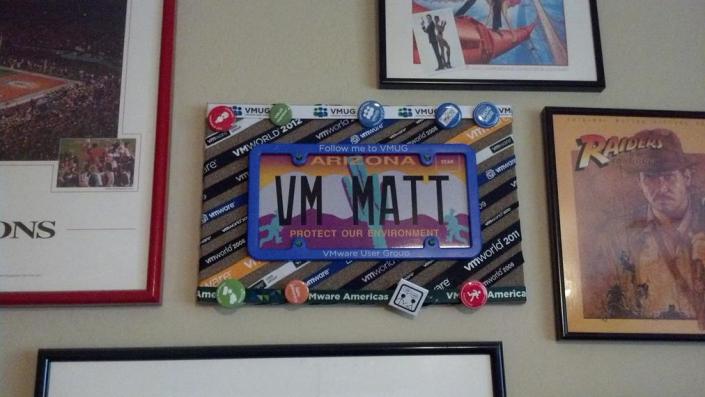
Over these past years I’ve collected a bunch of lanyards, buttons and stuff. Mainly I collected them as an end user, VMUG leader, and now as a VMware employee. At one point my car had a custom VM license plate. I hung on to all this stuff because I really liked it or wanted to remember good times. However everything was just starting to pile up and collect dust. This past weekend I made a choice to not box them up or toss them away but do something creative which included a power staple gun. Attached to this post is my creation, they went from being a dust pile to a work of art.
It’s pretty simple to make…
-
You need –
- One Rectangle Cork board (I found my at Wal-Mart)
- Power Staple Gun
- Scissors
- Enough lanyards to create a layout
- Start in the middle, place the first one on an angle, staple them to the back side, and cut off the excess
- Working out from the middle I used two straws as a spacer and placed the next lanyard on an angle. Make sure its square as any deviation will show
- From there repeat, adjust, staple, and cut
-
If you have a plate you want to mount, center it, and I just used push pins to hold it up
Enjoy and Good times!
 vmexplorer