Month: January 2012
Never assume Windows 2008 is Aligned out of the box
I hear this topic come up from MANY and I mean MANY VMware folk. When I say VMware folk, I mean just about every person who interfaces with the product – Yes it’s that many
I believe it is a common misconception that Windows 2008 is aligned out of the box.
*The crowd goes silent as a distance ‘Ahh..’ and ‘No’ silently streams through the audience*
I also believe that Windows 2008 has a better chance of being aligned out of the box then most – But Don’t Trust it.
Still don’t believe me? Then read this from the horse’s mouth…
http://msdn.microsoft.com/en-us/library/dd758814(v=sql.100).aspx << Look for the topic “Partition Alignment in Windows Operating Systems”
From the above Microsoft link about alignment –
Partition Alignment in Windows Operating Systems
The way partition alignment works depends on the version of Windows being used and the version in which the partition alignment was created. The following sections describe how partition alignment works in Windows Server 2008, the Windows Vista® operating system, and Windows Server 2003 and earlier.
Windows Server 2008 and Windows Vista: New Partitions
In Windows Vista as well as Windows Server 2008, partition alignment is usually performed by default. The default for disks larger than 4 GB is 1 MB; the setting is configurable and is found in the registry at the following location:
HKLM\SYSTEM\CurrentControlSet\Services\VDS\Alignment
However, if OEM setups are delivered (for example, with recovery partitions), even fresh installations of Windows Server 2008 having partitions with undesirable partition starting offsets have been observed.
Whatever the operating system, confirm that new partitions are properly aligned.
I’m guessing at this point you still have doubt… But wait here’s more proof… I’ve seen misalignment in production environments… *No Way – Yes Way*
https://vmexplorer.com/2011/03/11/vm-check-alignment-tool/
Do you believe now?
If so maybe the best approach to this topic is to start stating “Windows 2008 is a better aligned OS but it needs to be checked just like ever Windows OS out there.”
Update to my Home Lab with VMware Workstation 8 – Part 3 Installation of Workstation 8
Okay so now that we have a sound hardware and OS, its now time to install Workstation 8.
Here’s the brief version – Next, Custom, Next, Change, Next, Change, Next, Change, Next, Continue, Enter, Finish… Well it’s almost that simple there is a bit more thought behind this….
Pre-Plan –
Make sure you have Workstation 8 downloaded
Read the release notes https://www.vmware.com/support/ws80/doc/releasenotes_workstation_80.html
Why read them… Lots of goodies and gotcahs in there. I checked my hardware prior to purchase so I know I’m okay, you should check yours too
I needed to know two things to get the base Program installed:
- Where will I install Workstation 8? Do I choose one of my SATA disks or my SSD?
- Where will my default VM direction go? Do I choose one of my SATA disks or my SSD
The Steps I took –
First thing I did was check my network settings…
Why is this important, for most it’s probably not, but for me I always like to see the before and after effects
Workstation 8 will install “virtual” network adapters, below is the before and at the end is the after…
From this screen shot you can see ‘Ethernet Adapter Local Area Network’ is my primary single pNIC in my PC.

Download and install the Workstation 8 executable… Lunch it and click next…

I Choose Custom to see some options for directory customization.

This is a good screen and is something you should think about…
If you have some SSD drives and PLEANTY of space (for VM’s and Workstation) you might want to consider placing the install there.
TIP – I did install Workstation 8 on my SSD and the boot time for the program was very FAST!
However I really needed the SSD space so I moved it to my 500GB 3gb/s disk. It doesn’t boot as fast but once it’s loaded there really no difference.
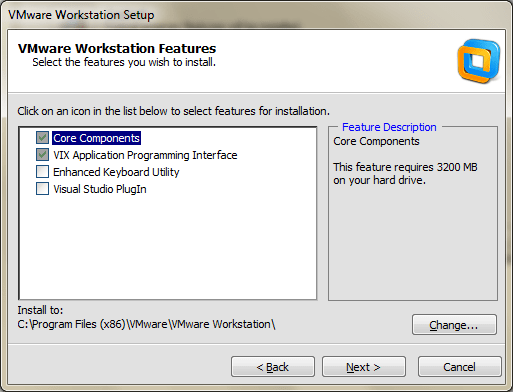
This is another good screen and is something you should think about…
Where do you want your default VM’s to be stored?
For Me I had choices for 500GB, 300GB SATA disks or my 60GB SSD
At this point I clicked on change…
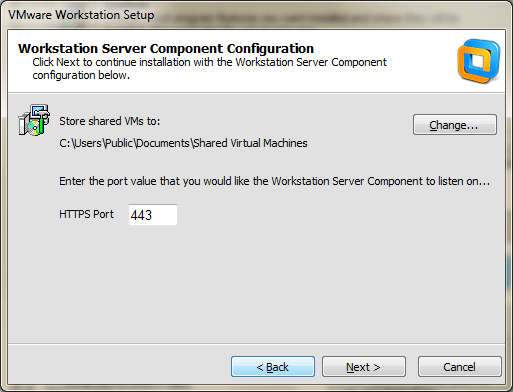
I choose the D: disk which was my 300GB SATA disk to get started…
By default your new VM will be placed in this folder and you can choose a different path if you wish.
Just like Fashion what’s in today is history tomorrow and so are default paths… you make a good choice now but want to change it later.
Don’t sweat this too much, changing the default VM path is easy in Workstation 8 and I do just that in an upcoming post.

Click Next…
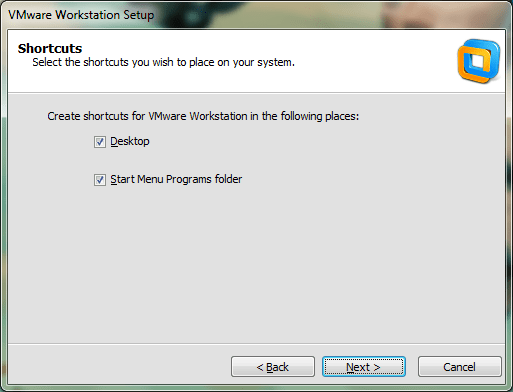
Click Continue…

Enter your License Key…
TIP – Want a free copy of Workstation 8? When I got my VCP5 I got a free copy, get yours too, and get certified!
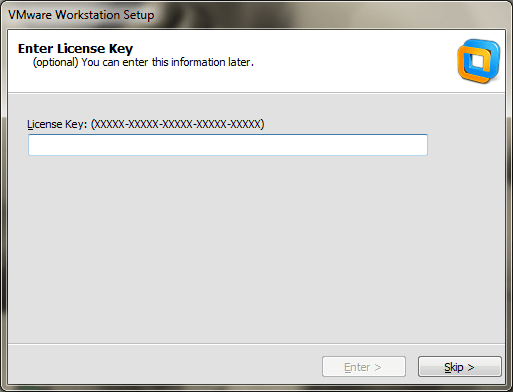
Click Finish and you’re done…

Going back to the network settings… you can now see Workstation 8 installed two new adapters.
VMware Network Adapter VMnet1 and VMnet8

Summary –
This went smooth no real issues; however as I later discovered some of the choices I made (Installation directories had to be changed)
Passed my VCP5 Test
Just last month (12/2011) I passed my VCP5, it was a nice Christmas Present, and the month prior (11/2011) I passed my VCP4.
It was a lot of fun preparing for a VCP4, passing that test, then updating everything I just learned to pass my VCP5.
It was a good thing I only got one maximum question, no telling how I would have answered it 
What do I have to add for all of you taking the test?
– Read those documents, know your stuff, take the mock exams, follow the blue prints
– If you’re a partner or VMware employee and have access to the VTSP 5.0 Training, I would highly suggest using this as a study guide
– This guide (http://www.vreference.com/vsphere-5-notes/) I found to be the most useful as it was a culmination of the blue print material. Funny thing is I started to write my own cram notes based on the blue print documents and then I found this one, problem solved!
Final Thoughts and a word to the wise…
If you are just studying questions from TestKing, Cerfityme, etc… Good Luck – You’ll need it — Its plain and simple – Study hard = Passing the test
 vmexplorer