vmware
My notes and tips around taking the 2V0-17.25 – VMware Cloud Foundation 9.0 Administrator

This past week I passed the 2V0-17.25 – VMware Cloud Foundation 9.0 Administrator. The VMware Cloud Foundation 9.0 Administrator certification is an excellent entry point into the VCF certification ecosystem. Preparing for this credential deepens your understanding of the architecture, capabilities, and operational workflows that make up the VCF 9.0 platform. In this blog I’m going to share information about taking a proctored exam, and study tips.
** UPDATE 12/04/2025 ** At the bottom of this post check out the downloadable study guide by Broadcom’s own Hersey Cartwright!! He did a great job aligning the test objectives to public resources.
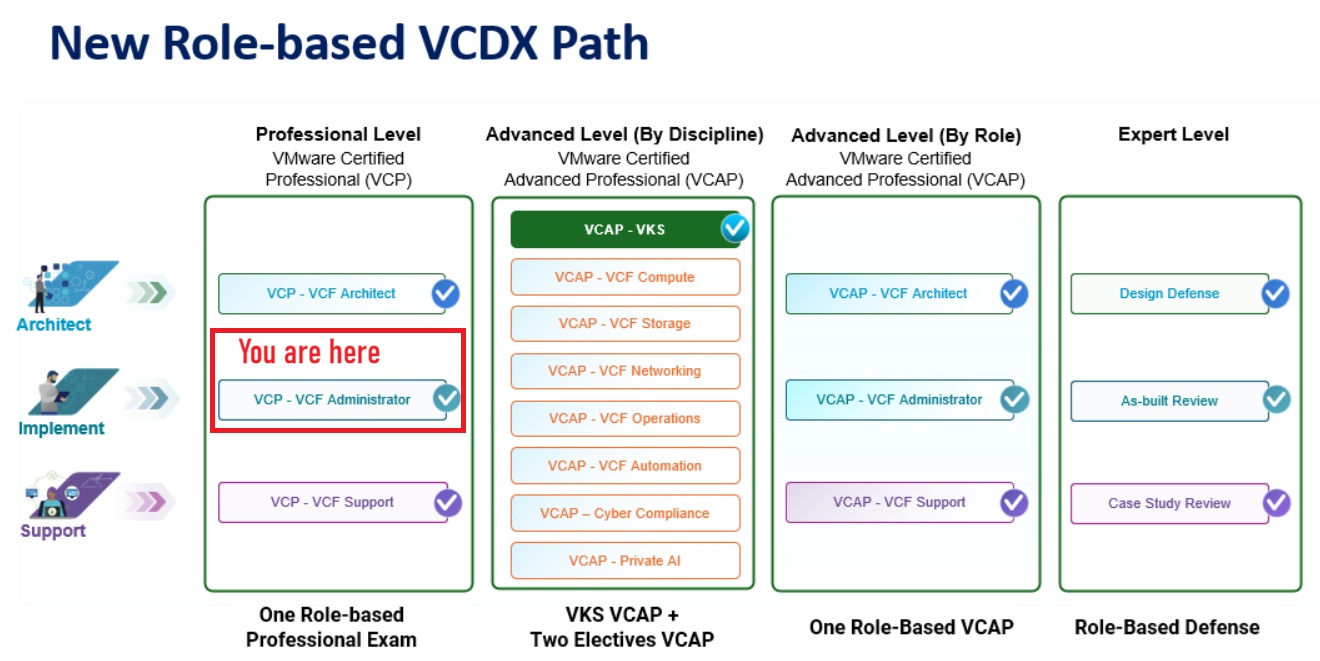
How does the 2V0-17.25 – VMware Cloud Foundation 9.0 Administrator certification fit into the new VMware training model?
The VMware Cloud Foundation 9.0 Administrator certification is the starting point of your certification journey to an Expert level. From here, you can advance into more product-specific certifications on your way to becoming an Expert. For more information, check out this VMware document and for a deeper understanding check out Eric Sloof post.
What are the exam details?
- Duration: 135 Minutes
- Number of Questions: 60
- Format: Multiple Choice, Multiple Choice Multiple Selection
- Passing Score: 300
- Pricing: $250
Any discounts on the pricing?
If you are a VMUG Advantage member you receive $125 USD off VMware Certifications. For this exam that is a 50% savings. Check out the VMUG Advantage page for more information.
Besides becoming certified, what are some additional benefits?
License keys! When you pass the exam you are awarded vSphere Standard Edition 32 cores for 1 year. Requirements are passing one of the following VCP certification exams (VCP-VVF or VCP-VCF admin or architect)
OR
If you pass the VCP certification exam (VCP-VCF admin or architect) and have Purchased & Maintained VMUG Advantage then you get Cloud Foundation (VCF) 128 cores for 3 years. Plus you also receive vDefend 128 cores and ALB 12 tokens.
The vExpert perk benefit.
If you are a vExpert 2025, you have been awarded a complimentary subscription to VMUG Advantage. This grants you access to exclusive discounts and the VMUG keys!
Are you interested in learning more about the vExpert program or seeking tips on how to join? Feel free to reach out—I’d be happy to assist!
How can I take the test?
For me testing was done by Pearson VUE. They gave me two options for testing – In person or Remote (aka Proctored) exam. I chose Proctored.
What are the requirements for a Proctored exam?
There are several requirements for taking a proctored exam. I located a link that describes these requirements and helps test takers better understand. My best tip for taking a proctored exam is be ready, follow the link below and make sure you have everything they require. Most common mistakes are – Desktop not cleaned off, invalid ID, or didn’t run the pre-checks.
Go to Online testing for VMware for more information.
What are the questions like on the test?
The questions on my test consisted of both Multiple Choice, and Multiple Choice Multiple Selection. There were many Multiple Choice Multiple Selection, see examples below. Highly recommend knowing your topics and their details/options well.
Examples (not a real questions) –
- Of the 7 choices below, choose the 4 correct steps when upgrading a VCSA host.
- Which 3 of the 5 choices below meet the requirements for VCF 9.
Can I pass without having hands-on experience?
I would say at a minimum use the VMware HOL to study up. Its a free resource and there are many concepts in labs that you’ll find on the test.
Do I need a Home lab to pass this test?
Some individuals may find this necessary to succeed. However, having passed VMware exams for over 20 years, I can confidently say that the experience I gained from the VMware VCF Hands-On Labs was more than sufficient for this exam.
Are there any additional study guides you’d recommend?
I highly recommend this 15-part VCF technical series on YouTube. I found good value in this series, and I even remember several topics discussed that were on the test.
There is an excellent resource that was known as the VMware {code} VCP-VCF Study Group. The wealth of valuable and pertinent information they have produced is truly impressive. I highly recommend this group; even if you’re not preparing for the test, it remains an outstanding resource.
What are some of the core topics I should know?
Follow the VCF Admin Study Guide and make sure you go through all the documentation.
For me I doubled down on VCF Automation, VCF Upgrade paths, and Kubernetes.
Any other tips?
There is a significant chance that whenever something specific is highlighted in VMware documentation, it is crucial. I often notice this type of emphasis appearing in 2 forms — Important and Note. It’s easy to overlook these highlights while reading the document, so be on the lookout for these types of sections. I commonly notice these types of highlights in the form of a question on tests.
Examples –


Helpful Links / Guides:
VCF9: What’s new in Licensing
VCF9 offers so many fantastic enhancements. There were many stand out items which are getting a fair share publicity. However, I wasn’t seeing many posts around the changes to licensing. There are several new and impactful requirements for licensing which deserve some attention. This post is a culmination of data and documentation I found on the Broadcom website and is publicly available. I just repurposed and organized it a bit.
Quick Summary –
- You now manage your licenses through VCF Operations across your entire fleet and can manage licenses for multiple VCF Operations instances from the VCF Business Services console (vcf.broadcom.com), a part of the Broadcom Support Portal.
- To license a VCF9 deployment customers must deploy VCF Operations and a vCenter server. Then in the VCF Business Services console attach their license key to their site ID and register the VCF Operation instance. Next, deploy a secure license file to VCF Operations. Lastly, VCF Operations deploys keys to the vCenter server to be attached to hosts.
Quick Walk Through:
- Your VCF9 Subscription is tied to your site ID.
- In this example we have 300 Cores of VCF.
- Your VCF Operations is registered in the VCF Business Services console and tied to this site ID.
- In the VCF Business Services console, you allocate cores and create a Secure license file.
- This Secure License file is deployed to VCF Operations.
- In this example 256 cores were allocated to a Secure license file.
- Via VCF Operation, the Secure License file is attached to a vCenter Sever Instance
- vCenter Server allocates cores to hosts
- In this example, you can see where Host 1& 2 received 128 cores each, but there were not enough cores for the 3rd cluster.
- 180 Days (6 Months) later VCF Operations automatically reaches out to VCF Business Services console and reports in.

What is the VCF Business Services console?
- VCF Business Services console provides the ability to manage licenses, VMware Cloud Foundation Usage Meter appliances, user roles, and resource access.
- More information here
Licensing Types:
- There are two types of licenses
- Primary licenses, such as VMware Cloud Foundation and VMware vSphere Foundation licenses.
- Add-on licenses, such as vSAN add-on capacity or VMware Private AI Foundation with NVIDIA licenses.
- NOTE: You no longer license individual components such as NSX, HCX, VCF Automation, and so on. Instead, for VCF and vSphere Foundation, you have a single license capacity provided for that product.
Licensing Modes:
- Connected Mode:
- Most customers will have a “connected” or what some call a phone home mode.
- License usage reports are required at least once every 180 days to maintain your licenses and you must update your license to confirm that the license usage report was submitted.
- This data is sent to the VCF Business Services console automatically, and licenses can be updated with a button click.
- Disconnected Mode:
- If VCF Operations is registered in disconnected mode, to report license usage, you generate a usage file and upload it in the VCF Business Services console. For detailed instructions for both connected and disconnected registration modes, see Updating Licenses.
- Critical Infrastructure Mode:
- This mode is reserved for critical infrastructure. Think military or federal use.
- This is a very uncommon mode and isn’t intended for customer consumption.
Other Notes:
- Manage licenses and assign them to vCenter instances from VCF Operations. All hosts and components connected to a vCenter instance with an assigned license are automatically licensed from vCenter assignments.
- VCF Operations can be connected to the VCF Business Services console for faster licensing, updates, and automated reporting. VCF Operations can also operate in disconnected mode.
- Fewer licenses to manage.
- Now, instead of 11 license keys, there are only two licenses for VCF – “VMware Cloud Foundation (cores)” and “VMware vSAN (TiBs)”. vSphere Foundation follows this same pattern.
- Multiple subscriptions pool together into a single license that can optionally be split later.
- All licenses can be applied into your environment by importing a single license file. For connected VCF Operations instances, the first license file will download automatically after you complete the registration.
- License your vCenter, ESX hosts, NSX , VCF Operations HCX, VCF Automation, and other components by assigning the license to the vCenter instance.
- License usage must be submitted from VCF Operations every 180 days, or hosts will disconnect from the vCenter instance and new workloads cannot be started (existing workloads will not be proactively stopped). If VCF Operations is in connected mode, license usage submission is automatic but still must be confirmed in VCF Operations by clicking Update Licenses. For VCF Operations in disconnected mode, follow the steps in the documentation to submit license usage.
- Hosts are automatically reconnected to the respective vCenter instance with full capabilities when a valid license is applied and/or license usage is submitted and license refreshed.
- Dynamic license quantity adjustment means that license changes made in the VCF Business Services console do not require reassignment.
- Visualize a unified view of your usage over time for your fleet in VCF Operations and across multiple VCF Operations instances in the VCF Business Services console.
- Evaluation Mode has been extended to 90 days.
- The license usage file only records the following license usage data points: the usage generation timestamp, utilization details for both post-version 9 and pre-version 9 licenses, the unique VCF Operations instance ID, a unique identifier for the usage report, a list of post-version 9 licenses added to VCF Operations but currently unused, any detected usage anomalies, and the active status. Note that the license usage file exclusively gathers this specific information and, for clarity, does not collect personal data and customer data.
REF:
VMware Workstation Gen 9: BOM2 P1 Motherboard upgrade (Failed Gigabyte board)
**Urgent Note ** The Gigabyte mobo in BOM2 initially was working well in my deployment. However, shortly after I completed this post the mobo failed. I was able to return it but to replace it the cost doubled. I replaced this mobo with a SuperMicro Board but am keeping this post up incase someone find it useful.
To take the next step in deploying a VCF 9 Simple stack with VCF Automation, I’m going to need to make some updates to my Workstation Home Lab. BOM1 simply doesn’t have enough RAM, and I’m a bit concerned about VCF Automation being CPU hungry. In this blog post I’ll cover some of the products I chose for BOM2.
Although my ASRock Rack motherboard (BOM1) was performing well, it was constrained by available memory capacity. I had additional 32 GB DDR4 modules on hand, but all RAM slots were already populated. I considered upgrading to higher-capacity DIMMs; however, the cost was prohibitive. Ultimately, replacing the motherboard proved to be a more cost-effective solution, allowing me to leverage the memory I already owned.
The mobo I chose was the Gigabyte Gigabyte MD71-HB0, it was rather affordable but it lacked PCIe bifurcation. Bifurcation is a feature I needed to support the dual NVMe disks into one PCIe slot. To overcome this I chose the RIITOP M.2 NVMe SSD to PCI-e 3.1 These cards essentially emulate a bifurcated PCIe slot which allows for the dual NVMe disks in a single PCIe slot.
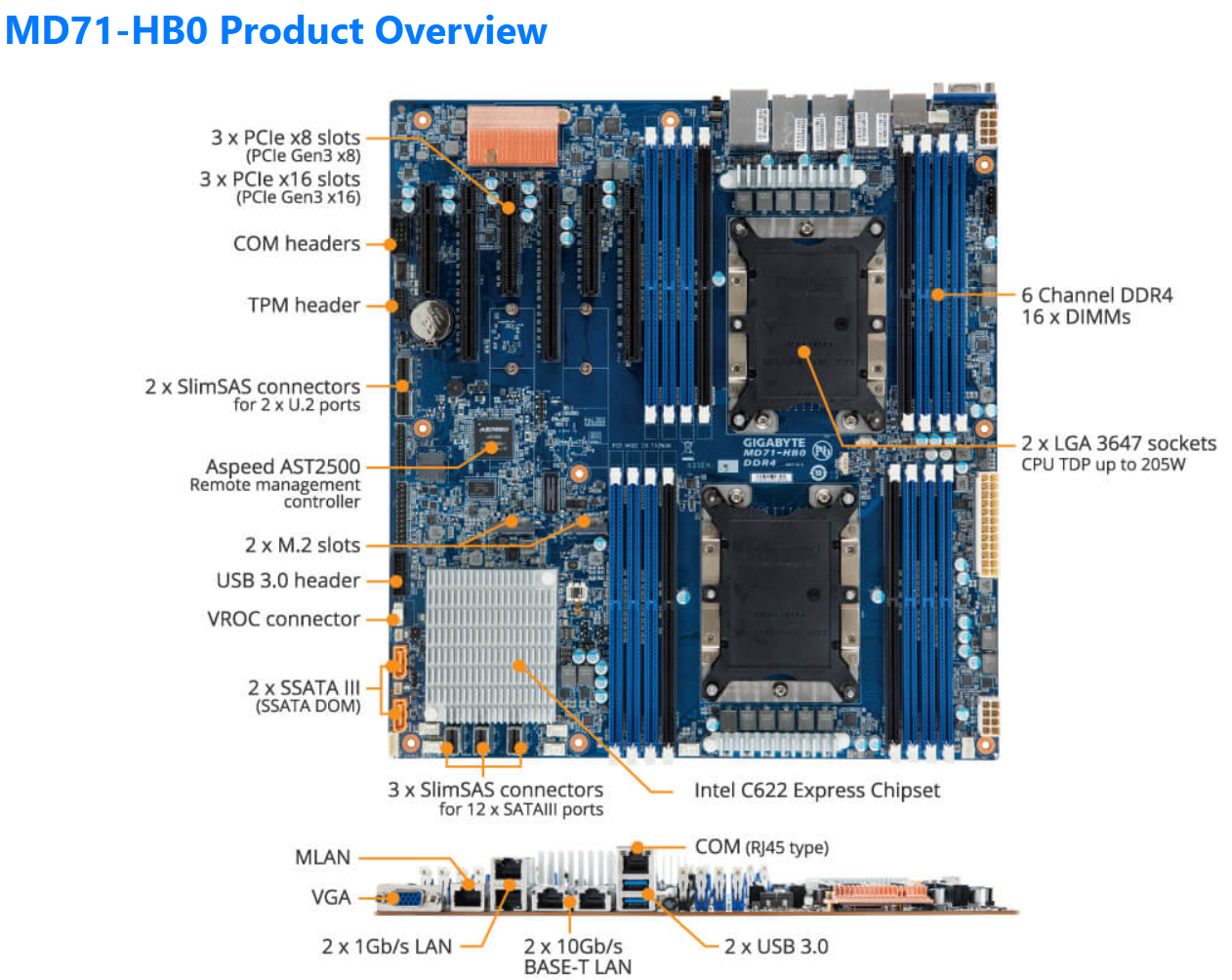
The table below outlines the changes planned for BOM2. There was minimal unused products from the original configuration, and after migrating components, the updated build will provide more than sufficient resources to meet my VCF 9 compute/RAM requirements.
Pro Tip: When assembling new hardware, I take a methodical, incremental approach. I install and validate one component at a time, which makes troubleshooting far easier if an issue arises. I typically start with the CPUs and a minimal amount of RAM, then scale up to the full memory configuration, followed by the video card, add-in cards, and then storage. It’s a practical application of the old adage: don’t bite off more than you can chew—or in this case, compute.
| KEEP from BOM1 | Added to create BOM2 | UNUSED |
| Case: Phanteks Enthoo Pro series PH-ES614PC_BK Black Steel | Mobo: Gigabyte MD71-HB0 | Mobo: ASRack Rock EPC621D8A |
| CPU: 1 x Xeon Gold ES 6252 (ES means Engineering Samples) 24 pCores | CPU: 1 x Xeon Gold ES 6252 (ES means Engineering Samples) New net total 48 pCores | NVMe Adapter: 3 x Supermicro PCI-E Add-On Card for up to two NVMe SSDs |
| Cooler: 1 x Noctua NH-D9 DX-3647 4U | Cooler: 1 x Noctua NH-D9 DX-3647 4U | 10Gbe NIC: ASUS XG-C100C 10G Network Adapter |
| RAM: 384GB 4 x 64GB Samsung M393A8G40MB2-CVFBY 4 x 32GB Micron MTA36ASF4G72PZ-2G9E2 | RAM: New net total 640GB 8 x 32GB Micron MTA36ASF4G72PZ-2G9E2 | |
| NVMe: 2 x 1TB NVMe (Win 11 Boot Disk and Workstation VMs) | NVMe Adapter: 3 x RIITOP M.2 NVMe SSD to PCI-e 3.1 | |
| NVMe: 6 x Sabrent 2TB ROCKET NVMe PCIe (Workstation VMs) | Disk Cables: 2 x Slimline SAS 4.0 SFF-8654 | |
| HDD: 1 x Seagate IronWolf Pro 18TB | ||
| SSD: 1 x 3.84TB Intel D3-4510 (Workstations VMs) | ||
| Video Card: GIGABYTE GeForce GTX 1650 SUPER | ||
| Power Supply: Antec NeoECO Gold ZEN 700W | ||
PCIe Slot Placement:
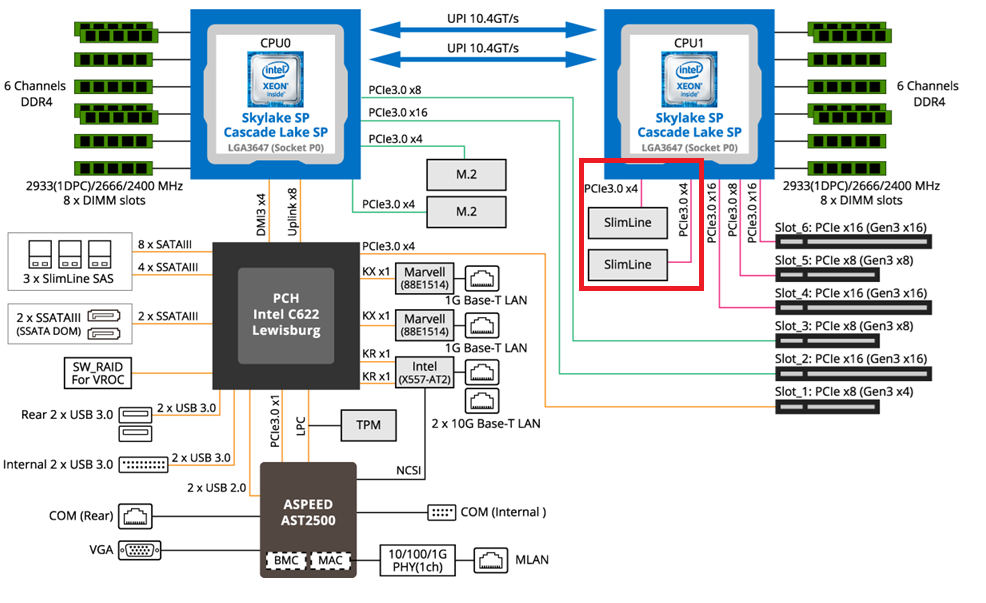
For the best performance, PCIe Slot placement is really important. Things to consider – speed and size of the devices, and how the data will flow. Typically if data has to flow between CPUs or through the C622 chipset then, though minor, some latency is induced. If you have a larger video card, like the Super 1650, it’ll need to be placed in a PCIe slot that supports its length plus doesn’t interfere with onboard connectors or RAM modules.
Using Fig-1 below, here is how I laid out my devices.
- Slot 2 for Video Card. The Video card is 2 slots wide and covers Slot 1 the slowest PCIe slot
- Slot 3 Open
- Slot 4, 5, and 6 are the RIITOP cards with the dual NVMe
- Slimline 1 (Connected to CPU 1) has my 2 SATA drives, typically these ports are for U.2 drives but they also will work on SATA drives.
Why this PCIe layout? By isolating all my primary disks on CPU1 I don’t cross over the CPU nor do I go through the C622 chipset. My 2 NVMe disks will be attached to CPU0. They will be non-impactful to my VCF environment as one is used to boot the system and the other supports unimportant VCF VMs.
Other Thoughts:
- I did look for other mobos, workstations, and servers but most were really expensive. The upgrades I had to choose from were a bit constrained due to the products I had on hand (DDR4 RAM and the Xeon 6252 LGA-3647 CPUs). This narrowed what I could select from.
- Adding the RIITOP cards added quite a bit of expense to this deployment. Look for mobos that support bifurcation and match your needs. However, this combination + the additional parts were more than 50% less when compared to just updating the RAM modules.
- The Gigabyte mobo requires 2 CPUs if you want to use all the PCIe slots.
- Updating the Gigabyte firmware and BMC was a bit wonky. I’ve seen and blogged about these mobo issues before, hopefully their newer products have improved.
- The layout (Fig-1) of the Gigabyte mobo included support for SlimLine U.2 connectors. These will come in handy if I deploy my U.2 Optane Disks.
(Fig-1)
Now starts the fun, in the next posts I’ll reinstall Windows 11, performance tune it, and get my VCF 9 Workstation VMs operational.
- ← Previous
- 1
- 2
- 3
 vmexplorer