vmware
What new in vSphere 6.5
Hey folks — This great video came my way today. Watch Kevin Steil, (Southeast VMware Technical Account Manager (TAM) Team Lead) talk about HOL-1710-SDC-3 – vSphere with Operations Management: Product Deep Dive which introduces the cool, new features coming in vSphere 6.5.
Home Lab Gen IV – Part II: Lab Clean Up and Adding Realtek 8186 NIC Drivers to ESXi 6u2 ISO
To prep my Home Lab for ESXi 6.0U2 with VSAN + IB. I wanted to ensure it was in pristine condition. It had been running ESXi 5.5 + VSAN for many years but it was in need of some updates. I plan to fully wipe my environment (no backups) and reinstall it all. Yes, that’s right I’m going to wipe it all – this means goodbye to those Windows 2008 VM’s I’ve been hanging on to for years now. Tip: If you’d like to understand my different Home lab generations please see my dedicated page around this topic.
In this post, I am going to focus on listing out my current to-do items, then describing how to flattening all SSD/HDD and finally building a custom ESXi 6.0U2 ISO with Realtek 8186 drivers.
Current to Do list –
Completed
- PM the Hosts – While they are off it’s a good time to do some routine PM (Complete)
- BIOS and Firmware – Check all MoBo BIOS, pNIC, and HDD/SDD firmware (Complete)
- Netgear Switch BIOS – It’s doubtful but always worth a check (Complete)
- Flatten all SDD / HDD with Mini-Partition Tool (This Post)
-
Create ISO with ESXi 6.0U2 and Realtek 8168 Drivers (This Post)
- Install Windows 2012 Server VM for DNS and AD Service (Local disk)
- Install vCenter Server Appliance (Local Disk)
- Get Infiniband Functional (Needs work)
- Setup FT and VSAN Networks
- Enable VSAN
- Rebuild VM Environment
Flatten all SDD / HDD with Mini-Partition Tool
Installing VSAN fresh on to an environment requires the SDD / HDD’s to be free of data and partition information. The Mini-Partition tool is a FREE bootable software product allowing you to remove all the partitions on your ESXi Hosts and other PCs. You can download it here >> https://www.partitionwizard.com/partition-wizard-bootable-cd.html
Once I created the BOOT CD and allowed the product to boot. I was quickly able to see all the HDD / SDD’s in my Host.

I simply right clicked on each host and choose ‘Delete All Partitions’
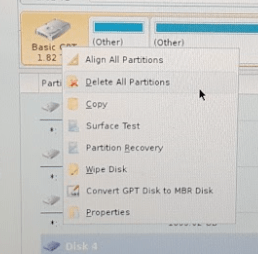
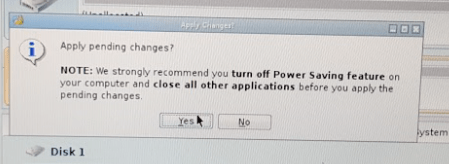
After choosing ‘Delete All Partitions’ for all my disks I clicked on ‘Apply’ in the upper right-hand corner. The following window appeared, I choose ‘Yes’ to Apply pending changes, and it removed all my partitions on all my disks quite quickly.
Create ISO with ESXi 6.0U2 and Realtek 8168 Drivers
ESXi no longer supports RealTek Network drivers, so home lab users who need these drivers will have to create a custom ISO to add these drivers back in. Keep in mind these are unsupported drivers by VMware, so use at your own risk. My trusty ESXi-Customizer GUI program is no more for ESXi 6. It has moved to a CLI based product. However, PowerCLI has all the functionality I need to build my customer ISO. In this section, I’ll be using PowerCLI to create my ISO. Keep in mind these are the steps that worked for me, your environment may vary.
To get started you will need two files and PowerCLI Installed on a Windows PC.
- File 1: VMware Offline ZIP >> www.vmware.com/download

2. RealTek 8186 Offline bundle >> https://vibsdepot.v-front.de/wiki/index.php/Net55-r8168

3. PowerCLI Download and install >> https://communities.vmware.com/community/vmtn/automationtools/powercli
Tip: If you don’t know PowerCLI try starting here
4. Place the files from Step 1 and 2 into c:\tmp folder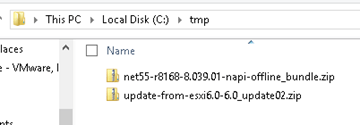
–POWERCLI COMMANDS— For each command, I have included a screenshot and the actual command allowing to copy, paste, and edit into your environment.
- Add ESXi 6.0u2 and RealTek8186 products to the local Software Depot

Add-EsxSoftwareDepot C:\tmp\update-from-esxi6.0-6.0_update02.zip

Add-EsxSoftwareDepot C:\tmp\net55-r8168-8.039.01-napi-offline_bundle.zip
2. Confirm the products are in the depot

Get-EsxSoftwareDepot
3. List out the ESXi Image Profiles

Get-EsxImageProfile4
4. Create a Clone Image to be modified – Ensure you are targeting the “ESXi…..standard” profile from step 3

New-EsxImageProfile -cloneprofile ESXi-6.0.0-20160302001-standard -Name “RealTek8186a”
Forward-Looking Tip: Whatever name you choose it will show up in your boot ISO

5. Set the Acceptance Level to Community Supported – Remember RealTek is unsupported by VMware

Set-EsxImageProfile -Name RealTek8186a -AcceptanceLevel CommunitySupported
For ImageProfile Enter – RealTek8186a
6. Ensure the RealTek net55-r8186 driver is loaded from the local depot (Screenshot shortened)

Get-EsxSoftwarePackage
7. Add the RealTek software package to the profile

Add-EsxSoftwarePackage
ImageProfile: RealTek8186a
SoftwarePackage[0]: net55-r8168 8.039.01-napi
Tip: You MUST enter the full name here if you just use the short name it will not work
8. Validate the RealTek drivers are now part of the RealTek8186a Profile (Screenshot shortened)

(Get-EsxImageProfile “RealTek8186a”).viblist
9. Export the profile to an ISO

Export-EsxImageProfile -ImageProfile “RealTek8186a” -ExportToIso -FilePath c:\tmp\RealTek8186a.iso
And that’s it… now with my clean/updated hosts, flatten HDD/SDD’s, and a newly pressed custom ISO I am ready to install ESXi onto my systems. Next Steps for me will be to install ESXi, AD/DNS VM, and vCenter Server Appliance. However, my next post will be focused on getting InfiniBand running in my environment.
If you like my ‘no-nonsense’ blog articles that get straight to the point… then post a comment or let me know… Else, I’ll start writing boring blog content.
P2V GOLD – Remove all Windows Non-Present devices at once via GUI and CLI!
Issue >> If you’ve done any type of Windows P2V (Physical 2 Virtual) then you’d know all about the value in removing non-present or ghosted devices. Normally non-present devices are harmless but from time to time they can cause you an issue or two. P2V best practice is to remove non-present devices enabling a pristine OS. The issue with removing non-present devices is the time to complete the task. Currently, with the manual way, you’d have to go to command line, enter a few commands, and then manually remove each non-present device from device manager. If you have to remove 200+ non-present devices that could take several hours to complete.
Manual Way:
Go to Start – Run and type CMD and press Enter.
At the CMD Prompt type:
- set devmgr_show_nonpresent_devices=1 (this will enable hidden devices)
- start devmgmt.msc (this will start device manager)
In device manager go to View > Show Hidden Devices
Manually look for and remove each device that is greyed out.
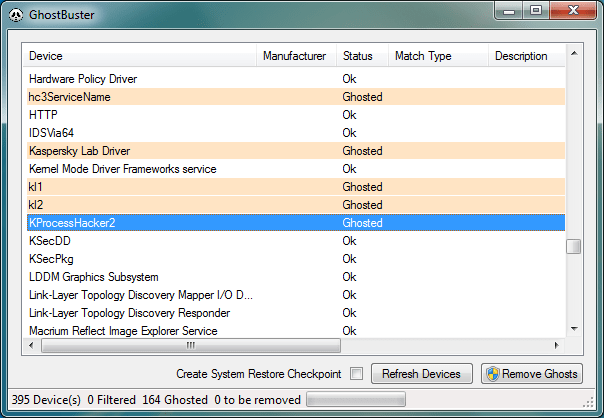
Automated Solution >> I located 3 great tools that remove all the non-present devices at once — Device Clean up Tool GUI based, Device Clean up Tool CLI based, and Ghostbuster GUI based. All the links are below.
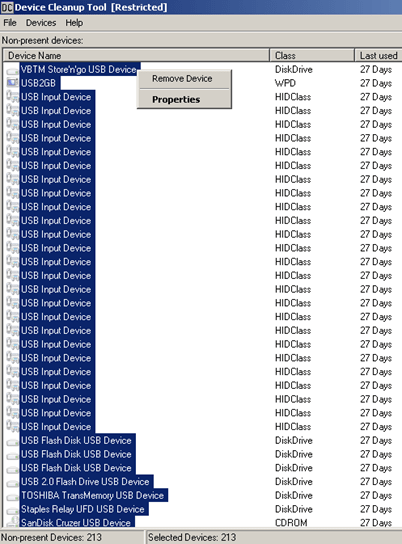
Other Notes >> Personally, I used the Device Cleanup Tool GUI and I was able to remove 213 devices from my recent P2V. Not only did it clean up my OS but it also fixed a pesky USB issue I was having.
Device Cleanup Tool V0.5 – removes non-present devices from the Windows device management

If you like my ‘no-nonsense’ blog articles that get straight to the point… then post a comment or let me know… Else, I’ll start writing boring blog content.
Home Lab Gen IV – Part I: To InfiniBand and beyond!
I’ve been running ESXi 5.5 with VSAN using a Netgear 24 Port Managed Gig switch for some time now, and though it has performed okay I’d like to step up my home lab to be able to support the emerging vSphere features (VSAN 6.x, FT-SMP, and faster vMotion). To support some of these features 10Gb/s is HIGHLY recommend if not fully required. Looking at 10Gbe switches and pNICS the cost is very prohibitive for a home lab. I’ve toyed around with InfiniBand in the past (See my Xsigo Posts here) and since then I’ve always wanted to use this SUPER fast and cost effective technology. Initially, the cost to do HPC (High-performance computing) has always been very expensive. However, in recent years the InfiniBand price per port has become very cost effective for the home lab.
Let’s take a quick peek at the speed InfiniBand brings. When most of us were still playing around with 100Mb/s Ethernet InfiniBand was able to provide 10Gb/s since 2001. When I state 10Gb/s I’m talking about each port being able to produce 10Gb/s and in most cases Infiniband switches have a non-blocking backplane. So a 24 Port InfiniBand Switch, 10Gb/s per port, Full duplex, Non-blocking switch will support 480Gb/s! Over time InfiniBand speed has greatly increased and over time the older switches have dropped in price making InfiniBand a good choice for a growing home lab. For most home labs a 40Gb/s per port QDR switch is financial achievable. Even the 20Gb/s DDR or 10Gb/s SDR switch give ample speed and are VERY cost effective. However, step above QDR and you’ll find the price point is a bit too steep for home lab use.

So let’s take a look at the price / speed comparisons for InfiniBand vs. 10Gb/s Ethernet.
| 10Gb/s | 20Gb/s | 40Gb/s | |
| InfiniBand HCA | 2 Port 10Gb/s ($15-$75) | 2 Port 20Gb/s ($20-$100) | 2 Ports 40GB/s ($30-$150) |
| InfiniBand Switch | 24 Ports SDR (~$30-$70) | 24 Ports DDR (~$70-$120) | 8-36 Ports QDR (~$250-$500) |
| InfiniBand Cable | CX4 (SFF-8470) ($15-$30) | CX4 (SFF-8470) ($15-$30) | QSFP (SFF-8436) ($15-$30) |
| Ethernet Switch | 8 Ports 10Gbe ($700-$900) | ||
| Ethernet pNIC | 2 Port 10Gbe ($300-$450) | ||
| Ethernet Cable | 1M / 3ft. CAT 6a ($5-$10) |
Let’s break this down a bit further. I used the high dollar from each line item above and figured 3 x HCAs or pNICs and 6 cables for my 3 hosts.
Ethernet 10Gb/s – (3 Host Total cost $2310)
- Cost Per Switch – $900 Switch / 8 Ports = $112 per port
- Cost to enable 3 Hosts with 3 pNICs and 2 Cables -(3 Hosts x $450 pNICS) + ((2 Cables x 3 Hosts) x $10 each) = $1410 for three hosts or $470 per Host
- Total Cost to enable 3 hosts and switch cost – $1410 + $900 = $2310
- Fully populated 8 Port switch supporting 4 hosts = $2776
InfiniBand SDR 10Gb/s – (3 Host Total Costs $385)
- Cost Per Switch Port – $70 / 24 Ports = $2.91 per port
- Host Costs – (3 Hosts x $75 HCA) + ((2 Cables x 3 Hosts) x $30 = $315 (Per Host $105)
- Total Cost to enable 3 hosts and switch cost – $315 + $70 = $385
- Fully populated 24 port switch supporting 12 hosts = $1330
InfiniBand DDR 20Gb/s – (3 Host Total Cost $510)
- Cost Per Switch Port – $120 / 24 Ports = $5 per port
- Host Costs – (3 Hosts x $100 HCA) + ((2 Cables x 3 Hosts) x $30 = $390 (Per Host $130)
- Total Cost to enable 3 hosts and switch cost – $390 + $120 = $510
- Fully populated 24 port switch supporting 12 hosts = $1680
InfiniBand QDR 40Gb/s – (3 Host Total Cost $1040)
- Cost Per Switch Port – $500 / 24 Ports = $20.83 per port
- Host Costs – (3 Hosts x $150 HCA) + ((2 Cables x 3 Hosts) x $30 = $540 (Per Host $180)
- Total Cost to enable 3 hosts and switch cost – $540 + $500 = $1040
- Fully populated 24 port switch supporting 12 hosts = $2660
From these costs you can clearly see that InfiniBand is TRULY the best value for speed and port price. Even if you got a great deal, let’s say 50% off on 10Gbe, it still would be slower and it would cost you more. Heck, for the price you could easily buy an extra switch as a backup.
With this in mind my plan it to replace my backend Gbe network with InfiniBand. Using IPoIB (IP over InfiniBand) for VSAN, vMotion, and FT traffic and my 1Gbe network for the VM’s and ESXi management traffic. However, without knowledge wisdom cannot be achieved. So, my next steps are to learn more about InfiniBand and review these great videos by Mellanox. Then come up with a plan to move forward using this technology.
Check out these Videos: InfiniBand Principles Every HPC Expert MUST Know!
Solved: WARNING: Link is up but PHY type 0x3 is not recognized – Can cause ESXi 6 purple screens
The Error >> When running an Intel x710 NIC with the ESXi i40e driver you notice your vmkernel.log completely full of the error “WARNING: Link is up but PHY type 0x3 is not recognized”
The Solution >> Ensure X710 firmware is at 17.5.11 (aka 5.04 in ESXi) and ESXi i40e Driver to 1.4.26 or 1.4.28 and these errors stop
The Follow-up >> Check out your NIC on the VMWare HCL for the Correct driver/firmware guidance. This is the link I used.
Other notes…
Sending Millions of the PHY errors to your event logs could be causing other issues for your ESXi host. Look for local boot disk latency or Networking errors in your ESXi host event logs. Once you apply this solution these issues should stop. If not, then you may have other issues impacting your boot disks.
*Updates*
- After applying this solution we then noticed the vmkernel started to populate with ‘driver issue detected, PF reset issued’ the solution for this is to disable TSO/LRO. VMWare KB 205140.
- 04-10-2017 There is a new VMware driver listed for the X710, will be testing soon and will post up results. Release notes indicate fixes for the following:
– Fix duplicate mulicast packet issue
– Fix PSOD caused by small TSO segmentation
If you like my ‘no-nonsense’ blog articles that get straight to the point… then post a comment or let me know… Else, I’ll start writing boring blog content.
ESXi Host NIC failure and the Web client vSwitch orange line doesn’t move? — The results are Shocking!
Okay, the title was a bit dramatic, but it got your attention. Now keeping with my quest to deliver no-nonsense blog articles here is what the orange line means…
Question 1 – What is the function of the orange line when selecting a vmnic, port group, or vSwitch while viewing them in the Web client network settings?
The orange line is showing you the teaming order for the pNICs or vmnics based on their vSwitch or port group teaming policy. In this screenshot, the policy is Active / Active for both vmnic0 and 1.
The orange line will not move to the other pNIC’s unless they are marked as “active” in the teaming policy. “Active in the teaming policy” vs. “which pNIC is passing traffic” are two different things. The orange line is not a representation of the latter, “pNIC passing traffic”.

Question 2 – How can I tell which pNIC is currently passing traffic?
The Web or Thick client vSwitch display (aka the orange line) doesn’t display the pNIC which is currently passing network traffic. You need to use ESXTOP to determine the active pNIC.
Simply go into ESXTOP, Press N, find your vSwitch and it will lead you to the pNIC currently being used to pass traffic.
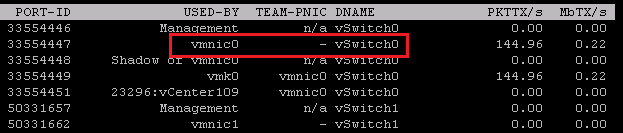
Question 3 – I had a pNIC failure why isn’t the Web client moving the orange line to the standby NIC?
Again… the orange line ONLY points to the Active pNIC in the teaming policy. In this screenshot below, the teaming policy is setup for vmnic3 as Active and vmnic2 as stand by.
Even though vmnic3 is down, traffic should be flowing through vmnic2. Use ESXTOP to determine this (See Question 2)

If you like my ‘no-nonsense’ blog articles that get straight to the point… then post a comment or let me know… Else, I’ll start writing boring blog content.
vCenter Server 6 Host Profiles — ‘Update Profile From Reference Host’ is now ‘Copy Settings from Host’ with the WebClient
Question – For Host Profiles where did the ‘Update Profile From Reference Host’ and ‘Change Reference Host’ move to in the WebClient?
FAQ around this…
Where did it move to with the Webclient? >> ‘Update Profile From Reference Host’ and ‘Change Reference Host’ have been combined under one item ‘Copy Setting from Host’
Where do I start? >> Simply right click on your host profile, choose ‘Copy Settings from host’.
How do I update the current profile? >> When the window appears for ‘Copy Settings from Host’ your current “reference” host should be selected. Simply press ‘OK’ to update the profile or Press Cancel to not update.
How do I change the reference host? >> When the window appears for ‘Copy Settings from Host’ choose your new host for the settings to be extracted from aka your “new reference host” Simply press ‘OK’ to update the profile.
For more information, See the VCenter Server 6 Host Profiles Guide under ‘Copy Settings from Host’
If you like my ‘no-nonsense’ blog articles that get straight to the point… then post a comment or let me know… Else, I’ll start writing boring blog content.
Updating the Dell FX2 Backplane and Non-Backplane firmware based on VMWare KB 2109665
The Fun:
Recently I was working with a Dell FX2 + VSAN environment and came across this VMware KB (2109665) around updating the Backplane and Non-Backplane Expander firmware. I’m not going to get into the details of this KB as others have rehashed it in multiple blogs. Here is a good example: http://anthonyspiteri.net/vsan-dell-perc-important-driver-and-firmware-updates/
However, what I find is the KB, blogs, and Dell just merely tell you to update the firmware but they don’t tell you how or where to. If you have worked with the FX2 you’d know there are the many ways you can update the firmware but finding the right on one, of the 6 different ways, can be a bit frustrating.
A Simple Solution:
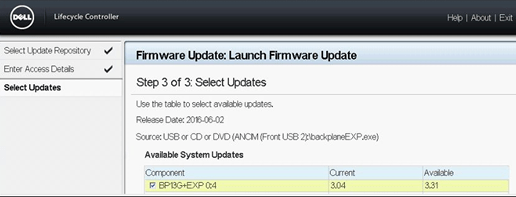
To update the Backplane Expander and Non-Backplane Expander you will need to boot the server into the Lifecycle Controller at boot time. Then I choose to use a USB key to update the firmware.
Glorious Screenshots:
Launch the Lifecycle Controller during boot time then choose Firmware Update >> Launch Firmware Update

I choose to use USB. Tip: Make sure your USB ports are enabled in the BIOS

Choose your file to be updated. Tip: I renamed the firmware file to something easier to type.

Click on next and let it finish the process…
If you like my ‘no-nonsense’ blog articles that get straight to the point… then post a comment or let me know…
Else, I’ll start writing boring rehashed blog content.
Fusion 8 Macintosh Keyboard Commands
I use a MAC Powerbook with VMware fusion on a daily basis. One item that I look for from time to time is how to translate “PC” style keypresses (Print Screen, Function keys, etc) from the MAC keyboard into the Windows OS.
I’ve located these great KB’s around working with the MAC Keyboard and Fusion
Tips on using a Macintosh keyboard (1001675)
Sending print screen commands to virtual machines running in VMware Fusion (1005335)
Fusion 8 — Using Mac Keyboards in a Virtual Machine
If you like my ‘no-nonsense’ blog articles that get straight to the point… then post a comment or let me know…
Else, I’ll start writing boring blog content.
Pathping for windows – think of it as a better way to ping
I was working on a remote server today and I needed better stats around ping and trace route. I could not install additional software and then I came across the windows command ‘pathping’. Its hard to believe this tool has been around since NT4 days and I don’t recall ever hearing about it. Give it a go when you get a chance and I’m adding it to my “virtual” tool belt.

More information here… https://en.wikipedia.org/wiki/PathPing
If you like my ‘no-nonsense’ blog articles that get straight to the point… then post a comment or let me know…
Else, I’ll start writing boring blog content.
 vmexplorer