vmware
VMware Workstation Gen 9: BOM2 P4 Workstation/Win11 Performance enhancements
There can be a multitude of factors that could impact performance of your Workstation VMs. Running a VCF 9 stack on VMware Workstation demands every ounce of performance your Windows 11 host can provide. To ensure a smooth lab experience, certain optimizations are essential. In this post, I’ll walk through the key adjustments to maximize efficiency and responsiveness.
Note: There are a LOT of settings I did to improve performance. I take a structured approach by trying things slowly vs. applying all. The items listed below are what worked for my system and it’s recommend for that use case only. Unless otherwise stated, the VM’s and Workstation were powered down during these adjustments.
Host BIOS/UFEI Settings
- There are several settings to ensure stable performance with a Supermicro X11DPH-T.
- Here is what I modified on my system.
- Enter Setup, confirm/adjust the following, and save then changes:
- Advanced > CPU Configuration
- Hyper-Threading > Enabled
- Cores Enabled > 0
- Hardware Prefetcher > Enabled
- Advanced Power Management Configuration
- Power Technology > Custom
- Power Performance Tuning > BIOS Controls EPB
- Energy Performance BIAS Setting > Maximum Performance
- CPU C State Control, All Disabled
- Advanced > Chipset Configuration > North Bridge > Memory Configuration
- Memory Frequency > 2933
- Advanced > CPU Configuration
Hardware Design
- In VMware Workstation Gen 9: BOM1 and BOM2 blogs we covered hardware design as it related to the indented load or nested VMs.
- Topics we covered were:
- Fast Storage: NVMe, SSD, and U.2 all contribute to VM performance
- Placement of VM files: We placed and isolated our ESX VMs on specific disks which helps to ensure better performance
- PCIe Placement: Using the System Block diagram I placed the devices in their optimal locations
- Ample RAM: Include more than enough RAM to support the VCF 9 VMs
- CPU cores: Design enough CPU cores to support the VCF 9 VMs
- Video Card: Using a power efficient GPU and help boost VM performance
VM Design
- Disk Choices: Matched the VM disk type to the physical drive type they are running on. Example – NVMe physical to a VMs NVMe disk
- CPU Settings: Match physical CPU Socket(s) to VM CPU settings. Example – VM needs 8 Cores and a Physical host with 2 CPU Sockets and 24 cores per Socket. Setup VM for 2 CPU and 4 Cores
- vHardware Choices: When creating a VM, Workstation should auto-populate hardware settings. Best vNIC to use is the vmxnet3. You can use the Guest OS Guide to validate which virtual hardware devices are compatible.
Fresh Installs
- There’s nothing like a fresh install of the base OS to be a reliable foundation for performance improvments.
- When Workstation is installed it adapts to the base OS. There can be performance gains due to this adaption.
- However, if you upgrade the OS (Win10 to Win11) with Workstation already installed, you should always fully uninstall Workstation post upgrade and reinstall Workstation post upgrade for optimal performance.
- Additionally, when installing Workstation I ensure that Hyper-V is disabled as it can impact Workstation performance.
Exclude Virtual Machine Directories From Antivirus Tools
NOTE — AV exceptions exclude certain files, folders, and processes from being scanned. By adding these you can improve Workstation performance but there are security risks in enabling AV Exceptions. Users should do what’s best for their environment. Below is how I set up my environment.
- Script: Use a script to create AV Exceptions. For an example check out my blog – Using PowerShell to setup AV exceptions for Workstation 25H2u1 and Windows 11.
- Manual Steps: Manually setup the following exceptions for Windows 11.
- Open Virus and Threat Protection
- Virus & threat protection settings > Manage Settings
- Under ‘Exclusion’ choose ‘Add or remove exclusions’
- Click on ‘+ Add an exclusion’
- Choose your type (File, Folder, File Type, Process)
- File Type: Exclude these specific VMware file types from being scanned:
- .vmdk: Virtual machine disk files (the largest and most I/O intensive).
- .vmem: Virtual machine paging/memory files.
- .vmsn: Virtual machine snapshot files.
- .vmsd: Metadata for snapshots.
- .vmss: Suspended state files.
- .lck: Disk consistency lock files.
- .nvram: Virtual BIOS/firmware settings.
- Folder: Exclude the following directories to prevent your antivirus from interfering with VM operations
- VMware Installation folder
- VM Storage Folders: Exclude the main directory where you store your virtual machines
- Installation Folder: Exclude the VMware Workstation installation path (default:
C:\Program Files (x86)\VMware\VMware Workstation\). - VMware Tools: If you have the VMware Tools installation files extracted locally, exclude that folder as well.
- Process: Adding these executable processes to your antivirus exclusion list can prevent lag caused by the AV monitoring VMware’s internal actions:
- vmware.exe: The main Workstation interface.
- vmware-vmx.exe: The core process that actually runs each virtual machine.
- vmnat.exe: Handles virtual networking (NAT).
- vmnetdhcp.exe: Handles DHCP for virtual networks.
Power Plan
Typically by default Windows 11 has the “Balanced” Power plan enabled. Though these settings are good for normal use cases, using your system as a dedicated VMware Workstation requires a better plan.
Below I show 2 ways to adjust a power plan. 1) Using a script to create a custom plan or 2) manually make similar adjustments.
- 1) Script: I created a script that creates a custom power plan named “VMware Workstation Performance Plan” and makes all the needed changes for my system. You can find my blog here.
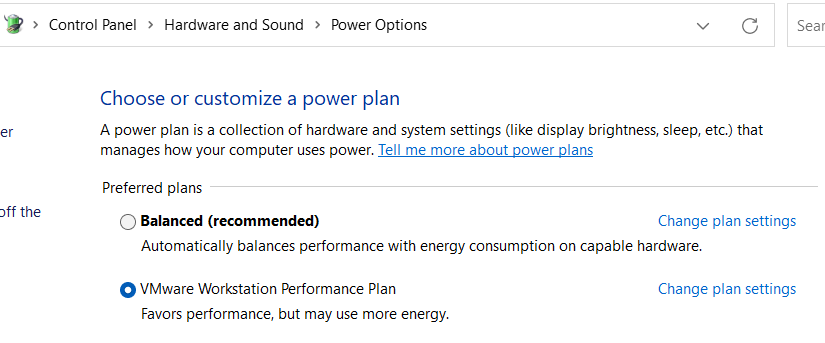
- 2) Manual Adjustments:
- Open the power plan. Control Panel > Hardware and Sound > Power Options > Change settings that are currently unavailable
- You might see on every page “Change settings that are currently unavailable”, just click on it before making changes.
- Set Power Plan:
- Click on ‘Hide Additional Plans’.
- Choose either “Ultimate Performance” or “High Performance” plan and then click on “Change plan settings”
- Hard Disk > 0 Minutes
- Wireless Adapter Settings > Max Performance
- USB > Hub Selective Suspend Time out > 0
- PCI Express > Link State Power Management > off
- Processor power management > Both to 100%
- Display > Turn off Display > Never
Power Throttling
Power throttling in Windows 11 is an intelligent, user-aware feature that automatically limits CPU resources for background tasks to conserve energy and extend battery life. By identifying non-essential, background-running applications, it reduces power consumption without slowing down active, foreground apps.
To determine if it is active go in to System > Power and look for Power Mode
If you are using a high performance power plan usually this feature is disabled.
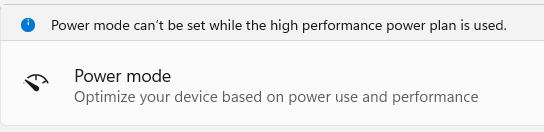
If you are running a power plan where this is enabled, and you don’t want to disable it, then you can maximize your performance by disabling power throttling for the Workstation executable.
powercfg /powerthrottling disable /path “C:\Program Files (x86)\VMware\VMware Workstation\x64\vmware-vmx.exe”
Sleep States
Depending on your hardware you may or may not have different Sleep states enabled. Ultimately, for my deployment I don’t want any enabled.
To check if any are from a command prompt type in ‘powercfg /a’ and adjust as needed.
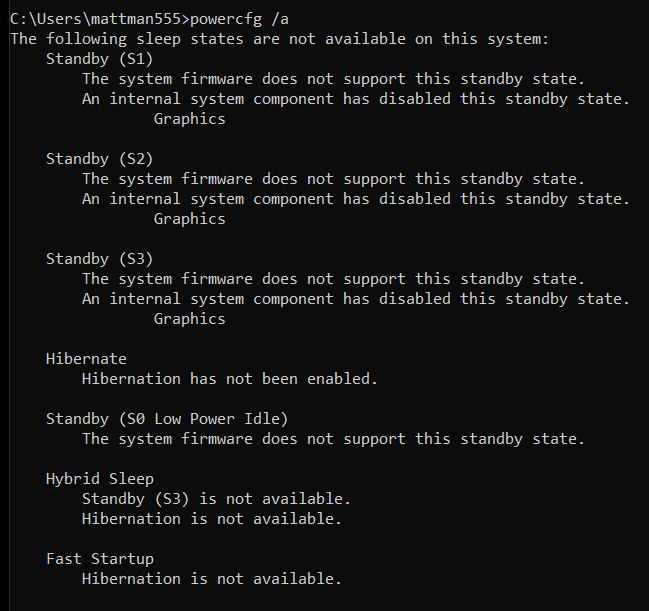
Memory Page files
In my design I don’t plan to overcommit physical RAM (640GB ram) for my nested VM’s. To maximize the performance and ensure VMware Workstation uses the physical memory exclusively, I follow these steps: Configure global memory preferences, Disable Memory Trimming for each VM, Force RAM-Only Operation, and adjust the Windows Page Files.
- 1) Configure Global Memory Preferences: This setting tells VMware how to prioritize physical RAM for all virtual machines running on the host.
- Open Workstation > Edit > Preferences > Memory
- In the Additional memory section, select the radio button for “Fit all virtual machine memory into reserved host RAM”.
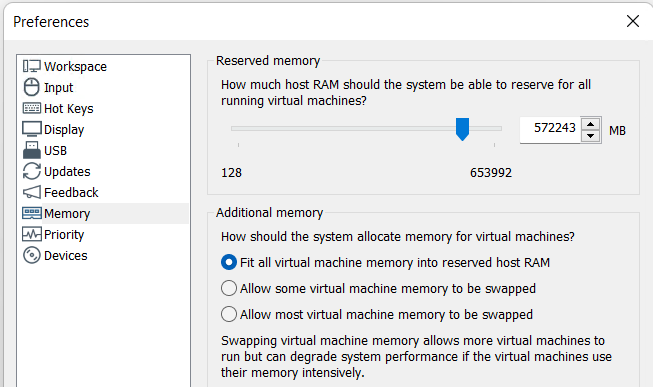
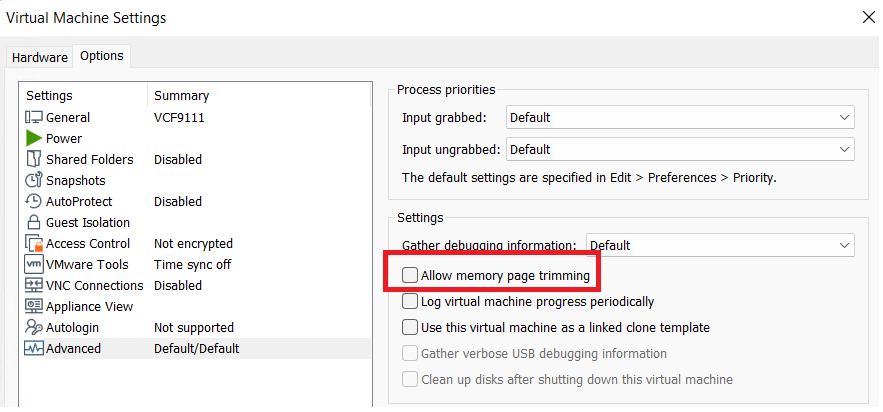
- 2) Disable Memory Trimming for each VM: Windows and VMware use “trimming” to reclaim unused VM memory for the host. Since RAM will not be overallocated, I disable this to prevent VMs from ever swapping to disk.
- Right-click your VM and select Settings
- Go to the Options tab and select the Advanced category.
- Check the box for “Disable memory page trimming”.
- Click OK and restart the VM
- 3) Force RAM-Only Operation (config.ini): This is an advanced step that prevents VMware from creating
.vmemswap files, forcing it to use physical RAM or the Windows Page File instead.- Close VMware Workstation completely.
- Navigate to C:\ProgramData\VMware\VMware Workstation\ in File Explorer (Note: ProgramData is a hidden folder).
- Open the file named config.ini with Notepad (you may need to run Notepad as Administrator).
- Add the following lines to the end of the file:
- mainMem.useNamedFile = “FALSE”
- prefvmx.minVmMemPct = “100”
- Save the file and restart your computer
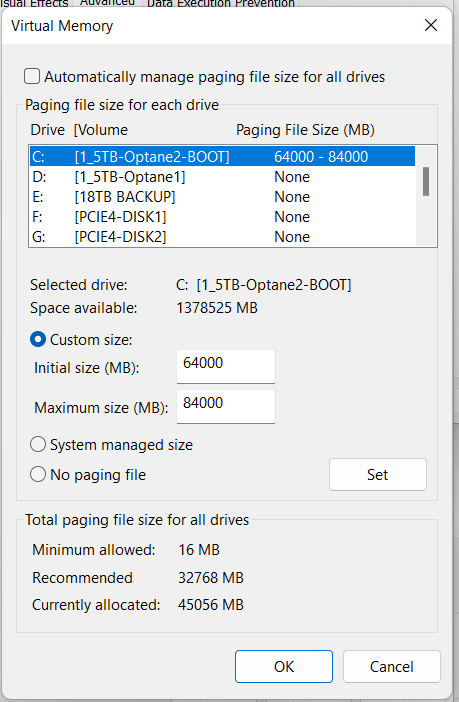
- 4) Windows Page Files: With 640GB of RAM Windows 11 makes a huge memory page file. Though I don’t need one this large I still need one for crash dumps, core functionality, and memory management. According to Microsoft, for a high-memory workstation or server, a fixed page file of 16GB to 32GB is the “sweet spot.” I’m going a bit larger.
- Go to System > About > Advanced system Settings
- System Properties window appears, under Performance choose ‘Settings’
- Performance Options appears > Advanced > under Virtual memory choose ‘change’
- Uncheck ‘Automatically manage paging…’
- Choose Custom size, MIN 64000 and MAX 84000
- Click ‘Set’ > OK
- Restart the computer
Windows Visual Effects Performance
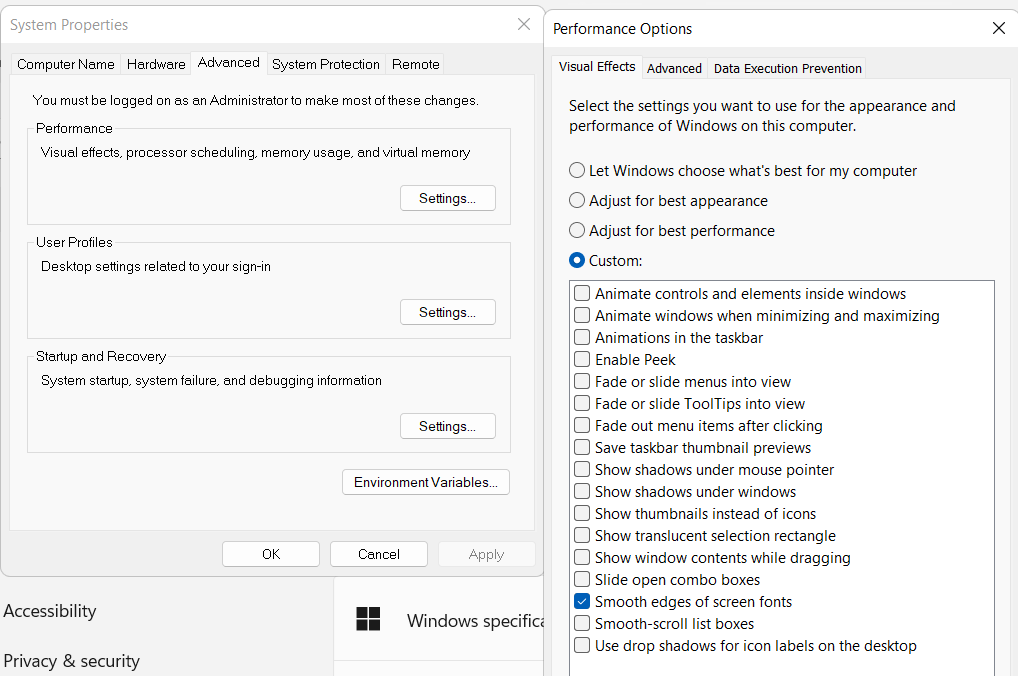
The visual effects in Windows 11 can be very helpful but they can also minimally slow down your performance. I prefer to create a custom profile and only enable ‘Smooth edges of screen fonts’
- Go to System > About > Advanced system Settings
- System Properties window appears,
- On the Advanced Tab, under Performance choose ‘Settings’
- On the Visual Effect tab choose ‘Custom’ and I chose ‘Smooth edges of screen fonts’
Disable BitLocker
Windows 11 (especially version 24H2 and later) may automatically re-enable encryption during a fresh install or major update. By default to install Windows 11 it requires TPM 1.2 or higher chip (TPM 2.0 recommended/standard for Win11), and UEFI firmware with Secure Boot enabled. BitLocker uses these features to “do its work”.
But, there are a couple of ways to disable BitLocker.
- Create a Custom ISO
- My deployment doesn’t have a TPM modules nor is Secure Boot enabled. To overcome these requirements I used Rufus to make the Windows 11 USB install disk. This means BitLocker can not be enabled.
- Registry Edit (Post-Installation – may already be set):
- Press Win + R, type regedit, and press Enter
- Navigate to: HKEY_LOCAL_MACHINE\SYSTEM\CurrentControlSet\Control\BitLocker
- Right-click in the right pane, select New > DWORD (32-bit) Value
- Name it PreventDeviceEncryption and set its value to 1
- Disable the Service:
- Press Win + R, type services.msc, and press Enter.
- Find BitLocker Drive Encryption Service.
- Right-click it, select Properties, set the “Startup type” to Disabled, and click Apply.
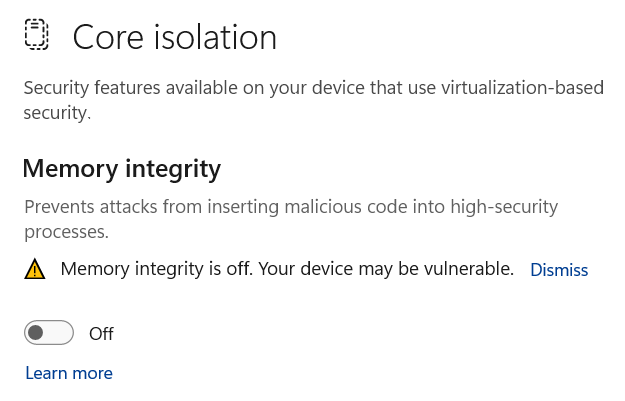
Disable Side-Channel Mitigations: Disabling these can boost performance, especially on older processors, but may reduce security.
- Open the Windows Security app by searching for it in the Start menu.
- Select Device security from the left panel.
- Click on the Core isolation details link.
- Toggle the switch for Memory integrity to Off.
- Select Yes when the User Account Control (UAC) prompt appears.
- Restart your computer for the changes to take effect
Note: if you host is running Hyper-V virtualization, for your Workstation VM’s you may need to check the “disable side channel mitigations for Hyper-V enabled hosts” options in the advanced options for each VM.
Clean out unused Devices:
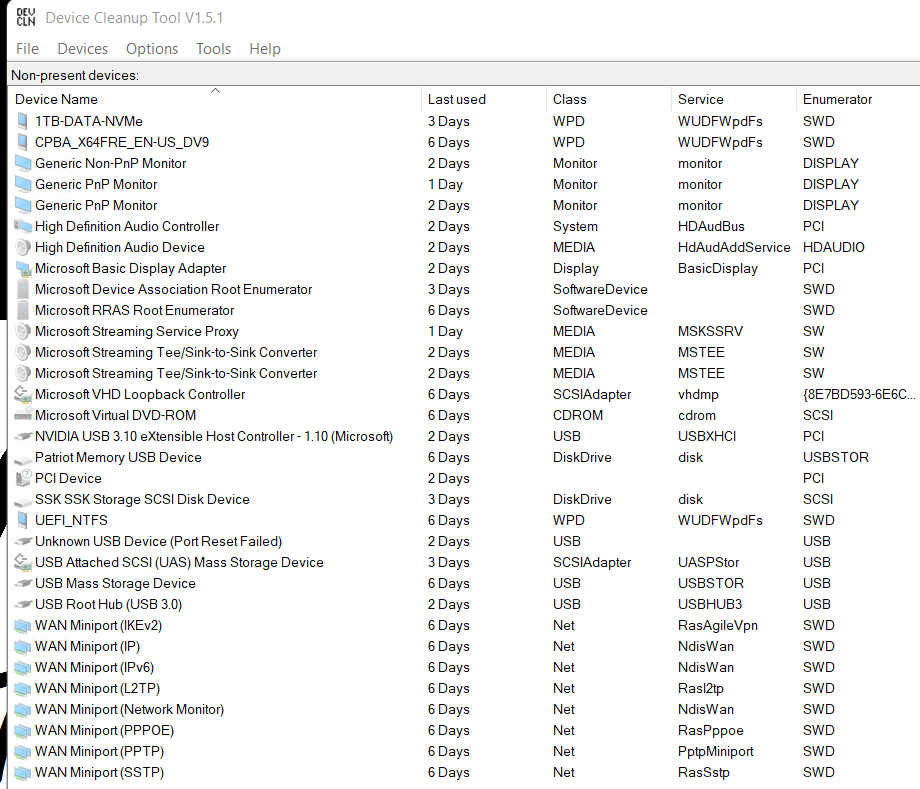
Windows leaves behind all types of unused devices that are hidden from your view in device manager. Though these are usually pretty harmless its a best practice to clean them up from time to time.
The quickest way to do this is using a tool called Device Cleanup Tool. Check out my video for more how to with this tool.
Here is Device Cleanup Tool running on my newly (<2 months) installed system. As you can see unused devices can build up even after a short time frame.
Debloat, Clean up, and so much more
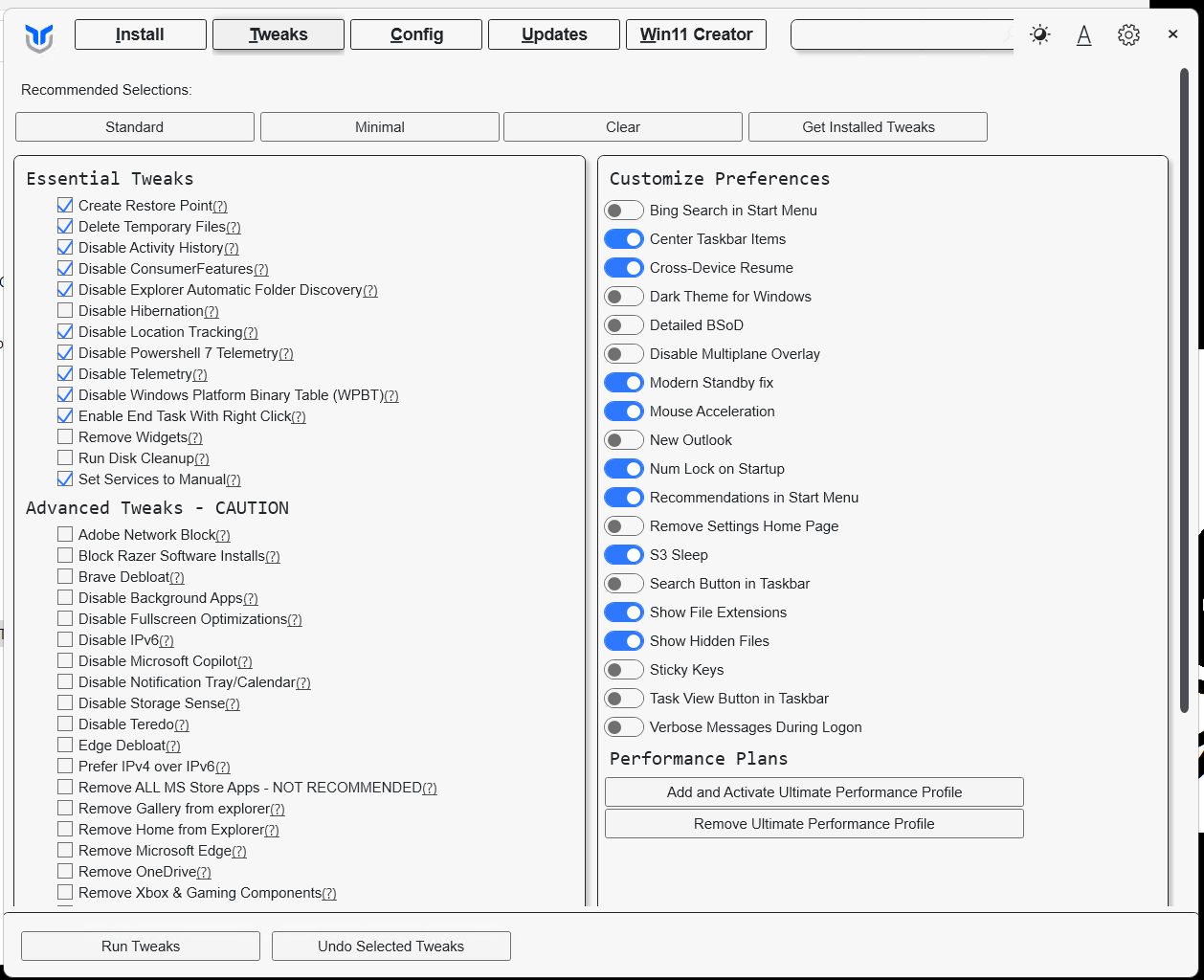
There are several standard Windows based features, software, and cleanup tools that can impact the performance of my deployment. I prefer to run tools that help optimize Windows due to their ability to complete tasks quickly. The tool I use to debloat and clean up my system is Winutil. It’s been a proven util for not only optimizing systems, installing software, updates, but helping to maintain them too. For more information about Winutil check out their most recent update.
For ‘Tweaking’ new installs I do the following:
- Launch the WinUtil program
- Click on Tweaks
- Choose Standard
- Unselect ‘Run Disk Cleanup’
- Click on Run Teaks
Additionally, you may have noticed Winutil can create an Ultimate Preforamnce power plan. That may come in handy.
Remove Windows Programs:
Here is a list of all the Windows Programs I remove, they are simply not needed for a Workstation Deployment. Some of these can be removed using the WinUtil.
- Cortana
- Co-polit
- Camera
- Game Bar
- Teams
- News
- Mail and Calendar
- Maps
- Microsoft OneDrive
- Microsoft to do
- Movies and TV
- People
- Phone Link
- Solitare
- Sticky NOtes
- Tips
- Weather
- Xbox / xbox live
References and Other Performance Articles:
Updating VMware Workstation 17 to 25H2
** Update – Workstation 25H2u1 has been released 02/2026. Upgrade from 25H2 to 25H2u1 blog here **
Last October 2025 VMware changed the naming convention of their Workstation product. They moved from traditional version numbers (e.g., Workstation 17.6.x) and are adopting a new naming format that reflects the year (2025) and the half of the year (H2). This provides a more consistent naming across releases and helps to ensures version clarity. With the name change of VMware Workstation from 17 to 25H2 so has the update process. In this blog I cover some of those changes and the steps I took to update my system.
Why can’t I download updates via Workstation 17 Updater?
The product update feature is no longer available in VMware Workstation 17, Player, Fusion. See Article ID: 395172 Moving forward, updates will need to be manually downloaded from the Broadcom Support Portal. Once the appropriate product update is downloaded, it can be manually installed.
Where can I download the Update?
Follow the step-by-step instructions provided in the following articles for the respective products: Download Desktop Hypervisor (Workstation and Fusion) Products
What are the requirements to install Workstation 25H2?
See Host System Requirements for Workstation Pro
What are the steps to upgrade to Workstation 25H2?
Once you have downloaded the product, open it, and then click next on this screen.

Accept the EULA.

Click next on the ‘Compatible Setup’
NOTE: If you have having issues with Hyper-V there is a good chance your Windows OS is not setup properly. See my guide that can help resolve this.

Select the Install directory
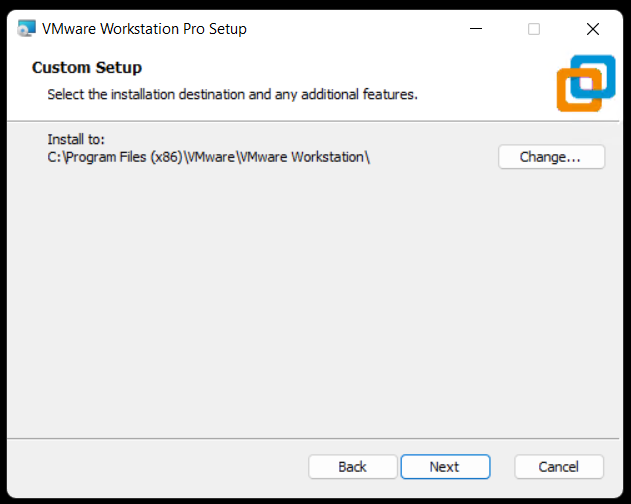
Check or Un-Check Product updates and Join CEIP.

Choose where you want your shortcuts.
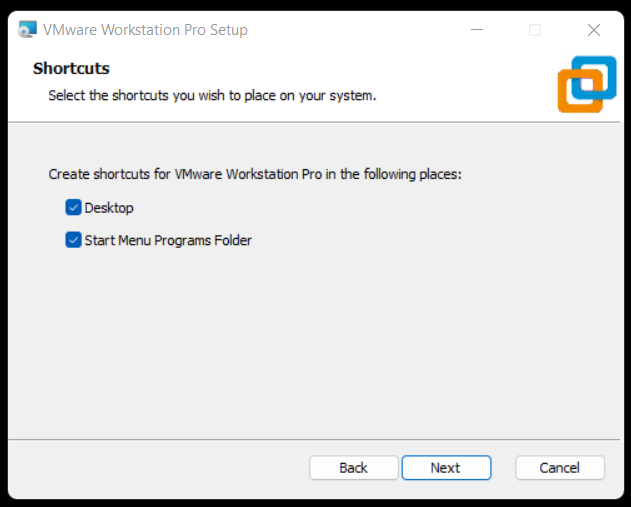
Choose upgrade to begin the installation.
Note: This step will vary if you are doing a fresh install of Workstation.

Allow it to complete its install.

Click Finish.

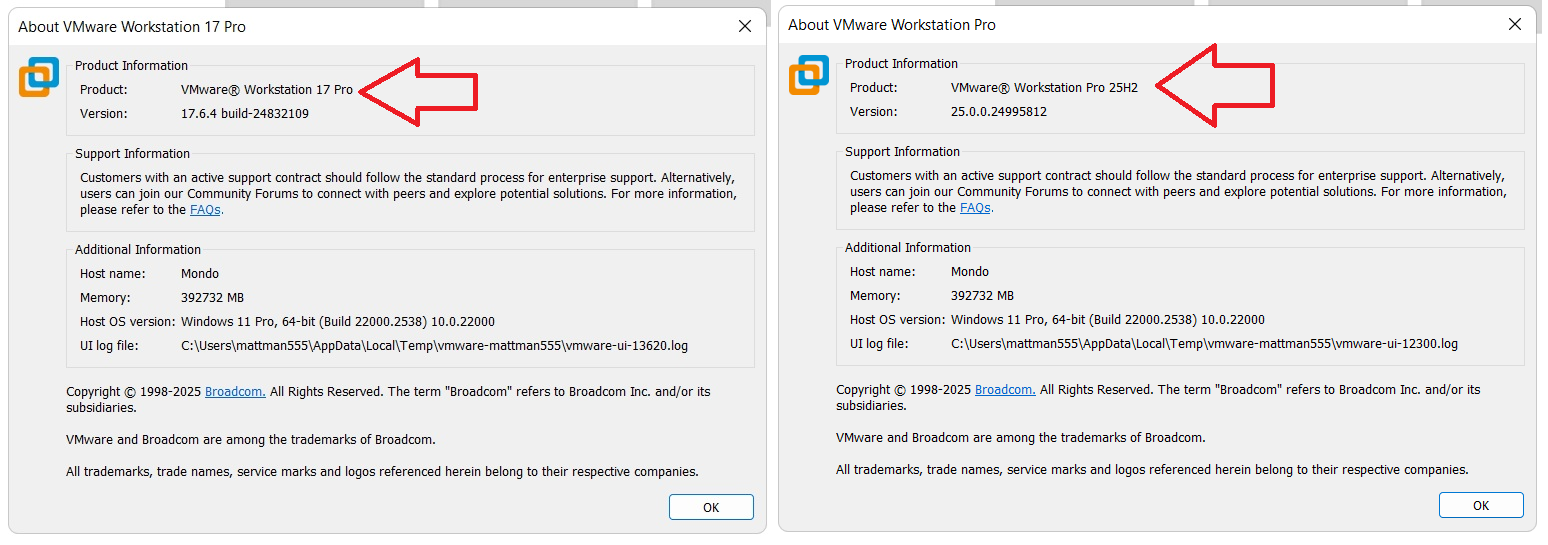
After opening Workstation 25H2 here is the new ‘About’ screen. The about screen is found under Help > About VMware Workstation

VMware Workstation & Fusion 25H2 Released

A VMware Workstation and Fusion update was released Mid-Oct-2025 and it comes with a new name. In this blog I outline some of the changes to Workstation and supply several helpful links.
Why 25H2?
VMware has decided to move away from their past version numbers (e.g., Workstation 17.6.x, Fusion 13.6.x) and is adopting a new naming format — 25H2. This change reflects the year (2025) and the half of the year (H2) and provides consistency across releases plus helps to ensure better clarity for customers. This simple change should make it easier to understand when a release was published and plan upgrades accordingly.
What are some of the important changes with Workstation 25H2?
- VMware Workstation Pro 25H2 provides the following new capabilities.
- Introducing dictTool: A command-line tool to examine and modify VMware configuration files, such as a vmx file or user preferences file. For more information, see Using dictTool to Modify Configuration Files.
- Added support for USB 3.2
- Added support for virtual hardware version 22
- Added support for Hyper-V/WHP detection
- Added support for new guest operating systems
- Red Hat Enterprise Linux 10
- Fedora Linux 42
- openSUSE Leap 16.0 (RC)
- SUSE Linux 16 (Beta)
- Debian 13
- Oracle Linux 10
- VMware ESX 9.0
- Added support for new host operating systems
- Red Hat Enterprise Linux 10
- Fedora Linux 42
- openSUSE Leap 16.0 (RC)
- SUSE Linux 16 (Beta)
- Debian 13
What do the new ‘About’ screens look like?
Helpful Links:
VMware Workstation & Fusion 25H2: Embracing Calendar Versioning and New Features
VMware Workstation 17 Nested Home Lab Part 2
In Part 2, I go into a physical hardware overview, show how to enable VT-X and VT-D, installation of Windows 11 (which includes a trick to disable the TPM requirement), install of Workstation 17, and review common issues when Hyper V is enabled. At the end of this video #windows11 and #workstation 17 are installed and operational. Coming up in Part 3 we’ll build out or Workstations Networks, start building the Windows 2022 server with AD, DNS, RAS, DHCP, and other services.

#Optane #IntelXeon #Xeon #vExpert #VMware #Cloud #datacenter
VMware Workstation 17 Nested vSAN ESA Overview
In this high level video I give an overview of my #VMware #workstation running 3 x nested ESXi 8 Hosts, vSAN ESA, VCSA, and a Windows 2022 AD. Additionally, I show some early performance results using HCI Bench.
I got some great feedback from my subscribers after posting this video. They were asking for a more detailed series around this build. You can find this 8 Part Series under Best of VMX > ‘VMware Workstation Generation 8 : Complete Software Build Series’.
For more information around my VMware Workstation Generation 8 Build check out my latest BOM here

How to upgrade a Dell T7820 to a U.2 Backplane
In this video I show how I upgraded my Dell T7820 SATA backplane to a U.2 backplane. I’m doing this upgrade to enable support for 2 x #intel #Optane drives. I’ll be using these #Dell #T7820 Workstations for my Next Generation #homelab where I’ll need 4 x Intel Optane drives to support #VMware #vsan ESA.
Part Installed in this Video: (XN8TT) Dell Precision T7820 T5820 U.2 NVME Solid State Drive Backplane Kit found used on Ebay.
For more information around My Next Generation 8 Home Lab based on the Dell T7820 check out my blog series at https://vmexplorer.com/blog-series/
First Look GEN8 ESXi/vSAN ESA 8 Home Lab (Part 1)
I’m kicking off my next generation home lab with this first look in to my choice for an ESXi/vSAN 8 host. There will be more videos to come as this series evolves!

Will ESXi 8 install on to the ASRockRack EPC621D8A motherboard?
In this video I show how I installed ESXi 8 on to the ASRockRack EPC621D8A motherboard and discuss some of the caveats of doing so.
Links in the video:
ASRockRack EPC621D8A motherboard: https://www.asrockrack.com/general/productdetail.asp?Model=EPC621D8A#specifications
VMware Comptibility Guide: https://www.vmware.com/resources/compatibility/detail.php?deviceCategory=server&productid=47030&deviceCategory=server&details=1&partner=600&page=1&display_interval=10&sortColumn=Partner&sortOrder=Asc
H3C NIC-GE-4P-360T-L3 NIC: https://www.vmware.com/resources/compatibility/detail.php?deviceCategory=io&productid=50861&deviceCategory=io&details=1&VID=8086&DID=37d1&SVID=8086&page=1&display_interval=10&sortColumn=Partner&sortOrder=Asc

3 Interesting DIY PC / Server Case Options for Home Labs
I’ve been building White box PCs since the early 90’s and if you seen my home lab blogs and videos its a passion that has continued on for so many years. When I look for a case, I’m usually looking for practicality and usability as it relates to the indented design. As a DIY home lab builder, using commodity cases is normal but unique cases for home labs are not always easy to find. When I do look for unique Home Lab case ideas, I usually run into lists of the gamer builds that are not so much meant for Home Labs. In this blog I wanted to compile a list of cases that are a bit more unique but someone might want to use for a home lab. For each case, I listed out some of my thoughts around home lab use cases. Of course, deeper research will be needed to determine if they fit your indented use.
#1 – Cryorig TAKU, The PC Monitor Stand Mini ITX PC Case

USE CASE: Could be used for a stackable home lab or workstations
PROS:
- ~1U Formfactor | ++ Coolness factor
- Portability | Light Weight | Low Noise
- The slide out system tray makes for easy access to internal components, especially when stacked
CONS:
- Tight form factor limiting options
- Sometimes limited SFX Power Supplies Options
- ITX Standard might be hard for Home Lab deployments
- Limited to 3 Drives
- When opening cables may have to slide with it or be disconnected
- Company just starting out, hard to find replacement parts
Other Links:
- Cost ~$200
- Video Review
- Amazon
#2 – Fractal Design Define 7

USE CASE: Sure this may look like a standard PC Case, but what’s unique about this case is the MANY ways it can be configured and re-configured. Because of this unique flexibility it would work well as a Workstation or ESXi Host.
PROS:
- MANY case configurations options
- Want even more space? Look at the Define 7 XL
- Supports ATX and some E-ATX configurations
- Clean case design with 3 Color Options
- Horizontal and vertical PCI Slots
- Wire management
- Air Filters
- 9 Fan Connections
- Lots of Disk space
CONS:
- No 5.25″ disk bays
- No front facing USB or external ports (all on top)
- It’s big and the XL even bigger
- Some options sold separately
Other Links:
- Standard ~$140 | XL Version $220
- Amazon
- Video Review
- Manufacture Site
#3 – JONSBO N1 Mini-ITX NAS Chassis

USE CASE: With so many disk options could see this case being used for FreeNAS or even a vSAN cluster
PROS:
- LOTS of disk space 5 x 3.5 and 1 2.5
- MINI-ITX / Small form factor
- PCI Low Profile slot
- Upright or Lie-down configurations
- Check out the manufacture site for more and similar case designs
CONS:
- Does require SFX power supply
- Power/Cables may be hard to work with in the upright position
- The size may limit flexibility
- Only one PCI slot
- No 5.25″ disk bays
Other Links:
Quick NAS Topics: Serial USB Server with the LOCKERSTOR 10
In this Quick NAS Topic video I go over how to install VirutalHere USB Server on the LOCKERSTOR 10 and its client on my Windows 10 PC. This enables the client to establish a link to the a USB NULL Model Cable which is connected directly into the NAS. Once established I’m able to use putty to create a serial SSH connection.
** Products in this Video **
- LOCKERSTOR 10 https://www.asustor.com/en/product?p_id=64
- Mikrotik CRS309-1G-8S+IN https://mikrotik.com/product/crs309_1g_8s_in
- VirtualHere https://www.virtualhere.com/home
- StarTech.com USB to Serial RS232 Adapter https://www.amazon.com/USB-Serial-Adapter-Modem-9-pin/dp/B008634VJY?th=1

 vmexplorer