Author: Matt Mancini
PowerCLI to change VM from e1000 to VMXNET3
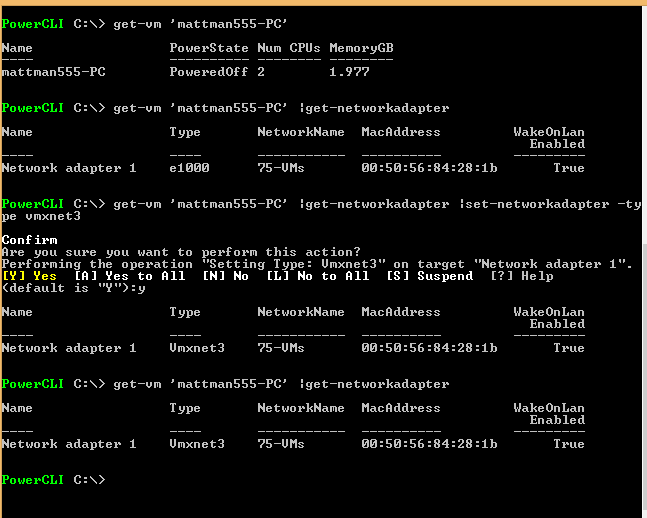
In this blog, I wanted to document some simple PowerCLI commands I did to change a VMs network adapter from e1000 to VMXNET3.
- Took a snapshot of the VM prior (Recommend)
- Updated VM Tools and Virtual Hardware (Recommended)
- Downloaded and installed PowerCLI / VRC on my local desktop
- Launched the PowerCLI ICON on my desktop
- Set the execution policy >> Set-ExecutionPolicy Unrestricted
- Executed the following commands.
A Memorable Visit to Chicago Firehouse #13
During a recent trip to Chicago for a VMware Technical Summit, I stepped out of my hotel to pick up a few essentials. As I made my way to the store, I passed by Chicago Firehouse #13 and noticed a memorial displayed prominently out front. On my return, curiosity led me to stop and learn more about it.
The firefighters at the station welcomed me warmly and graciously offered a tour of the firehouse. Inside, I found a tribute to a fallen hero, Walter Watroba, commemorated on a plaque mounted on the back wall. Alongside it were newspaper clippings and articles honoring both Watroba and other firefighters who had lost their lives in the line of duty. The memorial serves as a poignant reminder of the sacrifices made by these brave individuals—particularly the significance of November 22, 1976, for Firehouse #13. (You can find more information about the memorial at the link provided at the end of this post.)
During my visit, I had the opportunity to speak at length with a firefighter affectionately known as “The Saint.” He generously shared the story of Walter Watroba, as well as several personal anecdotes from his own career. One particularly moving story involved a retired firefighter who passed down a piece of his equipment to “The Saint”—a rare and powerful gesture of respect in the firefighting community. As he recounted the experience, it was clear how much it meant to him—it even gave him goosebumps.
I truly appreciated the time I spent at Firehouse #13. It was a meaningful and unexpected highlight of my trip. If you find yourself in the area, I highly recommend stopping by. The stories, the history, and the sense of camaraderie within those walls are well worth experiencing.
More on Walters story here >> https://www.fsi.illinois.edu/content/library/IFLODD/search/Image.cfm?ID=364&ff_id=128

10-30-2015 Phoenix VMUG this event is going to be EPIC!
Back in the day when I lead the Phoenix VMUG the other leaders and I put our attention on the quality of the event vs. trying to drive attendance. We knew producing quality events would lead to more users wanting to attend. Man were we right. Our first VMUG in 2008 drew a crowd of 65, not too bad for our first showing. However we worked hard, listened to our attendees, and in just 2 years time we built an event framework to support 300-500 users and 20+ sponsors ever quarter! The framework we created was so successful it was key in creating the framework for the VMUG UserCon.
Flash forward to October-30-2015 and one of the most EPIC VMUG events ever is about to take place in Phoenix! I never use the word epic unless there is something absolutely stunning. Example – Me doing a selfie drinking a soda is not epic. However – when VMware COO Carl Eschenbach, Principal Architect Rawlinson Rivera, Senior Technical Marketing Architect Doug Baer, Chris Wahl, Josh Atwell, Instructor lead labs, 30+ Partners/Sponsors, multiple breakout sessions, and cocktails at the end of the day come to your VMUG, then this is EPIC!
I know that was quite a bit to take in but like it said EPIC, for now I’d recommend registering for the event and downloading the VMUG UserCon App.
Registration – To register for this event go here >> https://www.vmug.com/p/cm/ld/fid=10175
Download the App – To help you manage your day at this event. Install the VMUG UserCon App >> https://www.vmug.com/p/cm/ld/fid=9653
The overall agenda should be posted soon, and when it does I’ll post up my recommendations around this event!

Supported features for VMware virtual machine compatibility
Here is one of my most favorite VMware KB articles.
Supported features for virtual machine compatibility
|
Hardware |
ESXi 6.0 and later |
ESXi 5.5 and later |
ESXi 5.1 and later |
ESXi 5.0 and later |
ESX/ESXi 4.x and later |
|
Hardware version |
11 |
10 |
9 |
8 |
7 |
|
Maximum memory (GB) |
4080 |
1011 |
1011 |
1011 |
255 |
|
Maximum number of logical |
128 |
64 |
64 |
32 |
8 |
|
Maximum number of cores (virtual CPUs) per socket |
128 |
64 |
64 |
32 |
8 |
|
Maximum SCSI adapters |
4 |
4 |
4 |
4 |
4 |
|
Bus Logic adapters |
Yes |
Yes |
Yes |
Yes |
Yes |
|
LSI Logic adapters |
Yes |
Yes |
Yes |
Yes |
Yes |
|
LSI-Logic SAS adapters |
Yes |
Yes |
Yes |
Yes |
Yes |
|
SATA adapters |
Yes* |
Yes* |
No |
No |
No |
|
VMware Paravirtual controllers |
Yes |
Yes |
Yes |
Yes |
Yes |
|
Virtual SCSI disk |
Yes |
Yes |
Yes |
Yes |
Yes |
|
SCSI passthrough |
Yes |
Yes |
Yes |
Yes |
Yes |
|
SCSI hot plug support |
Yes |
Yes |
Yes |
Yes |
Yes |
|
IDE nodes |
Yes |
Yes |
Yes |
Yes |
Yes |
|
Virtual IDE disk |
Yes |
Yes |
Yes |
Yes |
Yes |
|
Virtual IDE CDROMs |
Yes |
Yes |
Yes |
Yes |
Yes |
|
IDE hot plug support |
No |
No |
No |
No |
No |
|
Maximum NICs |
10 |
10 |
10 |
10 |
10 |
|
PCNet32 |
Yes |
Yes |
Yes |
Yes |
Yes |
|
VMXNet |
Yes |
Yes |
Yes |
Yes |
Yes |
|
VMXNet2 |
Yes |
Yes |
Yes |
Yes |
Yes |
|
VMXNet3 |
Yes |
Yes |
Yes |
Yes |
Yes |
|
E1000 |
Yes |
Yes |
Yes |
Yes |
Yes |
|
E1000e |
Yes |
Yes |
Yes |
Yes |
No |
|
USB 1.x and 2.0 |
Yes |
Yes |
Yes |
Yes |
Yes |
|
USB 3.0 |
Yes** |
Yes** |
Yes** |
Yes** |
No |
|
Maximum video memory (MB) |
512 |
512 |
512 |
128 |
128 |
|
SVGA displays |
10 |
10 |
10 |
10 |
10 |
|
SVGA 3D hardware acceleration |
Yes |
Yes |
Yes |
Yes |
No |
|
VMCI |
Yes |
Yes |
Yes |
Yes |
Yes |
|
PCI passthrough |
16 |
6 |
6 |
6 |
6 |
|
PCI hot plug support |
Yes |
Yes |
Yes |
Yes |
Yes |
|
Nested HV support |
Yes |
Yes |
Yes |
No |
No |
|
vPMC support |
Yes |
Yes |
Yes |
No |
No |
|
Serial ports |
32 |
4 |
4 |
4 |
4 |
|
Parallel ports |
3 |
3 |
3 |
3 |
3 |
|
Floppy devices |
2 |
2 |
2 |
2 |
2 |
|
Guest OS support |
91 |
91 |
91 |
91 |
78 |
Estimating the size of a Core Dump file (PSOD) for ESXi 5.0-5.5
If your ESXi host has a PSOD do you know if you have enough room to write the PSOD file to your local disk? Ever need to estimate the size of a core dump?
In this blog, I’m going to show you 2 ways to estimate the size of the core dump file and then from there you can compare this size to the your core partition ensuring it is able to write the file.
For ESXi 5.5:
If you run the following command on vSphere 5.5 (This command only will run on 5.5) it will estimate your core dump for you.
‘localcli –plugin-dir /usr/lib/vmware/esxcli/int systemInternal coredump configuration check’

For ESXi 5.0/.1 – the command above does not exist with 5.0-5.1 but if you follow the steps below it is a slick way to estimate the size.
Couple of options –
- 1st Option — as a possible comparative, you could run the 5.5 core dump command and use the result as your baseline for the similar esxi hosts running 5.0/.1 hosts
- 2nd Option — Force a core dump test
- Follow these instructions to create a core dump and re-direct the dump file to a data store with enough space
-
Once completed, note the size of the core dump and then multiply it times the number of core dumps you want to keep.– 250MB core dump file x 4 = 1GB << would be this size you need, my recommendation just make it 2.5GB, as this would align you for ESXi5.5 and beyond
- Use these instructions to increase the size of the core dump partition – Core Dump KB’s 1000328, 2004299
F11 Key for nested ESXi with MAC OS X
In my home office and abroad I use a MAC Powerbook with VMware fusion quite a bit and most recently I was installing ESXi to a Fusion VM. Kindly enough the ESXi install program asked me to push F11 to continue, and when I pushed F11 my wonderful MAC translated this as the MAC function — shrink the screen.
By default, the MAC function keys are for MAC purposes vs. the standard function key they are intended. After doing a bit of searching I found two options. 1 – You can use the keypress as I described below or 2 – you can adjust your MAC settings under keyboard and uncheck “Use F1, F2, etc. keys as standard function keys”
At this point, I didn’t want to change the overall behavior of my MAC and I went with option 1. To issue the F11 key in a fusion VM simply Press FN-CMD-F11 and this allows the ESXi install to continue.



Free vSphere 6 Webinar Series!
VMware has a great webinar series coming up, see the chart below for dates and times.
These sessions would be a great primer before going to VMworld!
|
Date |
Webcast Topic |
vSphere Expert |
Registration / Replay |
|
June 2 |
vCenter ServerWhat’s new in vCenter Server including differences between Windows install and the virtual appliance. |
Mohan Potheri |
|
|
June 16 |
vSphere SecuritySecurity at the top of mind? Learn about security in vSphere 6 including considerations for Platform Services Controller. |
Mike Foley |
|
|
June 30 |
Business Continuity |
Matt Meyer |
|
|
July 7 |
PowerCLIIncrease data center efficiency through automation. Learn what’s new with PowerCLI including some tips and tricks that may surprise you. |
Brian Graf |
|
|
July 14 |
vSphere Web ClientThe Web Client is one of the most improved areas of vSphere 6. Streamlined design, improved responsiveness, and better overall usability are just a sampling of what makes the Web Client cool. Learn what else the vSphere 6 Web Client has to offer. |
Dennis Lu |
|
|
July 21 |
vSphere 6 PerformanceLearn about all the new performance improvements that vSphere 6 has to offer. With the time you save, you may have time for an additional coffee break. |
Mark Achtemichuk |
|
|
July 28 |
Virtual Volumes and Storage Policy-Based ManagementvSphere 6 has transformed storage for virtual machines. Learn how Virtual Volumes and Storage Policy-Based Management redefines how you should think about storage. |
Rawlinson Rivera |
|
|
August 11 |
vCenter Server AvailabilityFor some vCenter Server has become mission critical. Learn how to provide high availability for vCenter Server. Also covered with be Platform Services Controller. |
Johnny Ferguson |
More information here — http://blogs.vmware.com/vsphere/2015/05/vsphere-6-webcast-series.html
Quick ways to check disk alignment for ESXi Datastores and Windows VM’s
There are two simple checks a virtual infrastructure (VI) admin should be doing to ensure ESXi Datastores and the Windows VM’s are properly aligned. If either are misaligned then performance issues will follow. Though I’m not going to get into the whys and how’s of alignment issues I will show you how to quickly check.
1 – ESXi Datastores (DS)
By default if the VI admin formats a target datastore with vCenter Server or directly connected to a host via the VI Client the starting sector will be 2048. A starting sector of 2048 will satisfy nearly all of the storage vendors out there, however a 2048 starting sector should be validated with your storage vendor.
If the VI Admin chose to format the DS via a script then they should choose a starting sector of 2048 or what the storage vendor recommends
Example — partedUtil setptbl \$disk gpt “1 2048…..” More info here on partedUtil
Here is a simple command to check your “Start Sector”. SSH or Direct console into a host that has DSs you want to check and run this command.
~ # esxcli storage core device partition list

Some note about this –
RED Box – Is the local boot disk, so its starting sector will be 64, this is not an issue as this is the ESXi Boot disk
Yellow, Green, and Blue – Are all VSAN Disks and all have a starting sector of 2048 << This is what I’m looking for, I want to make sure all DS disks start at 2048, if not they could experience performance issues.
2 – Windows VM Check
Windows checks are pretty easy too, the starting sector offset should be 2048. Note the screenshot below shows the Partition starting offset of 1,048,576, also note it’s labeled in bytes not sectors. To find the starting sector just divide the Partition Starting Offset by the Bytes/Sector. Simple math tells us its right — 1048576/512 = 2048 Sector. If your Partition Starting offset is anything other than 1,048,576 Bytes or 2048 Sectors then the VM is not aligned and will need adjusted.
To find your Partition Starting offset, from a Windows Command Prompt, type in ‘msinfo32.exe’, go to Components > Storage > Disks, and note your Partition Starting Offset.

Cannot install vCenter Server Appliance 6 Error “No apps are installed to open this type of link”
A requirement for the installation of VCSA 6.0 is installing the Client Integration Plug-in. Normally, this can be done during the time you install the VCSA. However, during a recent installation, I got the error “No apps are installed to open this type of link”
My first thought was there was a browser compatibility issue with IE11 and the installer, so I tried Firefox and Chome but I got the same results. Next was a quick reboot, still same error.
Finally, I tried installing “VMware-ClientIntegrationPlugin-6.0.0” manually and then running the VCSA installer. What do you know it installed without issue.
Simple fix on this one — Manually, install the “VMware-ClientIntegrationPlugin-6.0.0” first and then run the VCSA installer.
You can find the “VMware-ClientIntegrationPlugin-6.0.0” in the ‘vcsa’ folder in the VCSA ISO.

Turning a ‘No you cannot attend’ to a ‘Yes’ for VMworld
 I’ve been lucky enough to make it to very VMworld since 2008 and 2014 will be my 7 time in a row. In this blog post I wanted to share with you a breakdown of some of the tips and tricks I’ve used to get to these events. Being the former Phoenix VMUG leader I’ve shared these tips with fellow VMUG users and now I’m sharing them with all of you. Users would tell me cost is the number one reason why they don’t go – “My Company sees value in this event but will not pay for it”. This breaks down to Food, Hotel, Travel, and the infamous golden ticket aka the VMworld pass. So how do users overcome the cost to attend? This is what this blog post is all about…
Working with your employer –
Having your employer pick of the tab not only benefits them as a company but yourself too. As you know VMworld is full of great content and the socialization aspects are second to none. Chances are you’ll be asked to put together a total cost to attend and this cost can be quite high for some companies on a tight budget. My suggestion is if you are getting the big ‘No’ then work with your boss around the total costs. First find out why it’s a ‘No’ and look for opportunities to overcome this. Maybe your company will pay for some of the items. Example – They might be able to cover airfare, but the rest is on you. Don’t forget if your company has a VMware TAM (Technical Account Manager) reach out them. Even if you are not directly working with the TAM they are your best resource not only for VMware Technology but for getting you to VMworld. They don’t have passes but the usually know the community very well and can assist.
Sometimes I hear “My employer will not allow me to accept gifts”. True your company may have a policy around the type of gifts you can receive and by all means follow this policy. However, keep in mind you may be able to take vacation time and represent yourself at this event not your employer. Then there is a possibility gifts could be accepted but on the premises you don’t represent your company. Some companies are okay with this but just make sure they are. If you are able to do this I would suggest you represent it as ‘personal development’.
How do I get a free VMworld Pass aka the Golden Ticket?
This can be your biggest challenge. However here are some ways to get your hands on one.
-
Give-a-ways
- I can’t tell you how many vendors have giveaways contests right now — hit them early and enter as many as you can find
-
Tips-
- When you enter, find out who your local vendor contact is and let them know you entered then stay in contact with them
- Keep in mind not all contests are the same, some are based on random drawing and others are not. This is why I say keep in contact with the vendor.
- How do I find give-a-ways >> Google ‘VMworld getting there for free’
-
Get the word out
- Tell your boss, workmates, vendors, partners, use twitter, linked in etc. and Repeat again and again. By doing this you let others know about your strong interest in getting there, in turn they might get a lead for you.
- Most importantly, reach out to your local VMUG leader and ask them for tips in your area. They are usually well connected and might have a lead for you as well.
-
Follow Twitter and Linked In – You never know who is going to post up “I have a pass and need to give it to someone” Yes that is right, before the event you can transfer a pass to someone.
- New to Twitter, need contacts? It’s simple find the #VMworld hastag, see who is posting to it and start following them. Then look at all their contacts and follow them too, soon you’ll have a gaggle of folks
- This sound like work why do all this? Simple, distributed coverage model. The more people know the more likely they are to help and in turn the more likely you’ll succeed
-
Don’t forgo an Expo-Only or Solutions Exchange Pass
- If you get offered this pass take it. I can’t tell you how many vendors have these passes and cannot give them away, seriously this is gold but folks don’t know how to leverage them.
- First off this pass has great value, there is a TON of value here
-
Second this pass can get you on to the Solutions Exchange floor where all the vendors and partners are.
- Once there start talking to all the vendors, fellow attendee, all those folks you meet on twitter, etc. as you never know who has a full pass they couldn’t get rid of, take it and upgrade yours
- Third while you are there with an Expo Pass use Twitter and the VMworld hash tags to let folks know you’re here and you are looking for a full pass.
- Stop by the VMUG booth on the Expo floor, you never know who will be there and you never know users there might be able to help you
-
Vendors and Partners
-
Find out who is sponsoring VMworld this year, and then…
- Start calling the ones you know well, ask them for support getting there
- Don’t forget to call the ones you don’t know so well too
- If you have deal on the table with a vendor coming up, inquire if they will put or through in passes, travel, etc.
-
-
Finally biting the bullet and buying a ticket
-
If you are going this route at least try to get a discount your ticket. Discounts change from year to year, so you’ll need to read the T&C’s around this. Simply google ‘vmworld discounts’
- Early Bird Pricing
- VMUG Advantage Discount
- Alumni
- VCP
- Group Discounts
-
Use PSO Credits to Pay
- Another way to pay is PSO Credits. Rules around this can change from year to year but if you plan ahead these can be a way to get to VMware.
- TIPS – Use those unused credits to pay, Are you renewing your ELA? See how you can bake in PSO credits just for VMworld
-
What about Food, Hotel, and Travel Costs?
-
Food
- There will be free food everywhere, in-fact feel free to give some to the homeless I usually do.
- If you get a pass then lunch and usually breakfast are included
- For dinner, find out where the nightly events are as they usually have food
- Talk with Vendors they might take you out, you never know
-
Hotel
- Ask a Vendor to pay for just the room or ask them to gift hotel points to you
- Room Share with someone at the event << Think about it, you won’t be in the room that often and chances are from 7AM till 10PM you’ll be out of your room
-
Use Travel sites to cut down the cost
- Secret Hotels: Carriage Inn and The Mosser. Good if you’re on a budget these fill up quickly so book ahead
- Use your Hotel or other travel points to book the hotel for free
- Get a low cost hotel away from the event, but watch your travel costs
-
Travel
-
Airfare
- Ask a vendor to pay for just the airfare, or maybe they have points they can gift you
- Use your own travel points to pay for this
-
Rideshare to the event
- See if one of your connections are driving to the event, offer to split fuel costs
- You drive someone to the event, and they pick up the hotel or vise versa
-
Local Travel
-
Use the following –
- VMworld Shuttle
- Bus
- Uber
- BART
- Once again hit up those vendors, they might have a way to get you around for free
-
-
Finally here is a breakdown of how I got to so many events and how/who paid for it….
|
Year |
Pass |
Travel |
Food |
Hotel |
|
2008 VMworld |
Vendor Sponsor – Full Pass |
Employer Paid |
Vendor / Event |
Employer Paid |
|
2009 VMworld |
VMUG Sponsored – Full Pass |
Vendor paid for Airfare with Miles |
Vendor / Event |
Employer Paid |
|
2010 VMworld |
VMUG Sponsored – Full Pass |
Vendor paid for Airfare with Miles |
Vendor / Event |
Vendor Sponsored |
|
2011 VMworld |
Vendor Sponsor – Expo Pass but I got an upgrade to Full by asking others |
I drove two others and I paid for the fuel |
Vendor / Event |
Travel Companion paid for room |
|
2012 VMworld |
Employee Labs |
Employer Paid |
Employer Paid |
Employer Paid |
|
2013 VMworld |
Employee TAM |
Employer Paid |
Employer Paid |
Employer Paid |
|
2014 VMworld |
Employee TAM |
Employer Paid |
Employer Paid |
Employer Paid |
Summing it up…
My take is, if you REALLY want to go you’ll get there but sometimes it takes effort to do so and if you do it right it might not cost you a thing. Don’t let anything stop you and find your way there.
Finally, after you’ve been to the event don’t forget about the folks who got you there and say ‘Thank you’. Then over the next year continue to build this relationship as you never know if you’ll need help again, or you want to help someone else get there.
 vmexplorer