Author: Matt Mancini
Fusion 8 Macintosh Keyboard Commands
I use a MAC Powerbook with VMware fusion on a daily basis. One item that I look for from time to time is how to translate “PC” style keypresses (Print Screen, Function keys, etc) from the MAC keyboard into the Windows OS.
I’ve located these great KB’s around working with the MAC Keyboard and Fusion
Tips on using a Macintosh keyboard (1001675)
Sending print screen commands to virtual machines running in VMware Fusion (1005335)
Fusion 8 — Using Mac Keyboards in a Virtual Machine
If you like my ‘no-nonsense’ blog articles that get straight to the point… then post a comment or let me know…
Else, I’ll start writing boring blog content.
Pathping for windows – think of it as a better way to ping
I was working on a remote server today and I needed better stats around ping and trace route. I could not install additional software and then I came across the windows command ‘pathping’. Its hard to believe this tool has been around since NT4 days and I don’t recall ever hearing about it. Give it a go when you get a chance and I’m adding it to my “virtual” tool belt.

More information here… https://en.wikipedia.org/wiki/PathPing
If you like my ‘no-nonsense’ blog articles that get straight to the point… then post a comment or let me know…
Else, I’ll start writing boring blog content.
How to find Dell PERC FD332 or H330 Firmware Versions in ESXi 6
Today’s adventure seemed an easy task but ended up taking much too long to find the right answer.
The task… ‘Is there a way to find the firmware version of a Dell Perc FD332 or H330 controller using command line in ESXi 6?’
The answer:
‘zcat /var/log/boot.gz |grep -i firm’

Things that didn’t work –
http://www.yellow-bricks.com/2014/04/08/updating-lsi-firmware-esxi-commandline/
Thanks going out to my fellow VMware TAMs for helping me to locate this answer.
If you like my ‘no-nonsense’ blog articles that get straight to the point… then let me know…
Else, I’ll start writing boring blog content.
Wiggle it just a little bit– Keeping your computer awake and avoiding timeouts
We have been there so many times: You’re working on one PC, then suddenly, the screen dims on your other PC and you get locked out. Not to mention if you use IM programs it can show you away quite frequently. As an IT admin it’s hard enough trying to get multiple things done without having to log in an out or move the mouse every so often.
What could be the cause? The usual suspects are either due to a Domain policy or because Windows power-saving / screensaver settings kick in.
The up and downside — If you are lucky enough have non-domain client or a relaxed domain policy you could adjust Windows’ power and screen saver settings. The down side is you most likely want those settings if you’re running a laptop to keep battery life at a maximum. There is nothing worse than traveling with a dead battery, except maybe a flight delay. Additionally, if you are on a domain there might be a policy not allowing you to change these settings. If only you could have a monkey in your office to wiggle the mouse every now and then.
Possible Solution? If your domain policies allow then you might try a software solution like: Jiggler
Mouse Jiggler is just a tiny app and as needed will “wiggle” your mouse icon “just a little bit”. Okay, if you haven’t got the reference yet then you need to get up to speed on your early 90’s hip hop.
After the app starts you’ll notice your pointer start to, wiggle and jiggle just a little bit. If this movement keeps Windows active. If the movement isn’t pleasant then enable the Zen Jiggle option, which does the “jiggling” behind the scenes. I prefer to see it “wiggle it just a little bit” as a reminder that it’s active. Finally push the down arrow on the app to minimize the program.

It’s as simple as that, happy computing and if you’ve found other tools to help with this please post up!
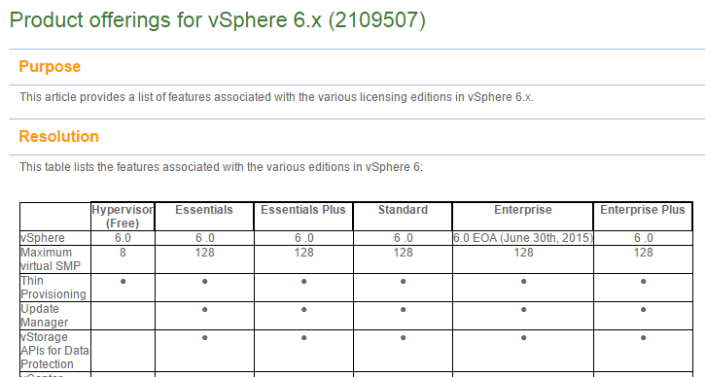
vSphere 6.x licensing and feature product matrix
Ever want to compare a full list of the vSphere features to the associated licensing level?
Well now you can… Check out >> https://kb.vmware.com/selfservice/microsites/search.do?language=en_US&cmd=displayKC&externalId=2109507
For vSphere 5 >> https://vmexplorer.com/2014/02/27/vsphere-5-x-licensing-matrix-2/
Here is a quick snapshot of the matrix. Enjoy!
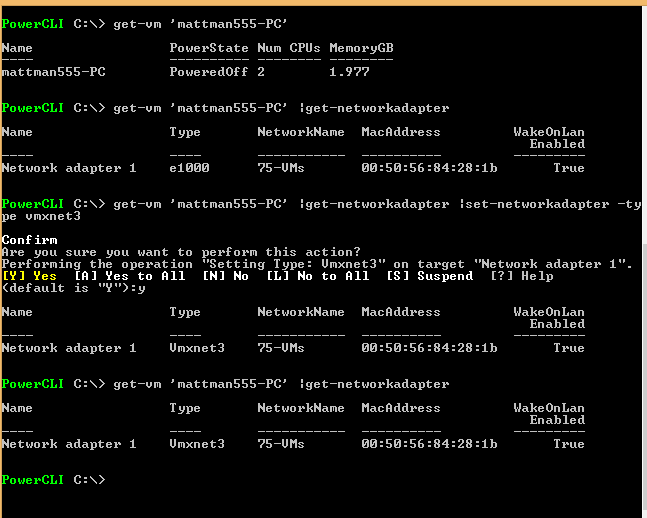
PowerCLI to change VM from e1000 to VMXNET3
In this blog, I wanted to document some simple PowerCLI commands I did to change a VMs network adapter from e1000 to VMXNET3.
- Took a snapshot of the VM prior (Recommend)
- Updated VM Tools and Virtual Hardware (Recommended)
- Downloaded and installed PowerCLI / VRC on my local desktop
- Launched the PowerCLI ICON on my desktop
- Set the execution policy >> Set-ExecutionPolicy Unrestricted
- Executed the following commands.
A Memorable Visit to Chicago Firehouse #13
During a recent trip to Chicago for a VMware Technical Summit, I stepped out of my hotel to pick up a few essentials. As I made my way to the store, I passed by Chicago Firehouse #13 and noticed a memorial displayed prominently out front. On my return, curiosity led me to stop and learn more about it.
The firefighters at the station welcomed me warmly and graciously offered a tour of the firehouse. Inside, I found a tribute to a fallen hero, Walter Watroba, commemorated on a plaque mounted on the back wall. Alongside it were newspaper clippings and articles honoring both Watroba and other firefighters who had lost their lives in the line of duty. The memorial serves as a poignant reminder of the sacrifices made by these brave individuals—particularly the significance of November 22, 1976, for Firehouse #13. (You can find more information about the memorial at the link provided at the end of this post.)
During my visit, I had the opportunity to speak at length with a firefighter affectionately known as “The Saint.” He generously shared the story of Walter Watroba, as well as several personal anecdotes from his own career. One particularly moving story involved a retired firefighter who passed down a piece of his equipment to “The Saint”—a rare and powerful gesture of respect in the firefighting community. As he recounted the experience, it was clear how much it meant to him—it even gave him goosebumps.
I truly appreciated the time I spent at Firehouse #13. It was a meaningful and unexpected highlight of my trip. If you find yourself in the area, I highly recommend stopping by. The stories, the history, and the sense of camaraderie within those walls are well worth experiencing.
More on Walters story here >> https://www.fsi.illinois.edu/content/library/IFLODD/search/Image.cfm?ID=364&ff_id=128

10-30-2015 Phoenix VMUG this event is going to be EPIC!
Back in the day when I lead the Phoenix VMUG the other leaders and I put our attention on the quality of the event vs. trying to drive attendance. We knew producing quality events would lead to more users wanting to attend. Man were we right. Our first VMUG in 2008 drew a crowd of 65, not too bad for our first showing. However we worked hard, listened to our attendees, and in just 2 years time we built an event framework to support 300-500 users and 20+ sponsors ever quarter! The framework we created was so successful it was key in creating the framework for the VMUG UserCon.
Flash forward to October-30-2015 and one of the most EPIC VMUG events ever is about to take place in Phoenix! I never use the word epic unless there is something absolutely stunning. Example – Me doing a selfie drinking a soda is not epic. However – when VMware COO Carl Eschenbach, Principal Architect Rawlinson Rivera, Senior Technical Marketing Architect Doug Baer, Chris Wahl, Josh Atwell, Instructor lead labs, 30+ Partners/Sponsors, multiple breakout sessions, and cocktails at the end of the day come to your VMUG, then this is EPIC!
I know that was quite a bit to take in but like it said EPIC, for now I’d recommend registering for the event and downloading the VMUG UserCon App.
Registration – To register for this event go here >> https://www.vmug.com/p/cm/ld/fid=10175
Download the App – To help you manage your day at this event. Install the VMUG UserCon App >> https://www.vmug.com/p/cm/ld/fid=9653
The overall agenda should be posted soon, and when it does I’ll post up my recommendations around this event!

Supported features for VMware virtual machine compatibility
Here is one of my most favorite VMware KB articles.
Supported features for virtual machine compatibility
|
Hardware |
ESXi 6.0 and later |
ESXi 5.5 and later |
ESXi 5.1 and later |
ESXi 5.0 and later |
ESX/ESXi 4.x and later |
|
Hardware version |
11 |
10 |
9 |
8 |
7 |
|
Maximum memory (GB) |
4080 |
1011 |
1011 |
1011 |
255 |
|
Maximum number of logical |
128 |
64 |
64 |
32 |
8 |
|
Maximum number of cores (virtual CPUs) per socket |
128 |
64 |
64 |
32 |
8 |
|
Maximum SCSI adapters |
4 |
4 |
4 |
4 |
4 |
|
Bus Logic adapters |
Yes |
Yes |
Yes |
Yes |
Yes |
|
LSI Logic adapters |
Yes |
Yes |
Yes |
Yes |
Yes |
|
LSI-Logic SAS adapters |
Yes |
Yes |
Yes |
Yes |
Yes |
|
SATA adapters |
Yes* |
Yes* |
No |
No |
No |
|
VMware Paravirtual controllers |
Yes |
Yes |
Yes |
Yes |
Yes |
|
Virtual SCSI disk |
Yes |
Yes |
Yes |
Yes |
Yes |
|
SCSI passthrough |
Yes |
Yes |
Yes |
Yes |
Yes |
|
SCSI hot plug support |
Yes |
Yes |
Yes |
Yes |
Yes |
|
IDE nodes |
Yes |
Yes |
Yes |
Yes |
Yes |
|
Virtual IDE disk |
Yes |
Yes |
Yes |
Yes |
Yes |
|
Virtual IDE CDROMs |
Yes |
Yes |
Yes |
Yes |
Yes |
|
IDE hot plug support |
No |
No |
No |
No |
No |
|
Maximum NICs |
10 |
10 |
10 |
10 |
10 |
|
PCNet32 |
Yes |
Yes |
Yes |
Yes |
Yes |
|
VMXNet |
Yes |
Yes |
Yes |
Yes |
Yes |
|
VMXNet2 |
Yes |
Yes |
Yes |
Yes |
Yes |
|
VMXNet3 |
Yes |
Yes |
Yes |
Yes |
Yes |
|
E1000 |
Yes |
Yes |
Yes |
Yes |
Yes |
|
E1000e |
Yes |
Yes |
Yes |
Yes |
No |
|
USB 1.x and 2.0 |
Yes |
Yes |
Yes |
Yes |
Yes |
|
USB 3.0 |
Yes** |
Yes** |
Yes** |
Yes** |
No |
|
Maximum video memory (MB) |
512 |
512 |
512 |
128 |
128 |
|
SVGA displays |
10 |
10 |
10 |
10 |
10 |
|
SVGA 3D hardware acceleration |
Yes |
Yes |
Yes |
Yes |
No |
|
VMCI |
Yes |
Yes |
Yes |
Yes |
Yes |
|
PCI passthrough |
16 |
6 |
6 |
6 |
6 |
|
PCI hot plug support |
Yes |
Yes |
Yes |
Yes |
Yes |
|
Nested HV support |
Yes |
Yes |
Yes |
No |
No |
|
vPMC support |
Yes |
Yes |
Yes |
No |
No |
|
Serial ports |
32 |
4 |
4 |
4 |
4 |
|
Parallel ports |
3 |
3 |
3 |
3 |
3 |
|
Floppy devices |
2 |
2 |
2 |
2 |
2 |
|
Guest OS support |
91 |
91 |
91 |
91 |
78 |
Estimating the size of a Core Dump file (PSOD) for ESXi 5.0-5.5
If your ESXi host has a PSOD do you know if you have enough room to write the PSOD file to your local disk? Ever need to estimate the size of a core dump?
In this blog, I’m going to show you 2 ways to estimate the size of the core dump file and then from there you can compare this size to the your core partition ensuring it is able to write the file.
For ESXi 5.5:
If you run the following command on vSphere 5.5 (This command only will run on 5.5) it will estimate your core dump for you.
‘localcli –plugin-dir /usr/lib/vmware/esxcli/int systemInternal coredump configuration check’

For ESXi 5.0/.1 – the command above does not exist with 5.0-5.1 but if you follow the steps below it is a slick way to estimate the size.
Couple of options –
- 1st Option — as a possible comparative, you could run the 5.5 core dump command and use the result as your baseline for the similar esxi hosts running 5.0/.1 hosts
- 2nd Option — Force a core dump test
- Follow these instructions to create a core dump and re-direct the dump file to a data store with enough space
-
Once completed, note the size of the core dump and then multiply it times the number of core dumps you want to keep.– 250MB core dump file x 4 = 1GB << would be this size you need, my recommendation just make it 2.5GB, as this would align you for ESXi5.5 and beyond
- Use these instructions to increase the size of the core dump partition – Core Dump KB’s 1000328, 2004299
 vmexplorer