How to reset the remembered password requirements for VCSA root account
Having a home lab sometimes means using a common password to access accounts. While I wouldn’t recommend this in a production environment, it’s a fairly common approach for home lab use. One challenge with password policies is their ability to remember your previous passwords. If you prefer to reuse a common password, this can make things difficult. In this blog post, I’ll show you how to reset the remembered password requirements for the VCSA root account, allowing you to reuse your preferred passwords.
Note: the commands below were performed on VCSA 8u3. For prior versions please see the REF links below. Also, the fix uses a command common to Photon 4.0. Many VMware appliances run Photon, so there’s a good chance this fix will apply to them as well. I highly recommend doing research before applying any of my stated fixes below.
Wanna get right to the fix, then click here.
A bit of background:
First let’s look at the current expiration requirements for the root account. via SSH into the VCSA server I enter the following command >> chage -l root

From this we can see that the password is set to never expire. To do this, I followed KB 32247 and step 14 had me enter the following command to ensure the password would not expire >> chage -I -1 -m 0 -M 99999 -E -1 root

Additionally, under the VCSA Management console > Administration we can see what the current password requirements are, change the password, and change the Password expiration settings.

Next, I check to make sure it still has the remember password.
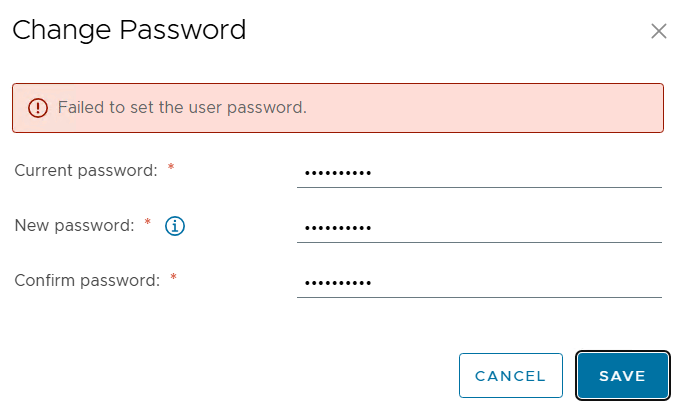
- VCSA Management GUI I try to change it to a remembered password and I get the following error.
- via SSH I tried the passwd command and got the following error.

So both ways to reset the password will not allow it due to a remember password.
The Fix:
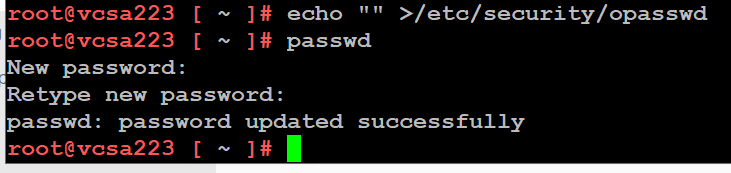
After the VCSA server has fully booted, I ssh into it and enter the echo command below. Next retry the passwd command with a previously used password and it works.
echo “” >/etc/security/opasswd then the passwd command
REF Links:
 vmexplorer