Month: November 2025
Updating VMware Workstation 17 to 25H2
** Update – Workstation 25H2u1 has been released 02/2026. Upgrade from 25H2 to 25H2u1 blog here **
Last October 2025 VMware changed the naming convention of their Workstation product. They moved from traditional version numbers (e.g., Workstation 17.6.x) and are adopting a new naming format that reflects the year (2025) and the half of the year (H2). This provides a more consistent naming across releases and helps to ensures version clarity. With the name change of VMware Workstation from 17 to 25H2 so has the update process. In this blog I cover some of those changes and the steps I took to update my system.
Why can’t I download updates via Workstation 17 Updater?
The product update feature is no longer available in VMware Workstation 17, Player, Fusion. See Article ID: 395172 Moving forward, updates will need to be manually downloaded from the Broadcom Support Portal. Once the appropriate product update is downloaded, it can be manually installed.
Where can I download the Update?
Follow the step-by-step instructions provided in the following articles for the respective products: Download Desktop Hypervisor (Workstation and Fusion) Products
What are the requirements to install Workstation 25H2?
See Host System Requirements for Workstation Pro
What are the steps to upgrade to Workstation 25H2?
Once you have downloaded the product, open it, and then click next on this screen.

Accept the EULA.

Click next on the ‘Compatible Setup’
NOTE: If you have having issues with Hyper-V there is a good chance your Windows OS is not setup properly. See my guide that can help resolve this.

Select the Install directory
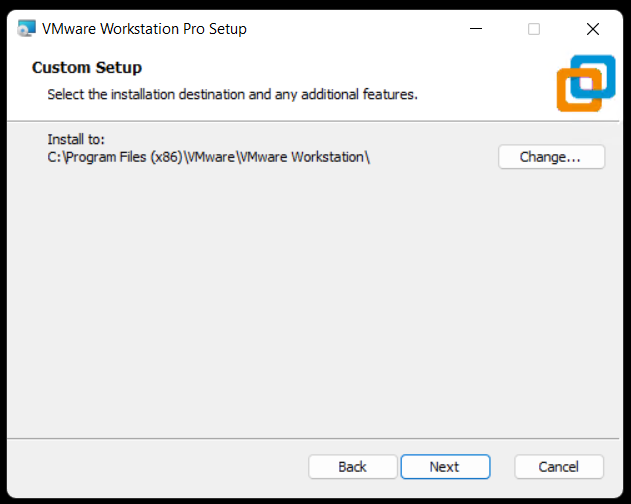
Check or Un-Check Product updates and Join CEIP.

Choose where you want your shortcuts.
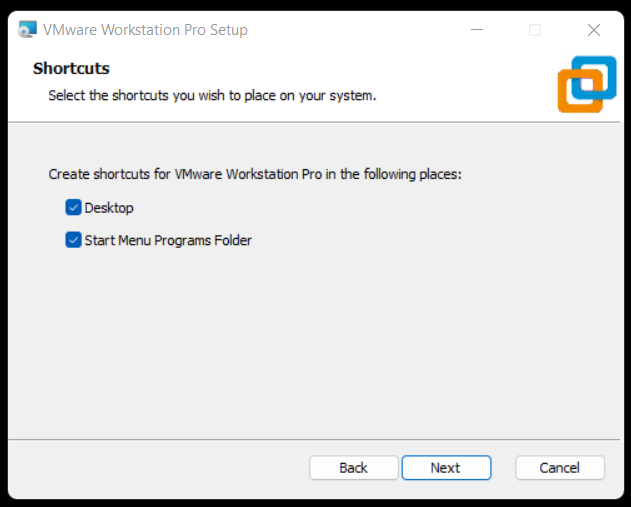
Choose upgrade to begin the installation.
Note: This step will vary if you are doing a fresh install of Workstation.

Allow it to complete its install.

Click Finish.

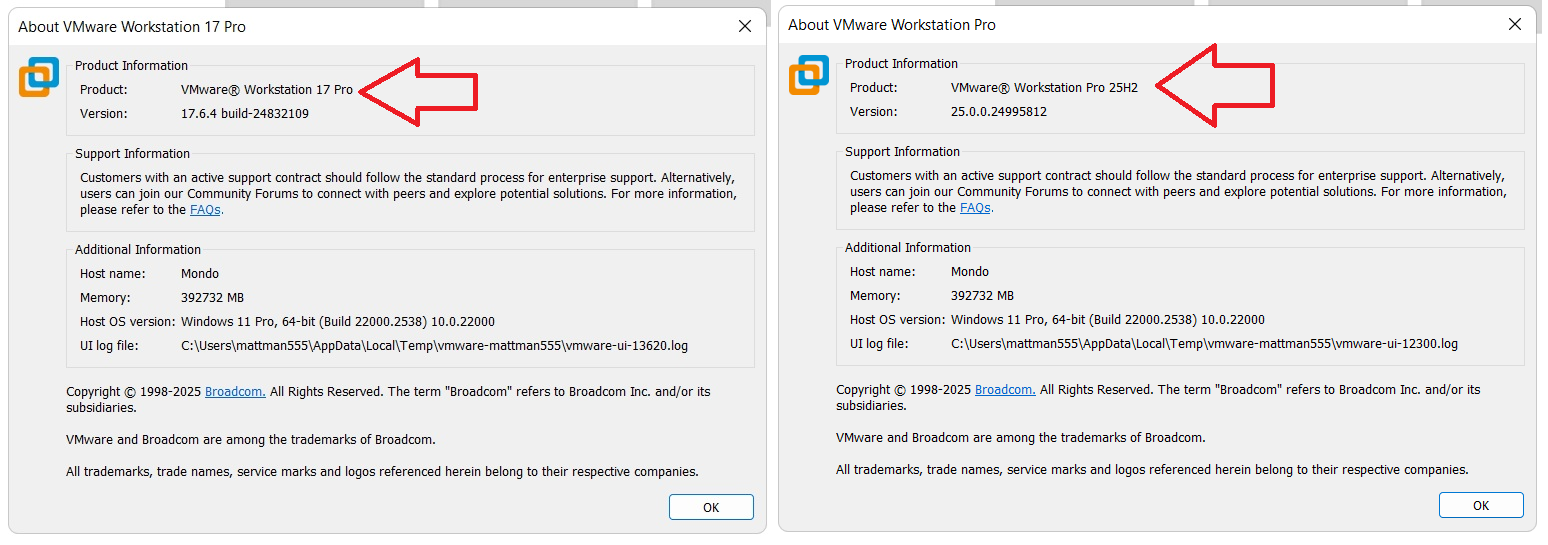
After opening Workstation 25H2 here is the new ‘About’ screen. The about screen is found under Help > About VMware Workstation

VMware Workstation & Fusion 25H2 Released

A VMware Workstation and Fusion update was released Mid-Oct-2025 and it comes with a new name. In this blog I outline some of the changes to Workstation and supply several helpful links.
Why 25H2?
VMware has decided to move away from their past version numbers (e.g., Workstation 17.6.x, Fusion 13.6.x) and is adopting a new naming format — 25H2. This change reflects the year (2025) and the half of the year (H2) and provides consistency across releases plus helps to ensure better clarity for customers. This simple change should make it easier to understand when a release was published and plan upgrades accordingly.
What are some of the important changes with Workstation 25H2?
- VMware Workstation Pro 25H2 provides the following new capabilities.
- Introducing dictTool: A command-line tool to examine and modify VMware configuration files, such as a vmx file or user preferences file. For more information, see Using dictTool to Modify Configuration Files.
- Added support for USB 3.2
- Added support for virtual hardware version 22
- Added support for Hyper-V/WHP detection
- Added support for new guest operating systems
- Red Hat Enterprise Linux 10
- Fedora Linux 42
- openSUSE Leap 16.0 (RC)
- SUSE Linux 16 (Beta)
- Debian 13
- Oracle Linux 10
- VMware ESX 9.0
- Added support for new host operating systems
- Red Hat Enterprise Linux 10
- Fedora Linux 42
- openSUSE Leap 16.0 (RC)
- SUSE Linux 16 (Beta)
- Debian 13
What do the new ‘About’ screens look like?
Helpful Links:
VMware Workstation & Fusion 25H2: Embracing Calendar Versioning and New Features
My notes and tips around taking the 2V0-17.25 – VMware Cloud Foundation 9.0 Administrator

This past week I passed the 2V0-17.25 – VMware Cloud Foundation 9.0 Administrator. The VMware Cloud Foundation 9.0 Administrator certification is an excellent entry point into the VCF certification ecosystem. Preparing for this credential deepens your understanding of the architecture, capabilities, and operational workflows that make up the VCF 9.0 platform. In this blog I’m going to share information about taking a proctored exam, and study tips.
** UPDATE 12/04/2025 ** At the bottom of this post check out the downloadable study guide by Broadcom’s own Hersey Cartwright!! He did a great job aligning the test objectives to public resources.
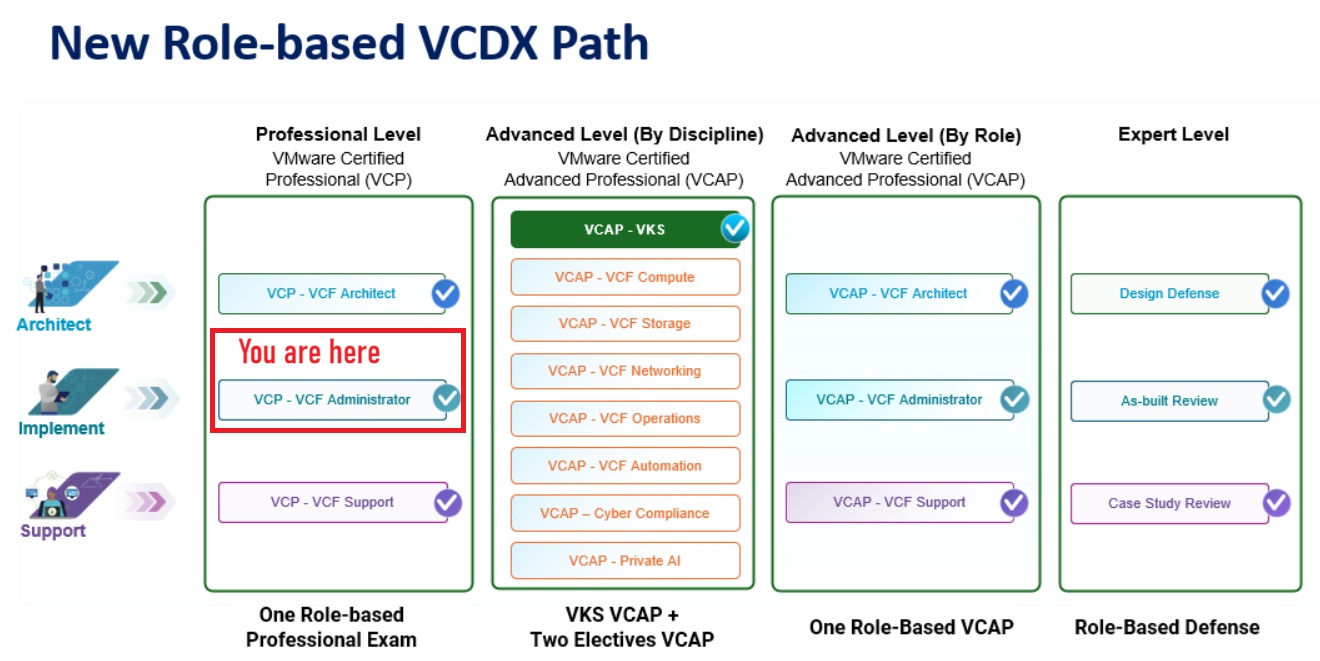
How does the 2V0-17.25 – VMware Cloud Foundation 9.0 Administrator certification fit into the new VMware training model?
The VMware Cloud Foundation 9.0 Administrator certification is the starting point of your certification journey to an Expert level. From here, you can advance into more product-specific certifications on your way to becoming an Expert. For more information, check out this VMware document and for a deeper understanding check out Eric Sloof post.
What are the exam details?
- Duration: 135 Minutes
- Number of Questions: 60
- Format: Multiple Choice, Multiple Choice Multiple Selection
- Passing Score: 300
- Pricing: $250
Any discounts on the pricing?
If you are a VMUG Advantage member you receive $125 USD off VMware Certifications. For this exam that is a 50% savings. Check out the VMUG Advantage page for more information.
Besides becoming certified, what are some additional benefits?
License keys! When you pass the exam you are awarded vSphere Standard Edition 32 cores for 1 year. Requirements are passing one of the following VCP certification exams (VCP-VVF or VCP-VCF admin or architect)
OR
If you pass the VCP certification exam (VCP-VCF admin or architect) and have Purchased & Maintained VMUG Advantage then you get Cloud Foundation (VCF) 128 cores for 3 years. Plus you also receive vDefend 128 cores and ALB 12 tokens.
The vExpert perk benefit.
If you are a vExpert 2025, you have been awarded a complimentary subscription to VMUG Advantage. This grants you access to exclusive discounts and the VMUG keys!
Are you interested in learning more about the vExpert program or seeking tips on how to join? Feel free to reach out—I’d be happy to assist!
How can I take the test?
For me testing was done by Pearson VUE. They gave me two options for testing – In person or Remote (aka Proctored) exam. I chose Proctored.
What are the requirements for a Proctored exam?
There are several requirements for taking a proctored exam. I located a link that describes these requirements and helps test takers better understand. My best tip for taking a proctored exam is be ready, follow the link below and make sure you have everything they require. Most common mistakes are – Desktop not cleaned off, invalid ID, or didn’t run the pre-checks.
Go to Online testing for VMware for more information.
What are the questions like on the test?
The questions on my test consisted of both Multiple Choice, and Multiple Choice Multiple Selection. There were many Multiple Choice Multiple Selection, see examples below. Highly recommend knowing your topics and their details/options well.
Examples (not a real questions) –
- Of the 7 choices below, choose the 4 correct steps when upgrading a VCSA host.
- Which 3 of the 5 choices below meet the requirements for VCF 9.
Can I pass without having hands-on experience?
I would say at a minimum use the VMware HOL to study up. Its a free resource and there are many concepts in labs that you’ll find on the test.
Do I need a Home lab to pass this test?
Some individuals may find this necessary to succeed. However, having passed VMware exams for over 20 years, I can confidently say that the experience I gained from the VMware VCF Hands-On Labs was more than sufficient for this exam.
Are there any additional study guides you’d recommend?
I highly recommend this 15-part VCF technical series on YouTube. I found good value in this series, and I even remember several topics discussed that were on the test.
There is an excellent resource that was known as the VMware {code} VCP-VCF Study Group. The wealth of valuable and pertinent information they have produced is truly impressive. I highly recommend this group; even if you’re not preparing for the test, it remains an outstanding resource.
What are some of the core topics I should know?
Follow the VCF Admin Study Guide and make sure you go through all the documentation.
For me I doubled down on VCF Automation, VCF Upgrade paths, and Kubernetes.
Any other tips?
There is a significant chance that whenever something specific is highlighted in VMware documentation, it is crucial. I often notice this type of emphasis appearing in 2 forms — Important and Note. It’s easy to overlook these highlights while reading the document, so be on the lookout for these types of sections. I commonly notice these types of highlights in the form of a question on tests.
Examples –


Helpful Links / Guides:
 vmexplorer