Month: January 2023
How to upgrade a Dell T7820 to a U.2 Backplane
In this video I show how I upgraded my Dell T7820 SATA backplane to a U.2 backplane. I’m doing this upgrade to enable support for 2 x #intel #Optane drives. I’ll be using these #Dell #T7820 Workstations for my Next Generation #homelab where I’ll need 4 x Intel Optane drives to support #VMware #vsan ESA.
Part Installed in this Video: (XN8TT) Dell Precision T7820 T5820 U.2 NVME Solid State Drive Backplane Kit found used on Ebay.
For more information around My Next Generation 8 Home Lab based on the Dell T7820 check out my blog series at https://vmexplorer.com/blog-series/
Announcing my Generation 8 Super VMware Workstation!
I’ve been using VMware Workstation for many years and its been a great tool to have in my home lab plan. Over the last couple of years, I had been using multiple computers to do various tasks (VMware Workstation, PC, PLEX, Video Editing, etc.) and they seemed to work okay. Most of these were older PCs I had around that I repurposed. However, a follower of my blog made a very generous donation of several key components. It was enough to really get me thinking about creating a SUPER Workstation box. I wanted to make an all in one workstation that could handle everything I currently supported plus more. I started to evaluate what I wanted to accomplish and created a simple goal list.
Goals:- Support for 3 different Networks:
- I wanted to have a 1Gbe and 10Gbe into my Home lab
- The other connection would be used for basic networking
- Run VMware Workstation:
- Support several PC VMs
- Support nested ESXi/vSAN 8 VMs, without having to force the install
- Have enough resources to run everything from one box
- Run PLEX Server
- I wanted to make sure I had enough HDD space to run my PLEX media
- Video Editing
- Support x16 PCIe Video Card
- From time to time I create videos and I wanted a system that could be performant around this.
From there I inventoried the parts I already had, chose new components, and created my Generation 8 VMware Workstation.
BOM:
- OS: Windows 11 Pro for Workstation
- VMware: VMware Workstation 17 PRO
- Case: Phanteks Enthoo Pro series PH-ES614PC_BK Black Steel
- Mobo: ASRack Rock EPC621D8A
- CPU: Xeon Gold 6252
- Cooler: Noctua NH-D9 DX-3647 4U
- RAM: 256GB (2933Mhz 2Rx4 ECC 4 x 64GB RAM)
- NVMe: 2 x Sabrent 2TB ROCKET NVMe PCIe
- SSD: Intel Optane 800GB P5800X
- HDD: 63TB 5 x Seagate IronWolf Pro 18TB
- Adapter: 3 x PCIe SSD U.2 Adapter
- VideoCard: GIGABYTE GeForce GTX 1650 SUPER
- SATA Cable: SATA 6G Data Cable
- 10Gbe NIC: ASUS XG-C100C 10G Network Adapter
- BluRay Drive: LG Blu-ray Disc Rewriter
- UPS: APC Back-UPS PRO BN1500M2
To better clarify some of my component choices I created this video and announced my DREAM #vmware #workstation
I’m sure it will be updated as time goes and my most recent Bill of Materials (BOM) can be found here. https://vmexplorer.com/home-lab-bom/
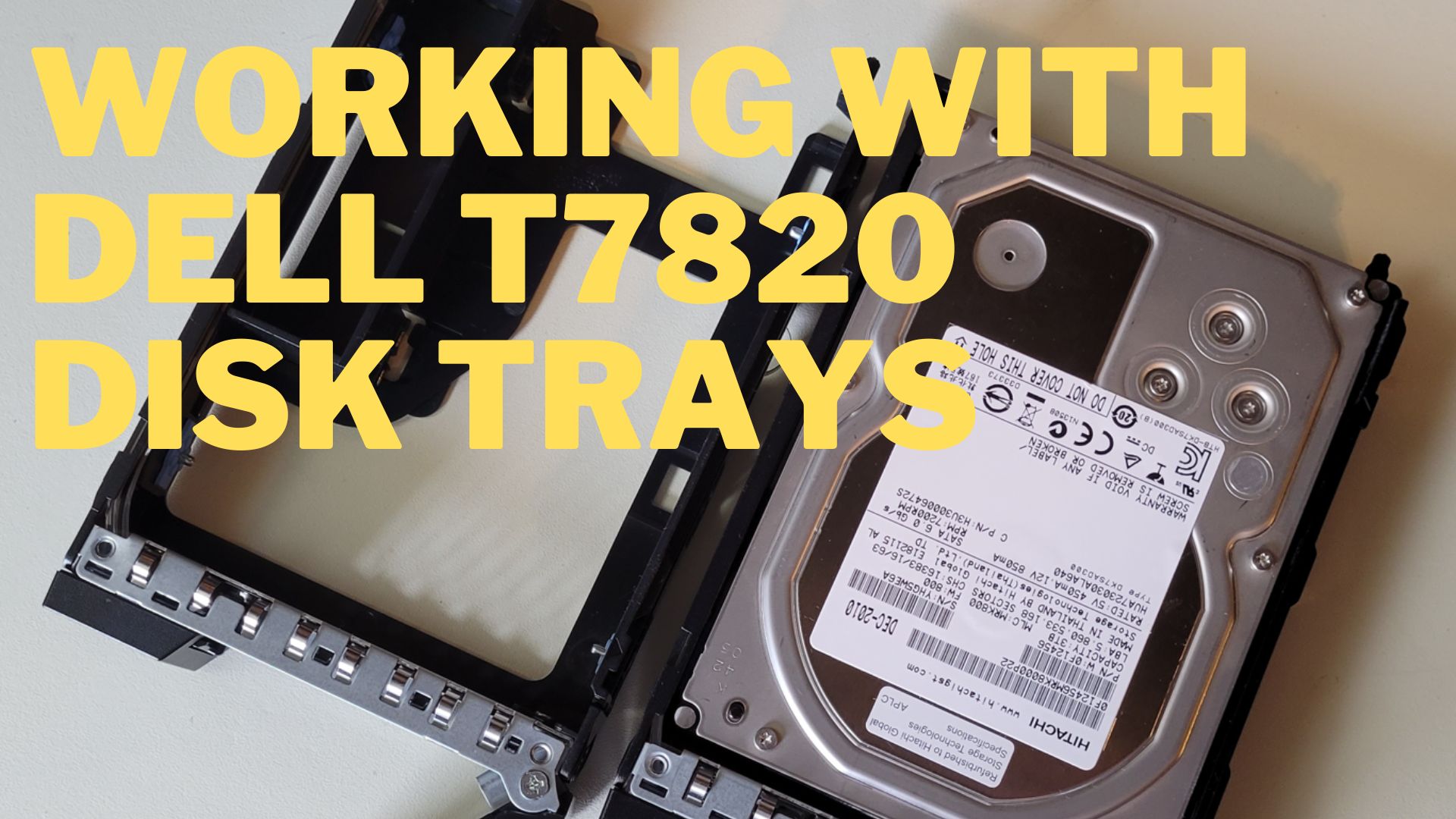
Working with Dell T7820 Disk trays
As part of my Generation 8 ESXi/vSAN ESA Home lab build, in this video I go over how to work with the T7820 disk trays. They can be a bit tricky to work with, especially when adding or subtracting the 2.5″ carrier.
First Look GEN8 ESXi/vSAN ESA 8 Home Lab (Part 1)
I’m kicking off my next generation home lab with this first look in to my choice for an ESXi/vSAN 8 host. There will be more videos to come as this series evolves!

Dell T7820: CPU Upgrade Issues *Solved*
Quick Read: Did you buy a used barebones Dell T7820 or upgrade your CPU from Xeon Silver to Gold and now the T7820 won’t boot? Are you getting the error Code Memory/RAM failure: 2 amber blinks followed by a short pause, 4 white blinks, long pause, then repeats:?
Solution: Ensure your BIOS is at least 2.6.3 or later.
More Details:

I recently purchased 3 used Dell Precision Workstations model T7820 from eBay. They will be the replacements for my next generation Home Lab with vSphere 8. These used T7820 are barebone systems that didn’t come with a CPU or RAM. Other than a vNivida Video card they were pretty much empty. After inserting a Xeon 6252 and RAM modules, they all powered on but only one would post. The other two simply gave me a blink code (2 amber blinks followed by a short pause, 4 white blinks, long pause, then repeats). It was an odd error as their manuals stated it was related to a RAM issue but I was using supported RAM ( 2933Mhz) for the CPU I was inserting (Xeon Gold 6252).
Looking at the Dell 7820 manual I soon found Dell code description that matched the blink code: Memory/RAM failure. I swapped the RAM and CPU from my working T7820 to the non-working systems but still the errors persisted. So at this point, I knew my RAM and CPU were compatible with the T7820 but why would only 1 of 3 them work?
I now put a focus on the one system that worked. I first checked its BIOS level. It was running Dell BIOS 2.6.3 and funny enough the BIOS release notes specifically called out fixing a memory speed issue. It read: ‘Supports memory speed of 2933 MHz with two memory modules per channel’
It appears that when the T7820 posts, it queries the CPU for its max memory speed rating. In my case the Xeon 6252 has a max memory speed is 2933Mhz. So, even if I put in 2666Mhz RAM it still will not work, because its asking the CPU for is max speed rating. Dell BIOS 2.6.3 fixes this issue allowing the for faster memory speeds to be supported.
Knowing this, the fix should be simple. All I need to do is update my BIOS to 2.6.3 or later. However, the issue is I can’t update or even check the BIOS version on my 2 non-working systems. To do this I’m going to need a Xeon CPU whose max RAM frequency is slower than 2933Mhz, it’s something I don’t have. Enter my eBay Seller oztech llc. to the rescue!
I’ve heard of so many bad experiences when working with eBay sellers, but working with the eBay vendor oztech llc has been an absolute pleasure and I would highly recommend them. They are very responsive, helpful, and knowledgeable around the product they sell. They had not heard of this issue before but were willing to help and after a short call explaining my issue, they promptly shipped out a Xeon Silver 4114 CPU that supported a max RAM speed of 2666Mhz and matching RAM. This should allow me power on my T7820s and update to the latest Dell BIOS (2.29.0)
When the Xeon Silver CPU and RAM arrived I did the following:
- Prepare the T7820
- With the power off, I removed the existing Xeon Gold CPU and 2933 Mhz RAM
- Plugged in the power to the system and then unplugged (don’t skip this step)
- Cleared the CMOS
- Installed the Xeon Silver CPU and 2666Mhz RAM in Slot one
- Plugged in the T7820
- It power cycled about 4 times as it adjusted the system settings, and then it booted!
- Confirm Current BIOS Level
- During boot I pushed F12 and went into setup
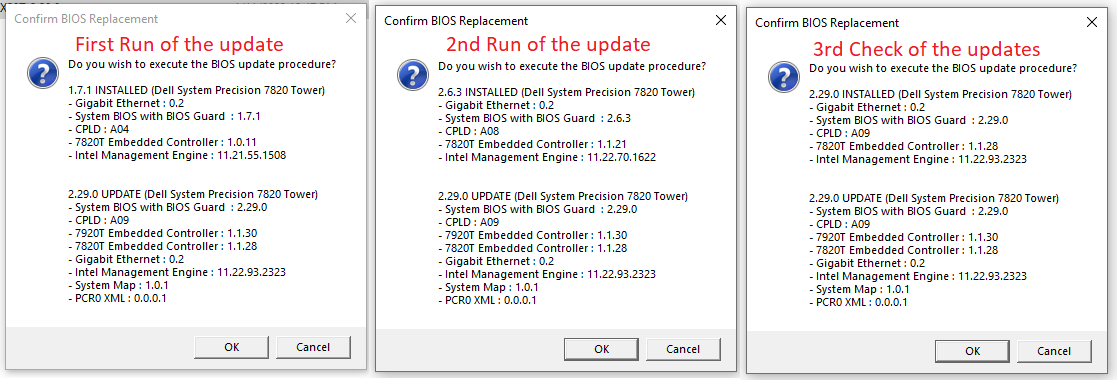
- Confirmed its BIOS level to be 1.7.1
- Updating the BIOS to 2.29.0
- The T7820 BIOS update is designed to work with Windows 10.
- I booted to Windows 10, and ran the 2.29.0 BIOS update
- The update confirmed it was currently at 1.7.1
- I ran the BIOS update
- Once it was completed I checked the T7820 BIOS but it came up with BIOS 2.6.3
- I ran the BIOS update again, it confirmed 2.6.3 was current and it would update the T7820 to 2.29.0
- After a reboot I confirmed the BIOS to be 2.29.0
- Finally, installing the Xeon Gold CPU
- Powered down the T7820, removed the Xeon Silver CPU and RAM
- Plugged in the power then removed, and cleared the CMOS
- Inserted the Xeon Gold CPU / 2933Mhz RAM, powered on, and allowed it to adjust for the new components (reboots multiple)
- Went into setup and confirmed it saw the Xeon Gold CPU
- I repeated this process on my other T7820, only its BIOS was 1.4.1.
- I had no issues with either system after I completed this process.

Why this odd BIOS Update behavior? Though I could not find any information in the 2.29.0 release notes, I can only assume that it had a requirement for systems to be on 2.6.3 to be able to update. This would explain why it updated the system to 2.6.3 first then it updated to 2.29.0
It took a bit of trial and error to figure out this issue but with the great help of oztech and their all out willingness to ensure my satisfaction I now have 3 working T7820s. Next I’m off to install ESXi 8 and update my Home Lab but that my readers will be a different blog post.
Installing Intel U.2 Optane Disk using an adapter
In this quick video I installed a Intel U.2 Optane disk into my Windows system using the StarTech U.2 to PCIe Adapter and then speed tested it with ATTO. I’ll be using these drives and adapters in my Next Generation 8 Super VMware Workstation that I am currently working on. Note the drive that I show being installed on to the StarTech card is different from the one I ran ATTO with.
** Please do keep in mind that the average PCIe slot has a 25 Watt Power Rating. Some systems have a higher wattage rating and some could be lower. The P5800X draws about 30 Watts and the P4800X about 23 Watts. Take this into account when using this adapter and plan accordingly. **
Products Show in this video:
Drive that was tested with ATTO: https://ark.intel.com/content/www/us/en/ark/products/201861/intel-optane-ssd-dc-p5800x-series-400gb-2-5in-pcie-x4-3d-xpoint.html
Drive that was shown being installed on the Adapter: https://ark.intel.com/content/www/us/en/ark/products/129968/intel-optane-ssd-dc-d4800x-series-750gb-2-5in-pcie-2×2-3d-xpoint.html
StarTech Adapter: https://www.startech.com/en-us/hdd/pex4sff8639

Super VMware Workstation: Install tips for the Supermicro X11SPL-F
In this quick video I go over a few of the installation tips when mounting this motherboard into a Phanteks Enthoo Pro case. I’m looking at this motherboard as a possible candidate for my next Super VMware Workstation / PLEX Server.
Motherboard: https://www.supermicro.com/en/products/motherboard/x11spl-f
Case: https://www.phanteks.com/Enthoo-Pro.html

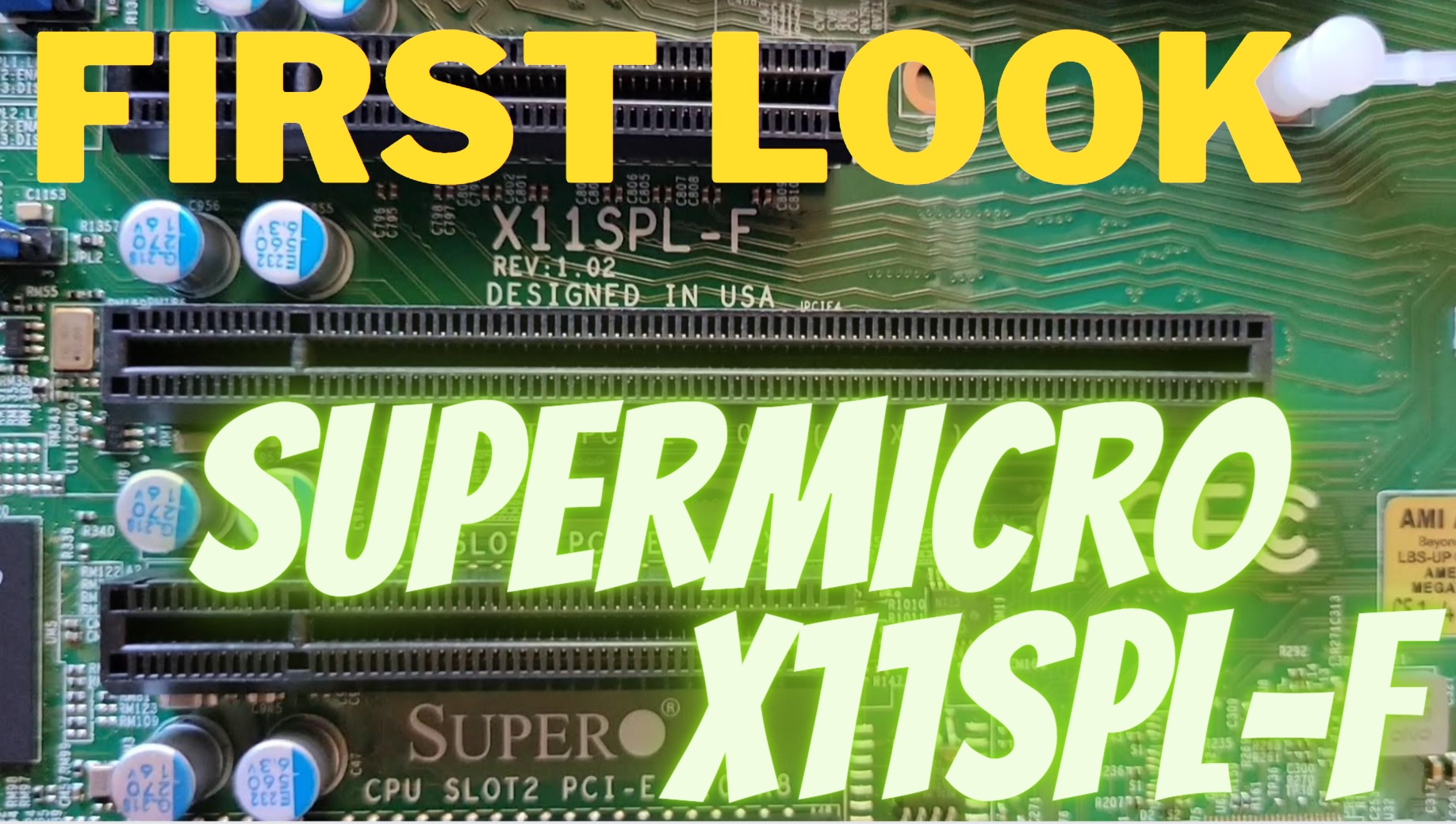
Super VMware Workstation: Supermicro X11SPL-F First Look and Basic Overview
In this video I give a first look at the motherboard I plan to possibly use for my new Super VMware Workstation. I got a lot of great plans for this server and it all starts here.
 vmexplorer