Month: August 2016
Review: Wireless Network Devices All in One vs. Standalone
I’m sure like most of my fellow computer geeks we get asked quite a bit around home wireless networks etc. Well, I’ve been in the market for a new Cable Modem and Router and in the past I’ve never recommended the “all in one” solution (meaning Cable Modem and Router/Firewall in one unit). Mainly this recommendation was based on my field experience back in 2007 and seeing so many of them fail. This week, going against my own advice, I gave the Netgear C3700-100NAS all in one a try for $99. Not a bad deal as it means not as many cables, it has an integrated DOCSIS 3.0 cable modem, and it’s on COX Phoenix AZ supported list. This unit worked well for about 20 mins and as I was reading reviews around its issues, it started having them. Over and Over again it slows down. You’d think by 2016 they’d have the all in one finally figured out, but alas they don’t. My recommendation still stands, avoid the all in one.
What I have been recommending for home users in the Phoenix Area with Cox Cable running their 60-100Mbs Internet are the Arris Motorolla SB6141 Cable Modem and the NETGEAR WNDR4500-100PAS N900 wireless router. I’ve had the combo since 2012 and it’s been very rock solid. If I do have an issue with this combo it is usually outside of their control, meaning the cable company is having an issue.
I bought my pair at NewEgg — WNDR4500 for $89 and the SB6141 for $69,
When I bought mine (Feb-2016) NewEgg gave me a TP-LINK TL-WR841N and a N150 wireless routers.
If there is enough interest in the post, I’ll post up how the other 2 routers work out. Enjoy!
If you like my ‘no-nonsense’ blog articles that get straight to the point… then post a comment or let me know… Else, I’ll start writing boring blog content.
Solved: WARNING: Link is up but PHY type 0x3 is not recognized – Can cause ESXi 6 purple screens
The Error >> When running an Intel x710 NIC with the ESXi i40e driver you notice your vmkernel.log completely full of the error “WARNING: Link is up but PHY type 0x3 is not recognized”
The Solution >> Ensure X710 firmware is at 17.5.11 (aka 5.04 in ESXi) and ESXi i40e Driver to 1.4.26 or 1.4.28 and these errors stop
The Follow-up >> Check out your NIC on the VMWare HCL for the Correct driver/firmware guidance. This is the link I used.
Other notes…
Sending Millions of the PHY errors to your event logs could be causing other issues for your ESXi host. Look for local boot disk latency or Networking errors in your ESXi host event logs. Once you apply this solution these issues should stop. If not, then you may have other issues impacting your boot disks.
*Updates*
- After applying this solution we then noticed the vmkernel started to populate with ‘driver issue detected, PF reset issued’ the solution for this is to disable TSO/LRO. VMWare KB 205140.
- 04-10-2017 There is a new VMware driver listed for the X710, will be testing soon and will post up results. Release notes indicate fixes for the following:
– Fix duplicate mulicast packet issue
– Fix PSOD caused by small TSO segmentation
If you like my ‘no-nonsense’ blog articles that get straight to the point… then post a comment or let me know… Else, I’ll start writing boring blog content.
ESXi Host NIC failure and the Web client vSwitch orange line doesn’t move? — The results are Shocking!
Okay, the title was a bit dramatic, but it got your attention. Now keeping with my quest to deliver no-nonsense blog articles here is what the orange line means…
Question 1 – What is the function of the orange line when selecting a vmnic, port group, or vSwitch while viewing them in the Web client network settings?
The orange line is showing you the teaming order for the pNICs or vmnics based on their vSwitch or port group teaming policy. In this screenshot, the policy is Active / Active for both vmnic0 and 1.
The orange line will not move to the other pNIC’s unless they are marked as “active” in the teaming policy. “Active in the teaming policy” vs. “which pNIC is passing traffic” are two different things. The orange line is not a representation of the latter, “pNIC passing traffic”.

Question 2 – How can I tell which pNIC is currently passing traffic?
The Web or Thick client vSwitch display (aka the orange line) doesn’t display the pNIC which is currently passing network traffic. You need to use ESXTOP to determine the active pNIC.
Simply go into ESXTOP, Press N, find your vSwitch and it will lead you to the pNIC currently being used to pass traffic.
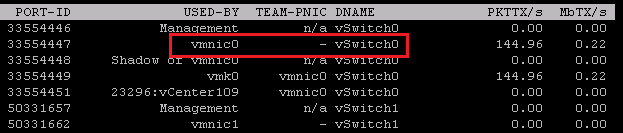
Question 3 – I had a pNIC failure why isn’t the Web client moving the orange line to the standby NIC?
Again… the orange line ONLY points to the Active pNIC in the teaming policy. In this screenshot below, the teaming policy is setup for vmnic3 as Active and vmnic2 as stand by.
Even though vmnic3 is down, traffic should be flowing through vmnic2. Use ESXTOP to determine this (See Question 2)

If you like my ‘no-nonsense’ blog articles that get straight to the point… then post a comment or let me know… Else, I’ll start writing boring blog content.
 vmexplorer