VMworld
Free vSphere 6 Webinar Series!
VMware has a great webinar series coming up, see the chart below for dates and times.
These sessions would be a great primer before going to VMworld!
|
Date |
Webcast Topic |
vSphere Expert |
Registration / Replay |
|
June 2 |
vCenter ServerWhat’s new in vCenter Server including differences between Windows install and the virtual appliance. |
Mohan Potheri |
|
|
June 16 |
vSphere SecuritySecurity at the top of mind? Learn about security in vSphere 6 including considerations for Platform Services Controller. |
Mike Foley |
|
|
June 30 |
Business Continuity |
Matt Meyer |
|
|
July 7 |
PowerCLIIncrease data center efficiency through automation. Learn what’s new with PowerCLI including some tips and tricks that may surprise you. |
Brian Graf |
|
|
July 14 |
vSphere Web ClientThe Web Client is one of the most improved areas of vSphere 6. Streamlined design, improved responsiveness, and better overall usability are just a sampling of what makes the Web Client cool. Learn what else the vSphere 6 Web Client has to offer. |
Dennis Lu |
|
|
July 21 |
vSphere 6 PerformanceLearn about all the new performance improvements that vSphere 6 has to offer. With the time you save, you may have time for an additional coffee break. |
Mark Achtemichuk |
|
|
July 28 |
Virtual Volumes and Storage Policy-Based ManagementvSphere 6 has transformed storage for virtual machines. Learn how Virtual Volumes and Storage Policy-Based Management redefines how you should think about storage. |
Rawlinson Rivera |
|
|
August 11 |
vCenter Server AvailabilityFor some vCenter Server has become mission critical. Learn how to provide high availability for vCenter Server. Also covered with be Platform Services Controller. |
Johnny Ferguson |
More information here — http://blogs.vmware.com/vsphere/2015/05/vsphere-6-webcast-series.html
Quick ways to check disk alignment for ESXi Datastores and Windows VM’s
There are two simple checks a virtual infrastructure (VI) admin should be doing to ensure ESXi Datastores and the Windows VM’s are properly aligned. If either are misaligned then performance issues will follow. Though I’m not going to get into the whys and how’s of alignment issues I will show you how to quickly check.
1 – ESXi Datastores (DS)
By default if the VI admin formats a target datastore with vCenter Server or directly connected to a host via the VI Client the starting sector will be 2048. A starting sector of 2048 will satisfy nearly all of the storage vendors out there, however a 2048 starting sector should be validated with your storage vendor.
If the VI Admin chose to format the DS via a script then they should choose a starting sector of 2048 or what the storage vendor recommends
Example — partedUtil setptbl \$disk gpt “1 2048…..” More info here on partedUtil
Here is a simple command to check your “Start Sector”. SSH or Direct console into a host that has DSs you want to check and run this command.
~ # esxcli storage core device partition list

Some note about this –
RED Box – Is the local boot disk, so its starting sector will be 64, this is not an issue as this is the ESXi Boot disk
Yellow, Green, and Blue – Are all VSAN Disks and all have a starting sector of 2048 << This is what I’m looking for, I want to make sure all DS disks start at 2048, if not they could experience performance issues.
2 – Windows VM Check
Windows checks are pretty easy too, the starting sector offset should be 2048. Note the screenshot below shows the Partition starting offset of 1,048,576, also note it’s labeled in bytes not sectors. To find the starting sector just divide the Partition Starting Offset by the Bytes/Sector. Simple math tells us its right — 1048576/512 = 2048 Sector. If your Partition Starting offset is anything other than 1,048,576 Bytes or 2048 Sectors then the VM is not aligned and will need adjusted.
To find your Partition Starting offset, from a Windows Command Prompt, type in ‘msinfo32.exe’, go to Components > Storage > Disks, and note your Partition Starting Offset.

Cannot install vCenter Server Appliance 6 Error “No apps are installed to open this type of link”
A requirement for the installation of VCSA 6.0 is installing the Client Integration Plug-in. Normally, this can be done during the time you install the VCSA. However, during a recent installation, I got the error “No apps are installed to open this type of link”
My first thought was there was a browser compatibility issue with IE11 and the installer, so I tried Firefox and Chome but I got the same results. Next was a quick reboot, still same error.
Finally, I tried installing “VMware-ClientIntegrationPlugin-6.0.0” manually and then running the VCSA installer. What do you know it installed without issue.
Simple fix on this one — Manually, install the “VMware-ClientIntegrationPlugin-6.0.0” first and then run the VCSA installer.
You can find the “VMware-ClientIntegrationPlugin-6.0.0” in the ‘vcsa’ folder in the VCSA ISO.

Single Source Information for Affected Products of VMware Security Advisories
Ever wish there was a better way to track VMware Security Advisory’s? Tired of tracing through email threads, RSS, Twitter feeds, etc.
Well there isn’t an APP for that but there is a “Spreadsheet for that”. That’s right a good old spreadsheet.
See this link for more information >> http://kb.vmware.com/selfservice/microsites/search.do?language=en_US&cmd=displayKC&externalId=2078735
How could one use this sheet? Simply put this spreadsheet is updated when advisors are released or updated. This allows users to sort by all types of fields to get the latest information they are looking for in one place.
Here are some ways I have used it….
Sort by specific Vulnerability title, in this case ‘Bash’
Here’s a view filtered by ESXi 5.5…

VSAN – Setting up VSAN Observer in my Home Lab
VSAN Observer is a slick way to display diagnostic statics not only around how the VSAN is performing but how the VM’s are as well.
Here are the commands I entered in my Home Lab to enable and disable the Observer.
Note: this is a diagnostic tool and should not be allowed to run for long periods of time as it will consume many GB of disk space. Ctrl+C will stop the collection
How to Start the collection….
- vCenter239:~ # rvc root@localhost << Logon into vCenter Server Appliance | Note you may have to enable SSH
- password:
- /localhost> cd /localhost/Home.Lab
- /localhost/Home.Lab> cd computers/Home.Lab.C1 << Navigate to your cluster | Mine Datacenter is Home.Lab, and cluster is Home.Lab.C1
- /localhost/Home.Lab/computers/Home.Lab.C1> vsan.observer ~/computers/Home.Lab.C1 –run-webserver –force << Enter this command to get things started, keep in mind double dashes “—” are used in front of run-webserver and force
- [2014-09-17 03:39:54] INFO WEBrick 1.3.1
- [2014-09-17 03:39:54] INFO ruby 1.9.2 (2011-07-09) [x86_64-linux]
- [2014-09-17 03:39:54] WARN TCPServer Error: Address already in use – bind(2)
- Press <Ctrl>+<C> to stop observing at any point ...[2014-09-17 03:39:54] INFO WEBrick::HTTPServer#start: pid=25461 port=8010 << Note the Port and that Ctrl+C to stop
- 2014-09-17 03:39:54 +0000: Collect one inventory snapshot
- Query VM properties: 0.05 sec
- Query Stats on 172.16.76.231: 0.65 sec (on ESX: 0.15, json size: 241KB)
- Query Stats on 172.16.76.233: 0.63 sec (on ESX: 0.15, json size: 241KB)
- Query Stats on 172.16.76.232: 0.68 sec (on ESX: 0.15, json size: 257KB)
- Query CMMDS from 172.16.76.231: 0.74 sec (json size: 133KB)
- 2014-09-17 03:40:15 +0000: Live-Processing inventory snapshot
- 2014-09-17 03:40:15 +0000: Collection took 20.77s, sleeping for 39.23s
- 2014-09-17 03:40:15 +0000: Press <Ctrl>+<C> to stop observing
How to stop the collection… Note: the collection has to be started and running to web statics as in the screenshots below
- ^C2014-09-17 03:40:26 +0000: Execution interrupted, wrapping up … << Control+C is entered and the observer goes into shutdown mode
- [2014-09-17 03:40:26] INFO going to shutdown …
- [2014-09-17 03:40:26] INFO WEBrick::HTTPServer#start done.
- /localhost/Home.Lab/computers/Home.Lab.C1>
How to launch the web interface…
I used Firefox to logon to the web interface of VSAN Observer, IE didn’t seem to function correctly
Simply go to http://[IP of vCenter Server]:8010 Note: this is the port number noted above when starting and its http not https
So what does it look like and what is the purpose of each screen… Note: By Default the ‘? What am I looking at’ is not displayed, I expanded this view to enhance the description of the screenshot.

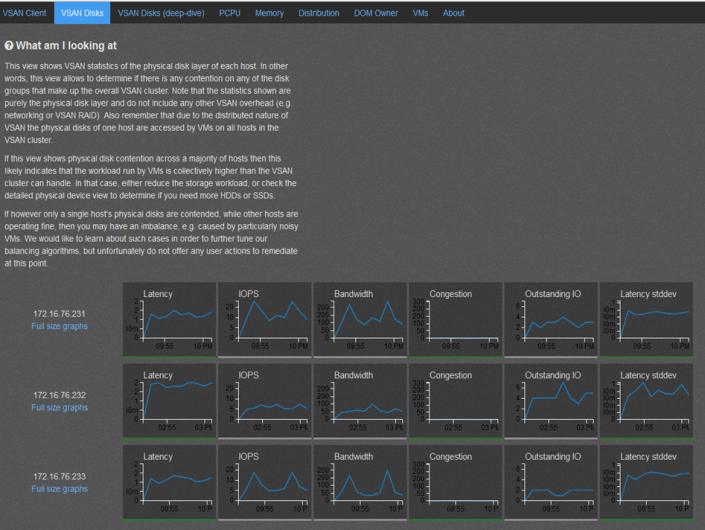


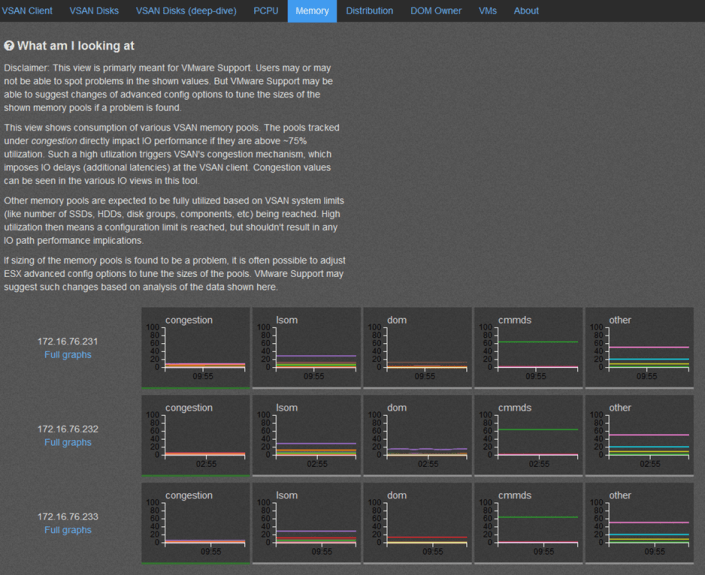


References:
http://www.yellow-bricks.com/2013/10/21/configure-virtual-san-observer-monitoring/
vCenter Operations Manager 5.8.2 Assigning a Licensing Key
One of the items I noticed hanging up many users is how to assign a license key for vCenter Operations Manager (vCOPS). In this blog I’m going to review the basic steps around this.
After the installing vCOPS most users logon to the vCOPS Admin page and they notice the ‘License Status’ is listed as ‘Licensed’. This is the first item that trips up most. However if you notice directly above License Status the ‘License Mode’ is listed as ‘Foundation’. The foundation licensing mode is basically the “free” version of vCOPS. Foundation will allow you to do some of the functions of vCOPS for free. Follow this URL to compare different vCOPS versions and Eric Sloof does a great short video here outlining the basic functions.
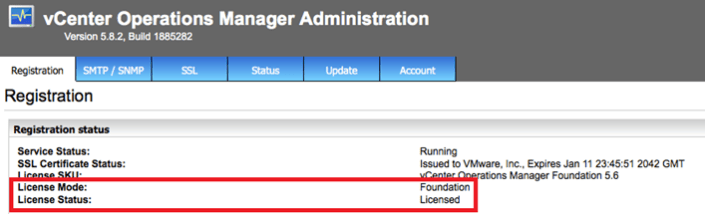
Now the question becomes — How do I enable my vCOPS license key? VMware KB 2017464 does a great job to enable the key but it leaves the pre-step of key entry and to use the Web Client to complete this task.
Here are the steps to enter and enable your vCOPS License Key via the Web Client
Start at the Home Screen within the Web Client > Licensing Icon > Licenses > Ensure ‘License Keys’ tab is selected and then choose the Green Plus mark to add your key.
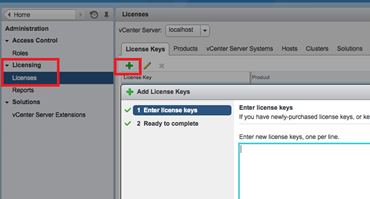
Once completed choose the ‘Solutions’ tab > Right Click on your key > ‘Assign License Key’ > then choose the license key you want to apply.

Finally logon to the vCOPS Admin page and ensure the key has updated.
Note – if you are already logged into this page you may have refresh or login again for the status to update.

My VMworld 2014 TOP Session Picks
Every year there is always something new at VMworld and this year is no exception.
Below are my TOP Picks for 2014. Enjoy!
- INF1720 – Getting the Most out of vMotion – Architecture, Features, Debugging
vMotion is a key, widely adopted technology which enables the live migration of virtual machines on the vSphere platform. It enables critical datacenter workflows, including…
Gabriel Tarasuk-Levin – Staff Engineer 2, VMware - INF3475-GD – vMotion with Sreekanth
Setty
Group Discussions are a good way to join together with peers, guided by a VMware expert, and discuss a VMware key topic as selected by the group. Come to this session… Sreekanth Setty – Staff Engineer, VMware -
BCO2629 – Site Recovery Manager and vSphere Replication: What’s New Technical Deep Dive
SRM and vSphere Replication are mature products that can be used as the bedrock of a disaster recovery plan for your virtual infrastructure. Come learn in technical detail…Jeff Hunter – Senior Technical Marketing Architect, VMware Ken Werneburg – Senior Technical Marketing Architect, VMware
-
BCO1916 – Site Recovery Manager and Stretched Storage: Tech Preview of a New Approach to Active-Active Data Centers
Are you embracing an Active-Active data center strategy for continuous availability of your apps but also want an easy way to manage planned and unplanned failure events ?…Shobhan Lakkapragada – Product Line Manager, VMware
Aleksey Pershin – Staff Engineer, VMware -
BCO3430-GD – Local Availability – HA & FT with GS Khalsa
Group Discussions are a good way to join together with peers, guided by a VMware expert, and discuss a VMware key topic as selected by the group. Come to this session…Gurusimran Khalsa – Senior Technical Marketing Manager, VMware
-
BCO3431-GD – Stretched Clusters with Lee Dilworth
Group Discussions are a good way to join together with peers, guided by a VMware expert, and discuss a VMware key topic as selected by the group. Come to this session…
Lee Dilworth – Principal Systems Engineer, vmware
-
VMware vSphere High Availability (vSphere HA) is one of the most widely utilized features of vSphere. This session will focus on best practices for using vSphere HA. We will…
Gurusimran Khalsa – Senior Technical Marketing Manager, VMware
- EUC1476 – What’s New with View and PCoIP in Horizon 6
Learn about exciting new enhancements in Horizon 6 with View and PCoIP. Optimizing and tuning PCoIP with Horizon View has never been easier. With new default PCoIP settings,… Tony Huynh – Product Line Manager, VMware
Simon Long – Senior Cloud Architect, VMware -
EUC3099 – Comparing GPU-accelerated high-end graphics performance of virtual desktop platforms
How good are today’s virtual desktop remoting protocols when accelerated by physical GPUs, such as NVIDIA GRID cards? CTPs Benny Tritsch and Shawn Bass developed a unique,…Shawn Bass – Blogger, Consultant, ShawnBass.com
-
STO1211 – Virtual SAN Ready Node and Hardware Guidance for Hypervisor Converged Infrastructure
Are you looking to select a hardware platform for your Virtual SAN that is within your budget and is best suited for your use case? Do you have growing performance, capacity…Rakesh Radhakrishnan – Product Management – Software Defined Storage, VMware
Wade Holmes – Senior Architect, VMware
Program Location: Europe and US -
MGT1833 – How to Perform Troubleshooting and Root Cause Analysis Using Log Insight
Environments consist of a variety of devices including compute, network, and storage as well as virtual machines. Each of these devices generates log messages. The number of…Steve Flanders – Solutions Architect, VMware
Program Location: US -
STO1965 – Virtual Volumes Technical Deep Dive
Virtual Volumes (VVols) is VMware’s new storage paradigm for external SAN/NAS storage arrays. In this session, we will walk you through key technical concepts of Virtual…Rawlinson Rivera – Sr. Technical Marketing Architect, VMware, Inc
Suzy Visvanathan – Product Manager, VMware
Program Location: Europe and US -
STO2496 – vSphere Storage Best Practices: Next-Gen Storage Technologies
This VMware Technical Communities Session will present a technical best practices with emerging storage technologies for vSphere. The storage industry is experiencing a high…Chad Sakac – SVP, Global Systems Engineering, EMC
Rawlinson Rivera – Sr. Technical Marketing Architect, VMware, Inc
Vaughn Stewart – Chief Technical Evangelist, Pure Storage -
NET1974 – Multi-Site Data Center Solutions with VMware NSX
NSX provides a comprehensive Multi-Site networking and security solution in software that complements existing VMware products to bring Networking, Compute and Storage…Ray Budavari – Technical Product Line Manager, VMware
Program Location: Europe and USAnd Lastly… I put this one in just for fun… These guys always put on a great show, and you lean something too!
- STO2996-SPO – The vExpert Storage Game Show
Think you know storage? The vExpert Storage Game Show will pit 2 teams of vExperts in a jeopardy style game discussion the latest in storage technologies with vSphere and… Amy Lewis – Influence Marketing, Cisco
Friea Berg – Business Development, Splunk
John Troyer – CEO, TechReckoning
Cormac Hogan – Storage Architect, VMware
Duncan Epping – Principal Architect, VMware
Rawlinson Rivera – Sr. Technical Marketing Architect, VMware, Inc
Craig Chapman – Systems Engineer, Pure Storage
Cody Hosterman – Reference Architect, Pure Storage
Vaughn Stewart – Chief Technical Evangelist, Pure Storage
Turning a ‘No you cannot attend’ to a ‘Yes’ for VMworld
 I’ve been lucky enough to make it to every VMworld since 2008 and 2014 will be my 7th. time in a row. In this blog post I wanted to share with you a breakdown of some of the tips and tricks I’ve used to get to these events. Being the former Phoenix VMUG leader I’ve shared these tips with fellow VMUG users and now I’m sharing them with all of you. Users would tell me cost is the number one reason why they don’t go – “My Company sees value in this event but will not pay for it”. This breaks down to Food, Hotel, Travel, and the infamous golden ticket, aka the VMworld pass. So how do users overcome the cost to attend? This is what this blog post is all about…
Working with your employer –
Having your employer pick up the tab not only benefits them as a company but yourself too. As you know VMworld is full of great content and the socialization aspects are second to none. Chances are you’ll be asked to put together a total cost to attend and this cost can be quite high for some companies on a tight budget. My suggestion is if you are getting the big ‘No’ then work with your boss around the total costs. First find out why it’s a ‘No’ and look for opportunities to overcome this. Maybe your company will pay for some of the items. Example – They might be able to cover airfare, but the rest is on you. Don’t forget if your company has a VMware TAM (Technical Account Manager) reach out them. Even if you are not directly working with the TAM they are your best resource not only for VMware Technology but also for getting you to VMworld. They don’t have passes but they usually know the community very well and can assist.
Sometimes I hear “My employer will not allow me to accept gifts”. True your company may have a policy around the type of gifts you can receive and by all means follow this policy. However, keep in mind you may be able to take vacation time and represent yourself at this event not your employer. Then there is a possibility gifts could be accepted but on the premises you don’t represent your company. Some companies are okay with this but just make sure they are. If you are able to do this I would suggest you represent it as ‘personal development’.
How do I get a free VMworld Pass?
This can be your biggest challenge. However here are some ways to get your hands on one.
-
Give-a-ways
- I can’t tell you how many vendors have giveaways contests right now — hit them early and enter as many contests as you can find
-
Tips-
- When you enter, find out who your local vendor contact is and let them know you entered. Then stay in contact with them.
- Keep in mind not all contests are the same, some are based on random drawing and others are not. This is why I say keep in contact with the vendor.
- How do I find give-a-ways >> Google ‘VMworld getting there for free’
-
Get the word out
- Tell your boss, workmates, vendors, and partners. Post on Twitter, Linked-In, etc. and Repeat again and again. By doing this you let others know about your strong interest in getting there, in turn they might get a lead for you.
- Most importantly, reach out to your local VMUG leader and ask them for tips in your area. They are usually well connected and might have a lead for you as well.
-
Follow Twitter and Linked-In – You never know who is going to post up “I have a pass and need to give it to someone”. Yes that is right, before the event you can transfer a pass to someone.
- New to Twitter, need contacts? It’s a pretty simple to get started. Simply find the #VMworld hastag, see who is posting to it and start following them. Then look at all their contacts and follow them too, soon you’ll have a gaggle of folks.
- This sound like work. Why do all this? Simple, distributed coverage model. The more people know the more likely they are to help and in turn the more likely you’ll succeed
-
Don’t forgo an Expo-Only or Solutions Exchange Pass
- If you get offered this pass take it. I can’t tell you how many vendors have these passes and have trouble giving them away, seriously this is gold but folks don’t know how to leverage them.
- First off this pass has great value, there is a TON of value here.
-
Second this pass can get you on to the Solutions Exchange floor where all the vendors and partners are.
- Once there start talking to all the vendors, fellow attendee, all those folks you meet on Twitter, etc. as you never know who has a full pass they couldn’t get rid of, take it and upgrade yours.
- Third, while you are there with an Expo Pass use Twitter and the VMworld hash tags to let folks know you’re here and you are looking for a full pass.
- Stop by the VMUG booth on the Expo floor, you never know who will be there and you never know if users there might be able to help you.
-
Vendors and Partners
-
Find out who is sponsoring VMworld this year, and then…
- Start calling the ones you know well, ask them for support getting there.
- Don’t forget to call the ones you don’t know so well too.
- If you have an upcoming deal on the table with a vendor, inquire if they will throw in passes, travel, etc.
-
What about Food, Hotel, and Travel Costs?
-
Food
- There will be free food everywhere, in-fact feel free to give some to the homeless I usually do.
- If you get a pass then lunch and usually breakfast are included.
- For dinner, find out where the nightly events are as they usually have food.
- Talk with Vendors as they might take you out, you never know.
-
Hotel
- Ask a Vendor to pay for just the room or ask them to gift hotel points to you.
- Room Share with someone at the event << Think about it, you won’t be in the room that often and chances are from 7AM till 10PM you’ll be out of your room.
-
Use travel sites to cut down the cost.
- Secret Hotels: Best Western Carriage Inn and The Mosser. Good if you’re on a budget but chances are they are full this year (2014).
- Use your hotel or other travel points to book the hotel for free.
- Get a low cost hotel away from the event, but watch your travel costs.
-
Travel
-
Airfare
- Ask a vendor to pay for just the airfare, or maybe they have points they can gift you.
- Use your own travel points to pay for this.
-
Rideshare to the event
- See if one of your connections are driving to the event, offer to split fuel costs.
- You drive someone to the event, and they pick up the hotel or vise versa.
-
Local Travel
-
Use the following –
- VMworld Shuttle
- Bus
- Uber
- BART
- Once again hit up those vendors, they might have a way to get you around for free
-
-
Finally here is a breakdown of how I got to so many events and how/who paid for it….
| Year | Pass | Travel | Food | Hotel |
| 2008 VMworld | Vendor Sponsor – Full Pass | Employer Paid | Vendor / Event | Employer Paid |
| 2009 VMworld | VMUG Sponsored – Full Pass | Vendor paid for Airfare with Miles | Vendor / Event | Employer Paid |
| 2010 VMworld | VMUG Sponsored – Full Pass | Vendor paid for Airfare with Miles | Vendor / Event | Vendor Sponsored |
| 2011 VMworld | Vendor Sponsor – Expo Pass but I got an upgrade to Full by asking others | I drove two others and I paid for the fuel | Vendor / Event | Travel Companion paid for room |
| 2012 VMworld | Employee Labs | Employer Paid | Employer Paid | Employer Paid |
| 2013 VMworld | Employee TAM | Employer Paid | Employer Paid | Employer Paid |
| 2014 VMworld | Employee TAM | Employer Paid | Employer Paid | Employer Paid |
Summing it up…
My take is this, if you REALLY want to go you’ll get there but sometimes it takes effort to do so and if you do it right it might not cost you a thing. Don’t let anything stop you and find your way there.
Finally, after you’ve been to the event don’t forget about the folks who got you there and say ‘Thank you’. Then over the next year continue to build this relationship, as you never know if you’ll need help again, or you want to help someone else get there.
Network port diagram for vSphere 5.x – Poster
This is by far and away my favorite VMware Poster and I use it as a reference quite often.
Benefits –
- Clear representation of all the TCP/IP Ports needed by VMware Products and their dependences
- PDF has a very clear diagram that can be printed on to a large format
- PDF Diagram has reference numbers that correlate to further slides for more information
You can find the PDF Here >>http://kb.vmware.com/selfservice/microsites/search.do?language=en_US&cmd=displayKC&externalId=2054806
PIC of the Reference Link –
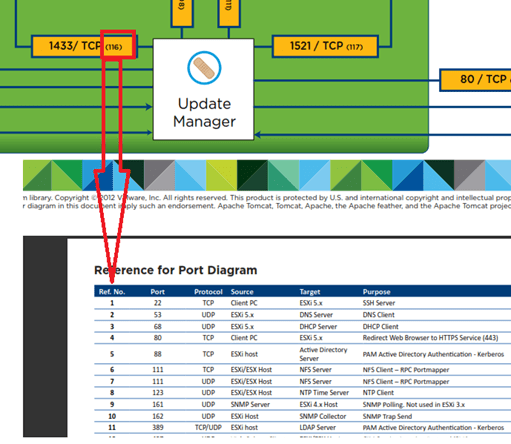
Part of a PIC of the Port Diagram

Free Training for VMware Products
This comprehensive list of training links came my way the other day and it was too good I just had to share it.
It’s the work of the former Omaha VMUG leader turned VMware TAM Jodi S (Twitter @rytalws)
|
Foundational Topics |
URL |
|
DataCenter |
|
|
VMware DataCenter Virtualization Fundamentals |
http://mylearn.vmware.com/mgrreg/courses.cfm?ui=www_edu&a=one&id_subject=47866 |
|
Introduction to Virtualization and VMware Hypervisor |
|
|
VMware vSphere Strategy: The Foundation of Your DataCenter |
|
|
An overview of vCloud Suite |
https://www.youtube.com/watch?v=kKlFRCNVCbU&list=PL9MeVsU0uG67FCDj0U_V-4WIQ2vbgQbJB |
|
ESXI Foundation |
|
|
Featured VMware Documentation Sets |
|
|
vSphere Hypervisor – Installation & Configuration |
|
|
vSphere Hypervisor -vSphere Client Installation |
|
|
vSphere Hypervisor – Configuring VM Hardware |
|
|
VMware vSphere: What’s New Fundamentals [V5.5] |
http://mylearn.vmware.com/mgrreg/courses.cfm?ui=www_edu&a=one&id_subject=51301 |
|
VMware vSphere 5.5 What’s New! |
|
|
VMware vSphere: VM Management – Web Client Overview |
|
|
VMware vSphere: VM Management – Cloning/Templates |
|
|
VMware vSphere: VM Management – Migration vMotion |
|
|
VMware vSphere: VM Management – HA |
|
|
VMware vSphere: VM Management – DRS |
|
|
VMware vSphere: VM Management – Storage Profiles |
|
|
Local Management Tools Overview |
http://vmwarelearning.com/9ti/local-management-tools-overview/ |
|
How to Install and Configure VMware ESXI 5.5 |
|
|
VMware vSphere: Installation – ESXI 5 |
https://www.youtube.com/watch?v=r-VsThbQyXw&list=PLGey3gSYvwCBkH01wSlg8wd4Aye9f58HT |
|
vSphere 5.5 Installation, Administration and Training course |
|
|
Build your own VMware vSphere ESXi 5.5 Datacenter, starting with one PC |
|
|
HOL-SDC-1304 – vSphere Performance Optimization |
|
|
HOL-SDC-1310 – vSphere and vSOM 101 |
|
|
HOL-SDC-1319 – Tech Preview: VMware NSX for Multi-Hypervisor Environments |
|
|
Networking |
|
|
VMware Virtual Networking Concepts |
https://www.vmware.com/files/pdf/virtual_networking_concepts.pdf |
|
vSphere Networking |
|
|
vSphere Distributed Switch |
https://www.youtube.com/watch?v=8fxdz2aoVOw&list=PLGey3gSYvwCBkH01wSlg8wd4Aye9f58HT |
|
VMware Network Virtualization Fundamentals |
http://mylearn.vmware.com/mgrreg/courses.cfm?ui=www_edu&a=one&id_subject=52533 |
|
Network I/O Control |
|
|
VMware vCloud Networking and Security |
|
|
VMware NSX Product Page |
|
|
VMware NSX Blog |
|
|
HOL-SDC-1302 – vSphere Distributed Switch A to Z |
|
|
HOL-SDC-1303 – VMware NSX Network Virtualization Platform |
|
|
HOL-SDC-1319 – Tech Preview: VMware NSX for Multi-Hypervisor Environments |
|
|
Storage |
|
|
Introduction to Storage |
|
|
VMware vSphere: Storage – Thick & Thin Provisioning |
|
|
VMware Storage Virtualization |
|
|
Enable vSphere HA and Storage DRS for VMware vSphere |
|
|
VMware Storage Profiles |
|
|
VMware Storage I/O Control |
|
|
VMWorld Session: STO1545-Architecting Storage DRS |
|
|
How to identify and Solve Storage I/O Latency Issues |
|
|
vSphere 5 Storage DRS IO Load Balancing |
|
|
VMware Storage Distributed Resource Scheduler |
|
|
HOL-SDC-1308-Virtual SAN (vSAN) and Virtual Storage Solutions |
|
|
Security |
|
|
Security of the VMware vSphere Hypervisor |
http://www.vmware.com/files/pdf/techpaper/vmw-wp-secrty-vsphr-hyprvsr-uslet-101.pdf |
|
VMware Security Development Lifecycle |
|
|
VMware Security Response Center |
|
|
VMware Security Advisories |
|
|
VMware Hardening Guides |
|
|
Operations Management |
|
|
VMware vCenter Operations Manager Documentation |
|
|
VMware vCenter Operations – Introduction Video |
|
|
VMware vCenter Operations Manager Fundamentals [V5.6] |
http://mylearn.vmware.com/mgrreg/courses.cfm?ui=www_edu&a=one&id_subject=42954 |
|
VMware vCenter Operations Training Videos |
|
|
HOL-SDC-1301-Applied Cloud Operations |
|
|
HOL-SDC-1304 – vSphere Performance Optimization |
|
|
HOL-SDC-1301-Applied Cloud Operations |
|
|
Certification – |
|
|
Certification – VMware Cloud Fundamentals |
|
|
Certification – VMware DataCenter Virtualization – VCP5-DCV – Blueprint |
http://mylearn.vmware.com/mgrReg/plan.cfm?plan=45082&ui=www_cert |
|
VMware VCP-DCV 5.1 Exam Preparation |
http://mylearn.vmware.com/mgrreg/courses.cfm?ui=www_edu&a=one&id_subject=46281 |
It’s my easy button for you this week. You all probably already have something but I didn’t…
In addition, here is a 5.5 Feature URL listing which provides information on each 5.5 feature.. Enjoy!
- ← Previous
- 1
- 2
- 3
- 4
- Next →
 vmexplorer