ESXi
vCenter Server 6 Host Profiles — ‘Update Profile From Reference Host’ is now ‘Copy Settings from Host’ with the WebClient
Question – For Host Profiles where did the ‘Update Profile From Reference Host’ and ‘Change Reference Host’ move to in the WebClient?
FAQ around this…
Where did it move to with the Webclient? >> ‘Update Profile From Reference Host’ and ‘Change Reference Host’ have been combined under one item ‘Copy Setting from Host’
Where do I start? >> Simply right click on your host profile, choose ‘Copy Settings from host’.
How do I update the current profile? >> When the window appears for ‘Copy Settings from Host’ your current “reference” host should be selected. Simply press ‘OK’ to update the profile or Press Cancel to not update.
How do I change the reference host? >> When the window appears for ‘Copy Settings from Host’ choose your new host for the settings to be extracted from aka your “new reference host” Simply press ‘OK’ to update the profile.
For more information, See the VCenter Server 6 Host Profiles Guide under ‘Copy Settings from Host’
If you like my ‘no-nonsense’ blog articles that get straight to the point… then post a comment or let me know… Else, I’ll start writing boring blog content.
Updating the Dell FX2 Backplane and Non-Backplane firmware based on VMWare KB 2109665
The Fun:
Recently I was working with a Dell FX2 + VSAN environment and came across this VMware KB (2109665) around updating the Backplane and Non-Backplane Expander firmware. I’m not going to get into the details of this KB as others have rehashed it in multiple blogs. Here is a good example: http://anthonyspiteri.net/vsan-dell-perc-important-driver-and-firmware-updates/
However, what I find is the KB, blogs, and Dell just merely tell you to update the firmware but they don’t tell you how or where to. If you have worked with the FX2 you’d know there are the many ways you can update the firmware but finding the right on one, of the 6 different ways, can be a bit frustrating.
A Simple Solution:
To update the Backplane Expander and Non-Backplane Expander you will need to boot the server into the Lifecycle Controller at boot time. Then I choose to use a USB key to update the firmware.
Glorious Screenshots:
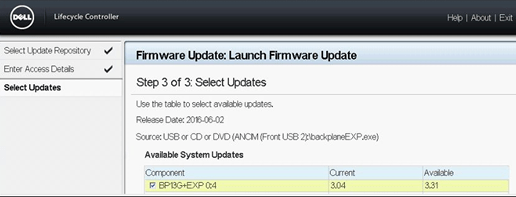
Launch the Lifecycle Controller during boot time then choose Firmware Update >> Launch Firmware Update

I choose to use USB. Tip: Make sure your USB ports are enabled in the BIOS

Choose your file to be updated. Tip: I renamed the firmware file to something easier to type.

Click on next and let it finish the process…
If you like my ‘no-nonsense’ blog articles that get straight to the point… then post a comment or let me know…
Else, I’ll start writing boring rehashed blog content.
Fusion 8 Macintosh Keyboard Commands
I use a MAC Powerbook with VMware fusion on a daily basis. One item that I look for from time to time is how to translate “PC” style keypresses (Print Screen, Function keys, etc) from the MAC keyboard into the Windows OS.
I’ve located these great KB’s around working with the MAC Keyboard and Fusion
Tips on using a Macintosh keyboard (1001675)
Sending print screen commands to virtual machines running in VMware Fusion (1005335)
Fusion 8 — Using Mac Keyboards in a Virtual Machine
If you like my ‘no-nonsense’ blog articles that get straight to the point… then post a comment or let me know…
Else, I’ll start writing boring blog content.
Pathping for windows – think of it as a better way to ping
I was working on a remote server today and I needed better stats around ping and trace route. I could not install additional software and then I came across the windows command ‘pathping’. Its hard to believe this tool has been around since NT4 days and I don’t recall ever hearing about it. Give it a go when you get a chance and I’m adding it to my “virtual” tool belt.

More information here… https://en.wikipedia.org/wiki/PathPing
If you like my ‘no-nonsense’ blog articles that get straight to the point… then post a comment or let me know…
Else, I’ll start writing boring blog content.
How to find Dell PERC FD332 or H330 Firmware Versions in ESXi 6
Today’s adventure seemed an easy task but ended up taking much too long to find the right answer.
The task… ‘Is there a way to find the firmware version of a Dell Perc FD332 or H330 controller using command line in ESXi 6?’
The answer:
‘zcat /var/log/boot.gz |grep -i firm’

Things that didn’t work –
http://www.yellow-bricks.com/2014/04/08/updating-lsi-firmware-esxi-commandline/
Thanks going out to my fellow VMware TAMs for helping me to locate this answer.
If you like my ‘no-nonsense’ blog articles that get straight to the point… then let me know…
Else, I’ll start writing boring blog content.
vSphere 6.x licensing and feature product matrix
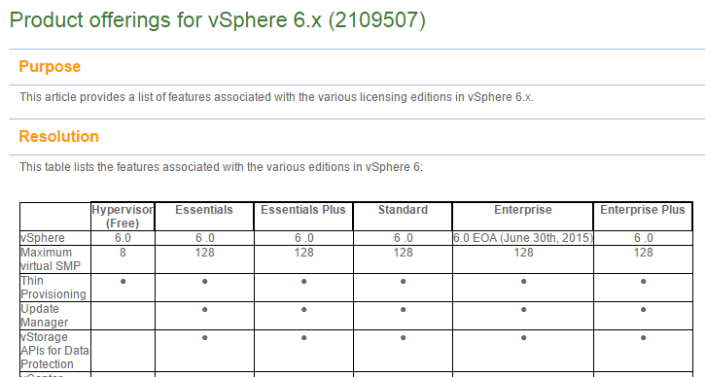
Ever want to compare a full list of the vSphere features to the associated licensing level?
Well now you can… Check out >> https://kb.vmware.com/selfservice/microsites/search.do?language=en_US&cmd=displayKC&externalId=2109507
For vSphere 5 >> https://vmexplorer.com/2014/02/27/vsphere-5-x-licensing-matrix-2/
Here is a quick snapshot of the matrix. Enjoy!
PowerCLI to change VM from e1000 to VMXNET3
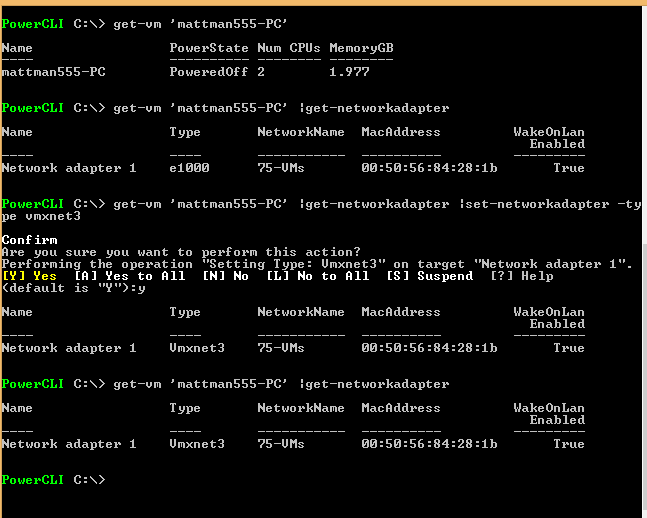
In this blog, I wanted to document some simple PowerCLI commands I did to change a VMs network adapter from e1000 to VMXNET3.
- Took a snapshot of the VM prior (Recommend)
- Updated VM Tools and Virtual Hardware (Recommended)
- Downloaded and installed PowerCLI / VRC on my local desktop
- Launched the PowerCLI ICON on my desktop
- Set the execution policy >> Set-ExecutionPolicy Unrestricted
- Executed the following commands.
Supported features for VMware virtual machine compatibility
Here is one of my most favorite VMware KB articles.
Supported features for virtual machine compatibility
|
Hardware |
ESXi 6.0 and later |
ESXi 5.5 and later |
ESXi 5.1 and later |
ESXi 5.0 and later |
ESX/ESXi 4.x and later |
|
Hardware version |
11 |
10 |
9 |
8 |
7 |
|
Maximum memory (GB) |
4080 |
1011 |
1011 |
1011 |
255 |
|
Maximum number of logical |
128 |
64 |
64 |
32 |
8 |
|
Maximum number of cores (virtual CPUs) per socket |
128 |
64 |
64 |
32 |
8 |
|
Maximum SCSI adapters |
4 |
4 |
4 |
4 |
4 |
|
Bus Logic adapters |
Yes |
Yes |
Yes |
Yes |
Yes |
|
LSI Logic adapters |
Yes |
Yes |
Yes |
Yes |
Yes |
|
LSI-Logic SAS adapters |
Yes |
Yes |
Yes |
Yes |
Yes |
|
SATA adapters |
Yes* |
Yes* |
No |
No |
No |
|
VMware Paravirtual controllers |
Yes |
Yes |
Yes |
Yes |
Yes |
|
Virtual SCSI disk |
Yes |
Yes |
Yes |
Yes |
Yes |
|
SCSI passthrough |
Yes |
Yes |
Yes |
Yes |
Yes |
|
SCSI hot plug support |
Yes |
Yes |
Yes |
Yes |
Yes |
|
IDE nodes |
Yes |
Yes |
Yes |
Yes |
Yes |
|
Virtual IDE disk |
Yes |
Yes |
Yes |
Yes |
Yes |
|
Virtual IDE CDROMs |
Yes |
Yes |
Yes |
Yes |
Yes |
|
IDE hot plug support |
No |
No |
No |
No |
No |
|
Maximum NICs |
10 |
10 |
10 |
10 |
10 |
|
PCNet32 |
Yes |
Yes |
Yes |
Yes |
Yes |
|
VMXNet |
Yes |
Yes |
Yes |
Yes |
Yes |
|
VMXNet2 |
Yes |
Yes |
Yes |
Yes |
Yes |
|
VMXNet3 |
Yes |
Yes |
Yes |
Yes |
Yes |
|
E1000 |
Yes |
Yes |
Yes |
Yes |
Yes |
|
E1000e |
Yes |
Yes |
Yes |
Yes |
No |
|
USB 1.x and 2.0 |
Yes |
Yes |
Yes |
Yes |
Yes |
|
USB 3.0 |
Yes** |
Yes** |
Yes** |
Yes** |
No |
|
Maximum video memory (MB) |
512 |
512 |
512 |
128 |
128 |
|
SVGA displays |
10 |
10 |
10 |
10 |
10 |
|
SVGA 3D hardware acceleration |
Yes |
Yes |
Yes |
Yes |
No |
|
VMCI |
Yes |
Yes |
Yes |
Yes |
Yes |
|
PCI passthrough |
16 |
6 |
6 |
6 |
6 |
|
PCI hot plug support |
Yes |
Yes |
Yes |
Yes |
Yes |
|
Nested HV support |
Yes |
Yes |
Yes |
No |
No |
|
vPMC support |
Yes |
Yes |
Yes |
No |
No |
|
Serial ports |
32 |
4 |
4 |
4 |
4 |
|
Parallel ports |
3 |
3 |
3 |
3 |
3 |
|
Floppy devices |
2 |
2 |
2 |
2 |
2 |
|
Guest OS support |
91 |
91 |
91 |
91 |
78 |
Estimating the size of a Core Dump file (PSOD) for ESXi 5.0-5.5
If your ESXi host has a PSOD do you know if you have enough room to write the PSOD file to your local disk? Ever need to estimate the size of a core dump?
In this blog, I’m going to show you 2 ways to estimate the size of the core dump file and then from there you can compare this size to the your core partition ensuring it is able to write the file.
For ESXi 5.5:
If you run the following command on vSphere 5.5 (This command only will run on 5.5) it will estimate your core dump for you.
‘localcli –plugin-dir /usr/lib/vmware/esxcli/int systemInternal coredump configuration check’

For ESXi 5.0/.1 – the command above does not exist with 5.0-5.1 but if you follow the steps below it is a slick way to estimate the size.
Couple of options –
- 1st Option — as a possible comparative, you could run the 5.5 core dump command and use the result as your baseline for the similar esxi hosts running 5.0/.1 hosts
- 2nd Option — Force a core dump test
- Follow these instructions to create a core dump and re-direct the dump file to a data store with enough space
-
Once completed, note the size of the core dump and then multiply it times the number of core dumps you want to keep.– 250MB core dump file x 4 = 1GB << would be this size you need, my recommendation just make it 2.5GB, as this would align you for ESXi5.5 and beyond
- Use these instructions to increase the size of the core dump partition – Core Dump KB’s 1000328, 2004299
Free vSphere 6 Webinar Series!
VMware has a great webinar series coming up, see the chart below for dates and times.
These sessions would be a great primer before going to VMworld!
|
Date |
Webcast Topic |
vSphere Expert |
Registration / Replay |
|
June 2 |
vCenter ServerWhat’s new in vCenter Server including differences between Windows install and the virtual appliance. |
Mohan Potheri |
|
|
June 16 |
vSphere SecuritySecurity at the top of mind? Learn about security in vSphere 6 including considerations for Platform Services Controller. |
Mike Foley |
|
|
June 30 |
Business Continuity |
Matt Meyer |
|
|
July 7 |
PowerCLIIncrease data center efficiency through automation. Learn what’s new with PowerCLI including some tips and tricks that may surprise you. |
Brian Graf |
|
|
July 14 |
vSphere Web ClientThe Web Client is one of the most improved areas of vSphere 6. Streamlined design, improved responsiveness, and better overall usability are just a sampling of what makes the Web Client cool. Learn what else the vSphere 6 Web Client has to offer. |
Dennis Lu |
|
|
July 21 |
vSphere 6 PerformanceLearn about all the new performance improvements that vSphere 6 has to offer. With the time you save, you may have time for an additional coffee break. |
Mark Achtemichuk |
|
|
July 28 |
Virtual Volumes and Storage Policy-Based ManagementvSphere 6 has transformed storage for virtual machines. Learn how Virtual Volumes and Storage Policy-Based Management redefines how you should think about storage. |
Rawlinson Rivera |
|
|
August 11 |
vCenter Server AvailabilityFor some vCenter Server has become mission critical. Learn how to provide high availability for vCenter Server. Also covered with be Platform Services Controller. |
Johnny Ferguson |
More information here — http://blogs.vmware.com/vsphere/2015/05/vsphere-6-webcast-series.html
 vmexplorer