Solved: WARNING: Link is up but PHY type 0x3 is not recognized – Can cause ESXi 6 purple screens
The Error >> When running an Intel x710 NIC with the ESXi i40e driver you notice your vmkernel.log completely full of the error “WARNING: Link is up but PHY type 0x3 is not recognized”
The Solution >> Ensure X710 firmware is at 17.5.11 (aka 5.04 in ESXi) and ESXi i40e Driver to 1.4.26 or 1.4.28 and these errors stop
The Follow-up >> Check out your NIC on the VMWare HCL for the Correct driver/firmware guidance. This is the link I used.
Other notes…
Sending Millions of the PHY errors to your event logs could be causing other issues for your ESXi host. Look for local boot disk latency or Networking errors in your ESXi host event logs. Once you apply this solution these issues should stop. If not, then you may have other issues impacting your boot disks.
*Updates*
- After applying this solution we then noticed the vmkernel started to populate with ‘driver issue detected, PF reset issued’ the solution for this is to disable TSO/LRO. VMWare KB 205140.
- 04-10-2017 There is a new VMware driver listed for the X710, will be testing soon and will post up results. Release notes indicate fixes for the following:
– Fix duplicate mulicast packet issue
– Fix PSOD caused by small TSO segmentation
If you like my ‘no-nonsense’ blog articles that get straight to the point… then post a comment or let me know… Else, I’ll start writing boring blog content.
ESXi Host NIC failure and the Web client vSwitch orange line doesn’t move? — The results are Shocking!
Okay, the title was a bit dramatic, but it got your attention. Now keeping with my quest to deliver no-nonsense blog articles here is what the orange line means…
Question 1 – What is the function of the orange line when selecting a vmnic, port group, or vSwitch while viewing them in the Web client network settings?
The orange line is showing you the teaming order for the pNICs or vmnics based on their vSwitch or port group teaming policy. In this screenshot, the policy is Active / Active for both vmnic0 and 1.
The orange line will not move to the other pNIC’s unless they are marked as “active” in the teaming policy. “Active in the teaming policy” vs. “which pNIC is passing traffic” are two different things. The orange line is not a representation of the latter, “pNIC passing traffic”.

Question 2 – How can I tell which pNIC is currently passing traffic?
The Web or Thick client vSwitch display (aka the orange line) doesn’t display the pNIC which is currently passing network traffic. You need to use ESXTOP to determine the active pNIC.
Simply go into ESXTOP, Press N, find your vSwitch and it will lead you to the pNIC currently being used to pass traffic.
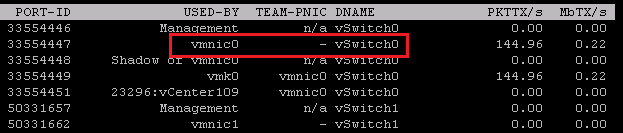
Question 3 – I had a pNIC failure why isn’t the Web client moving the orange line to the standby NIC?
Again… the orange line ONLY points to the Active pNIC in the teaming policy. In this screenshot below, the teaming policy is setup for vmnic3 as Active and vmnic2 as stand by.
Even though vmnic3 is down, traffic should be flowing through vmnic2. Use ESXTOP to determine this (See Question 2)

If you like my ‘no-nonsense’ blog articles that get straight to the point… then post a comment or let me know… Else, I’ll start writing boring blog content.
VSAN – Performance Degradation of Hybrid disk groups on VSAN 6.2 Deployments (2146267)
What >> Upgraded Hybrid (SDD and HDD) VSAN 6.2 deployments are being affected by a new service causing performance issues
Current fix and more advisement >>KB2146267
Automate this fix >> You can give this script a go BUT play at your own riskLINK (Thanks Jase!)
Next Steps >> This should be resolved in an upcoming patch release (don’t ask me how soon, but it’ll be soon)
If you like my ‘no-nonsense’ blog articles that get straight to the point… then post a comment or let me know… Else, I’ll start writing boring blog content.
vCenter Server 6 Host Profiles — ‘Update Profile From Reference Host’ is now ‘Copy Settings from Host’ with the WebClient
Question – For Host Profiles where did the ‘Update Profile From Reference Host’ and ‘Change Reference Host’ move to in the WebClient?
FAQ around this…
Where did it move to with the Webclient? >> ‘Update Profile From Reference Host’ and ‘Change Reference Host’ have been combined under one item ‘Copy Setting from Host’
Where do I start? >> Simply right click on your host profile, choose ‘Copy Settings from host’.
How do I update the current profile? >> When the window appears for ‘Copy Settings from Host’ your current “reference” host should be selected. Simply press ‘OK’ to update the profile or Press Cancel to not update.
How do I change the reference host? >> When the window appears for ‘Copy Settings from Host’ choose your new host for the settings to be extracted from aka your “new reference host” Simply press ‘OK’ to update the profile.
For more information, See the VCenter Server 6 Host Profiles Guide under ‘Copy Settings from Host’
If you like my ‘no-nonsense’ blog articles that get straight to the point… then post a comment or let me know… Else, I’ll start writing boring blog content.
Updating the Dell FX2 Backplane and Non-Backplane firmware based on VMWare KB 2109665
The Fun:
Recently I was working with a Dell FX2 + VSAN environment and came across this VMware KB (2109665) around updating the Backplane and Non-Backplane Expander firmware. I’m not going to get into the details of this KB as others have rehashed it in multiple blogs. Here is a good example: http://anthonyspiteri.net/vsan-dell-perc-important-driver-and-firmware-updates/
However, what I find is the KB, blogs, and Dell just merely tell you to update the firmware but they don’t tell you how or where to. If you have worked with the FX2 you’d know there are the many ways you can update the firmware but finding the right on one, of the 6 different ways, can be a bit frustrating.
A Simple Solution:
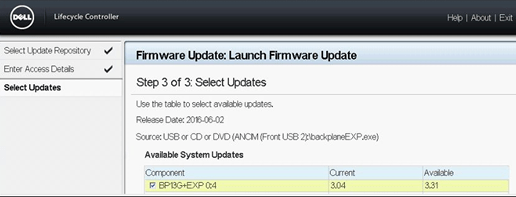
To update the Backplane Expander and Non-Backplane Expander you will need to boot the server into the Lifecycle Controller at boot time. Then I choose to use a USB key to update the firmware.
Glorious Screenshots:
Launch the Lifecycle Controller during boot time then choose Firmware Update >> Launch Firmware Update

I choose to use USB. Tip: Make sure your USB ports are enabled in the BIOS

Choose your file to be updated. Tip: I renamed the firmware file to something easier to type.

Click on next and let it finish the process…
If you like my ‘no-nonsense’ blog articles that get straight to the point… then post a comment or let me know…
Else, I’ll start writing boring rehashed blog content.
Fusion 8 Macintosh Keyboard Commands
I use a MAC Powerbook with VMware fusion on a daily basis. One item that I look for from time to time is how to translate “PC” style keypresses (Print Screen, Function keys, etc) from the MAC keyboard into the Windows OS.
I’ve located these great KB’s around working with the MAC Keyboard and Fusion
Tips on using a Macintosh keyboard (1001675)
Sending print screen commands to virtual machines running in VMware Fusion (1005335)
Fusion 8 — Using Mac Keyboards in a Virtual Machine
If you like my ‘no-nonsense’ blog articles that get straight to the point… then post a comment or let me know…
Else, I’ll start writing boring blog content.
Pathping for windows – think of it as a better way to ping
I was working on a remote server today and I needed better stats around ping and trace route. I could not install additional software and then I came across the windows command ‘pathping’. Its hard to believe this tool has been around since NT4 days and I don’t recall ever hearing about it. Give it a go when you get a chance and I’m adding it to my “virtual” tool belt.

More information here… https://en.wikipedia.org/wiki/PathPing
If you like my ‘no-nonsense’ blog articles that get straight to the point… then post a comment or let me know…
Else, I’ll start writing boring blog content.
How to find Dell PERC FD332 or H330 Firmware Versions in ESXi 6
Today’s adventure seemed an easy task but ended up taking much too long to find the right answer.
The task… ‘Is there a way to find the firmware version of a Dell Perc FD332 or H330 controller using command line in ESXi 6?’
The answer:
‘zcat /var/log/boot.gz |grep -i firm’

Things that didn’t work –
http://www.yellow-bricks.com/2014/04/08/updating-lsi-firmware-esxi-commandline/
Thanks going out to my fellow VMware TAMs for helping me to locate this answer.
If you like my ‘no-nonsense’ blog articles that get straight to the point… then let me know…
Else, I’ll start writing boring blog content.
Wiggle it just a little bit– Keeping your computer awake and avoiding timeouts
We have been there so many times: You’re working on one PC, then suddenly, the screen dims on your other PC and you get locked out. Not to mention if you use IM programs it can show you away quite frequently. As an IT admin it’s hard enough trying to get multiple things done without having to log in an out or move the mouse every so often.
What could be the cause? The usual suspects are either due to a Domain policy or because Windows power-saving / screensaver settings kick in.
The up and downside — If you are lucky enough have non-domain client or a relaxed domain policy you could adjust Windows’ power and screen saver settings. The down side is you most likely want those settings if you’re running a laptop to keep battery life at a maximum. There is nothing worse than traveling with a dead battery, except maybe a flight delay. Additionally, if you are on a domain there might be a policy not allowing you to change these settings. If only you could have a monkey in your office to wiggle the mouse every now and then.
Possible Solution? If your domain policies allow then you might try a software solution like: Jiggler
Mouse Jiggler is just a tiny app and as needed will “wiggle” your mouse icon “just a little bit”. Okay, if you haven’t got the reference yet then you need to get up to speed on your early 90’s hip hop.
After the app starts you’ll notice your pointer start to, wiggle and jiggle just a little bit. If this movement keeps Windows active. If the movement isn’t pleasant then enable the Zen Jiggle option, which does the “jiggling” behind the scenes. I prefer to see it “wiggle it just a little bit” as a reminder that it’s active. Finally push the down arrow on the app to minimize the program.

It’s as simple as that, happy computing and if you’ve found other tools to help with this please post up!
vSphere 6.x licensing and feature product matrix
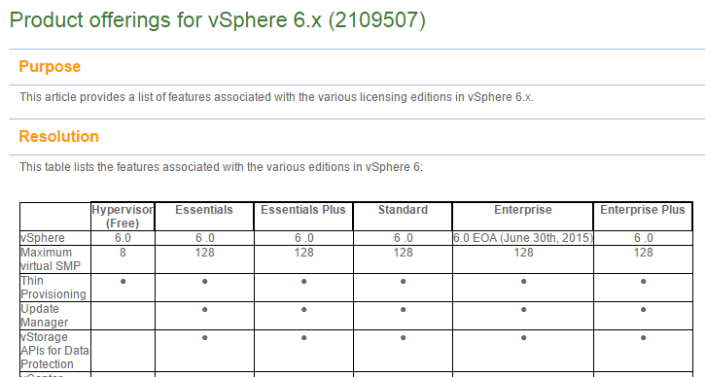
Ever want to compare a full list of the vSphere features to the associated licensing level?
Well now you can… Check out >> https://kb.vmware.com/selfservice/microsites/search.do?language=en_US&cmd=displayKC&externalId=2109507
For vSphere 5 >> https://vmexplorer.com/2014/02/27/vsphere-5-x-licensing-matrix-2/
Here is a quick snapshot of the matrix. Enjoy!
 vmexplorer