Managing the SDDC Installer admin@local Account – Password Resets and lockouts
We’ve all been there. We deploy an appliance and then we can’t find the password. We try to log in a few times and the accout gets locked out. For administrators managing VMware Cloud Foundation (VCF), the admin@local account is a critical account. Introduced to provide access to the SDDC Manager APIs and the VCF Installer even when the management vCenter Server or Identity Provider (SSO) is unavailable, it ensures you aren’t locked out of your environment during critical failures.
Phase 1: Resetting the Forgotten Password
If you don’t know the current password, you must manually inject a new one via the SDDC Manager console. This process involves creating a secure credential file and hashing your new password using OpenSSL.
According to KB 403099, follow these steps on the SDDC Manager VM:
- Access the Console: Log in to the SDDC Manager via SSH as the
vcfuser, then switch to root:su -or simply logon as root. - Initialize the Security Directory: Ensure the local security directory exists with the correct permissions:
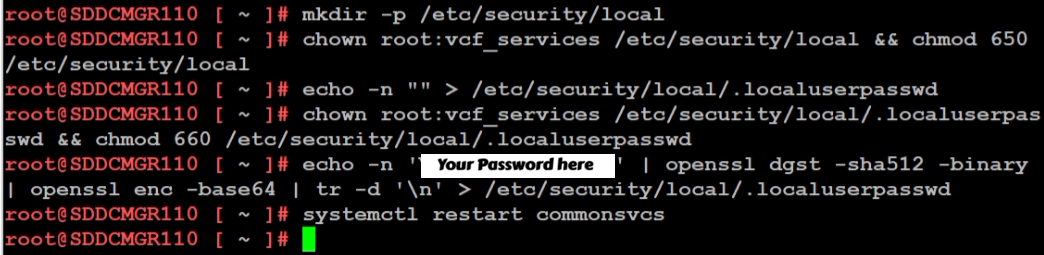
mkdir -p /etc/security/local chown root:vcf_services /etc/security/local && chmod 650 /etc/security/local - Create the Password File: Create an empty file to house the secret:
echo -n "" > /etc/security/local/.localuserpasswd chown root:vcf_services /etc/security/local/.localuserpasswd && chmod 660 /etc/security/local/.localuserpasswd - Generate the New Password: Replace
You Password herein the command below with a password that meets the VCF requirements (12-127 characters, including uppercase, lowercase, numbers, and special characters):echo -n 'Your Password Here' | openssl dgst -sha512 -binary | openssl enc -base64 | tr -d '\n' > /etc/security/local/.localuserpasswd - Restart Services: Apply the change by restarting the SDDC Manager services:
/opt/vmware/vcf/operationsmanager/scripts/cli/sddcmanager_restart_services.sh
Phase 2: Unlocking the Account
Even with a fresh password, if the account was previously locked due to too many failed attempts, the system may still reject your login. You must now clear the lockout state.
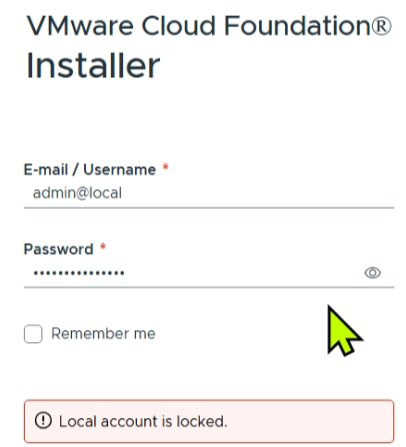
Based on KB 403316, you can clear the lockout by restarting the common services component:
- Stay in the Console: From your existing
rootsession on the appliance (or via the VCF Installer appliance if that is where the lockout occurred). - Clear the Lockout: Run the following command to restart the service responsible for authentication:
systemctl restart commonsvcs - Final Verification: Wait a moment for the service to initialize, then attempt to log in to the web interface using the new password you created in Phase 1.
Summary
When you are locked out of your VCF environment and have forgotten your credentials, the path to recovery is a two-step process. By first following KB 403099 to manually reset the password via the command line, and then following KB 403316 to restart the commonsvcs and clear the lockout, you can regain control of your SDDC Manager and VCF Installer.
 vmexplorer