Dell T7820: CPU Upgrade Issues *Solved*
Quick Read: Did you buy a used barebones Dell T7820 or upgrade your CPU from Xeon Silver to Gold and now the T7820 won’t boot? Are you getting the error Code Memory/RAM failure: 2 amber blinks followed by a short pause, 4 white blinks, long pause, then repeats:?
Solution: Ensure your BIOS is at least 2.6.3 or later.
More Details:

I recently purchased 3 used Dell Precision Workstations model T7820 from eBay. They will be the replacements for my next generation Home Lab with vSphere 8. These used T7820 are barebone systems that didn’t come with a CPU or RAM. Other than a vNivida Video card they were pretty much empty. After inserting a Xeon 6252 and RAM modules, they all powered on but only one would post. The other two simply gave me a blink code (2 amber blinks followed by a short pause, 4 white blinks, long pause, then repeats). It was an odd error as their manuals stated it was related to a RAM issue but I was using supported RAM ( 2933Mhz) for the CPU I was inserting (Xeon Gold 6252).
Looking at the Dell 7820 manual I soon found Dell code description that matched the blink code: Memory/RAM failure. I swapped the RAM and CPU from my working T7820 to the non-working systems but still the errors persisted. So at this point, I knew my RAM and CPU were compatible with the T7820 but why would only 1 of 3 them work?
I now put a focus on the one system that worked. I first checked its BIOS level. It was running Dell BIOS 2.6.3 and funny enough the BIOS release notes specifically called out fixing a memory speed issue. It read: ‘Supports memory speed of 2933 MHz with two memory modules per channel’
It appears that when the T7820 posts, it queries the CPU for its max memory speed rating. In my case the Xeon 6252 has a max memory speed is 2933Mhz. So, even if I put in 2666Mhz RAM it still will not work, because its asking the CPU for is max speed rating. Dell BIOS 2.6.3 fixes this issue allowing the for faster memory speeds to be supported.
Knowing this, the fix should be simple. All I need to do is update my BIOS to 2.6.3 or later. However, the issue is I can’t update or even check the BIOS version on my 2 non-working systems. To do this I’m going to need a Xeon CPU whose max RAM frequency is slower than 2933Mhz, it’s something I don’t have. Enter my eBay Seller oztech llc. to the rescue!
I’ve heard of so many bad experiences when working with eBay sellers, but working with the eBay vendor oztech llc has been an absolute pleasure and I would highly recommend them. They are very responsive, helpful, and knowledgeable around the product they sell. They had not heard of this issue before but were willing to help and after a short call explaining my issue, they promptly shipped out a Xeon Silver 4114 CPU that supported a max RAM speed of 2666Mhz and matching RAM. This should allow me power on my T7820s and update to the latest Dell BIOS (2.29.0)
When the Xeon Silver CPU and RAM arrived I did the following:
- Prepare the T7820
- With the power off, I removed the existing Xeon Gold CPU and 2933 Mhz RAM
- Plugged in the power to the system and then unplugged (don’t skip this step)
- Cleared the CMOS
- Installed the Xeon Silver CPU and 2666Mhz RAM in Slot one
- Plugged in the T7820
- It power cycled about 4 times as it adjusted the system settings, and then it booted!
- Confirm Current BIOS Level
- During boot I pushed F12 and went into setup
- Confirmed its BIOS level to be 1.7.1
- Updating the BIOS to 2.29.0
- The T7820 BIOS update is designed to work with Windows 10.
- I booted to Windows 10, and ran the 2.29.0 BIOS update
- The update confirmed it was currently at 1.7.1
- I ran the BIOS update
- Once it was completed I checked the T7820 BIOS but it came up with BIOS 2.6.3
- I ran the BIOS update again, it confirmed 2.6.3 was current and it would update the T7820 to 2.29.0
- After a reboot I confirmed the BIOS to be 2.29.0
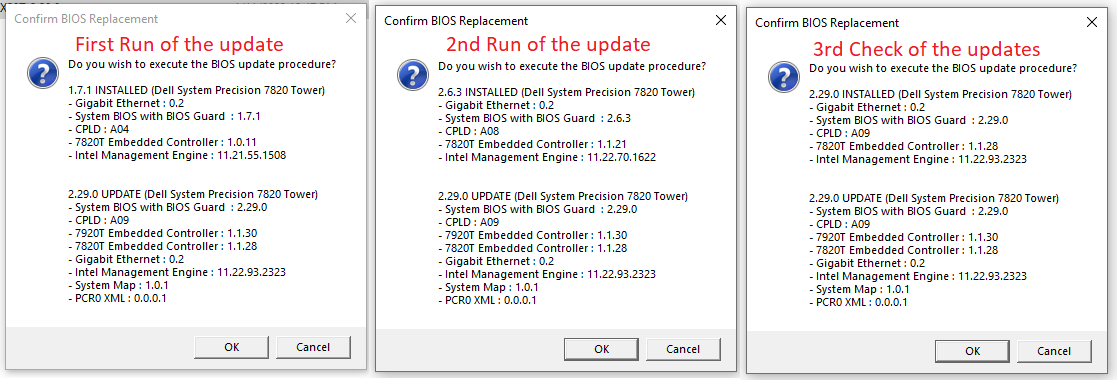
- Finally, installing the Xeon Gold CPU
- Powered down the T7820, removed the Xeon Silver CPU and RAM
- Plugged in the power then removed, and cleared the CMOS
- Inserted the Xeon Gold CPU / 2933Mhz RAM, powered on, and allowed it to adjust for the new components (reboots multiple)
- Went into setup and confirmed it saw the Xeon Gold CPU
- I repeated this process on my other T7820, only its BIOS was 1.4.1.
- I had no issues with either system after I completed this process.

Why this odd BIOS Update behavior? Though I could not find any information in the 2.29.0 release notes, I can only assume that it had a requirement for systems to be on 2.6.3 to be able to update. This would explain why it updated the system to 2.6.3 first then it updated to 2.29.0
It took a bit of trial and error to figure out this issue but with the great help of oztech and their all out willingness to ensure my satisfaction I now have 3 working T7820s. Next I’m off to install ESXi 8 and update my Home Lab but that my readers will be a different blog post.
 vmexplorer
November 10, 2023 at 8:35 am
I have a T7820 and followed your notes on how to upgrade. I went to a from a Xeon 4112 Silver to a 6138 Gold. With the silver I had 4 sticks of RAM and I upgraded to 6 sticks of RAM, which worked fine. The 6138 will only boot with 4 sticks. Any idea why? I noticed you were only running 4 sticks with the 6252, unless that has changed.
LikeLike
November 10, 2023 at 10:31 am
Hey Jon E, I am currently running a total of 256GB RAM (6 x 32GB) and am not having any issues. For your issue, by doing a quick search for 7820 with the Xeon 6138, I found systems for sale that have 4 sticks of RAM. So it is possible with your configuration to work. The only thing I can think of is – do the RAM sticks match? (brand, speed, type, size, etc). Sometimes if they are missed match or too slow it could have an effect on the system. Couple things to try – remove all cards and drives from the system then test again, make sure your BIOS is up to date, booting the system with out a CPU then insert the CPU you want to use, or manually clearing the bios. One thing I have learned with the 7820 is, be patient. Not sure how long you are waiting after you make a system change, but I’ve seen my 7820s take some time (minutes) to figure out the change and then it boots fine. I hope this helps.
LikeLike
May 21, 2024 at 3:03 pm
Hey Matt, I have a silver 4110. Dealing with the same blinking lights. Have tried 3200mhz and 2666mhz ram with no luck. I see this 4110 chip supports 2400mhz. Would that be the route? I haven’t been able to get these systems to boot at all.
LikeLike
May 22, 2024 at 8:53 am
Hey Gabe, I’ll ping you via your email and lets chat more.
LikeLike
September 26, 2024 at 4:14 pm
Hey Matt, thanks for the write up! I have a 7820 system with dual Xeon Gold 6230R Processors that came with 4x 64GB 3200 modules.
I tried to install 64GB modules @ 2399 but the system didn’t boot, I even tried two modules only per processor (in DIMMs 1 & 2) but that didn’t make a difference. Is there any BIOS settings that need to be changed in order to support 2399 memory speeds?
LikeLike
September 26, 2024 at 5:10 pm
Hey Joe! Thanks for reaching out. I’m not 100% positive but I believe the CPU might not support that RAM speed OR the T7820 doesn’t support that CPU/RAM combo. Pretty sure the RAM has to be 2933 Mhz for it to work. I do know there is a RAM guide for the T7820, I can’t seem to locate it right now but give google a try. Good luck.
LikeLike
December 2, 2024 at 9:54 am
Hello,
I just tried upgrading my T7820 from pair of 4110 to a pair of 8124 (not M, not ES, no QS), but the WS keeps doing the initial power on/off cycles when plugged in, with no possibility to boot into BIOS.
Required memory speed is 2666 for both types of processors…
any suggestions?
thanks
LikeLike
December 2, 2024 at 2:57 pm
Thanks for the comment. A couple of things come to mind. 1 – Is the BIOS up to date, running the latest version? 2 – I haven’t checked but does the T7820 support the 8124 CPU? 3 – If yes to #2, you might start the 7820 up with NO CPU and NO RAM and clearing out the BIOS. Then try it with one CPU and the min RAM. If that works then swap the CPU and try your second one. I would just try combinations of RAM and CPUs to eliminate a possible hardware issues. Keep in mind, be very patient with the T7820 it may seem like its locked up but I’ve waited up to +10 mins for it to post correctly. I do hope this helps.
LikeLike
December 4, 2024 at 7:23 am
Hello Matt,
thanks for your reply!
BIOS version is 2.42.0, but I think the issue is with the TDP of the 8124, which tops at 240W!
I understood (after purchasing them) that these were used in Amazon data centers, with hardware of course designed to deliver that power.
So I think there’s not much I can do!
LikeLike