ESX
Test Lab – Day 4 Xsigo Redundancy testing with ESXi
Today I tested Xsigo redundancy capabilities within the ESXi test environment.
So far I have built up an environment with 4 x ESXi 4.1 hosts, each with a Single VM, and 2 Xsigo VP780’s.
Each VM is pretty much idle for this test, however tomorrow I plan to introduce some heavier IP and NFS traffic and re-run the tests below.
I used a Laptop and the ESXi console in tech support mode to capture the results.
Keep in mind this deployment is a SINGLE site scenario.
This means both Xsigo are considered at the same site and each ESXi host is connected to the A & B Xsigo.

Note: This test procedure is simply the pattern I used to test my environment. I’m not stating this is the right way to test an environment but simply the way it was done. I don’t recommend you use this pattern to test your systems or use it for validation. These are simply my notes, for my personal records, and nothing more.
Reminder:
XNA, XNB are Xsigo Network on Xsigo Device A or B and are meant for IP Network Traffic.
XSA, XSB are Xsigo Storage or NFS on Xsigo Device A or B and are meant for NFS Data Traffic.
Test 1 – LIVE I/O Card Replacement for Bay 10 for IP Networking
Summary –
Xsigo A sent a message to Xsigo support stating the I/O Module had an issue. Xsigo support contacted me and mailed out the replacement module.
The affected module controls the IP network traffic (VM, Management, vMotion).
Usually, an I/O Module going out is bad news. However, this is a POC (Proof of Concept) so I used this “blip” to our advantage and captured the test results.
Device – Xsigo A
Is the module to be affected currently active? Yes
Pre-Procedure –
Validate by Xsigo CLI – ‘show vnics’ to see if vnics are in the up state – OKAY
Ensure ESX Hosts vNICs are in Active mode and not standby – OKAY
Ensure ESX Hosts network configuration is setup for XNA and XNB in Active Mode – OKAY
Procedure –
Follow replacement procedure supplied with I/O Replacement Module
Basic Steps supplied by Xsigo –
- Press the Eject button for 5 seconds to gracefully shut down the I/O card
- Wait LED to go solid blue
- Remove card
- Insert new card
-
Wait for I/O card to come online LED will go from Blue to Yellow/Green
- The Xsigo VP780 will update card as needed Firmware & attached vNIC’s
- Once the card is online your ready to go
Expected results –
All active IP traffic for ESXi (including VM’s) will continue to pass through XNB
All active IP traffic for ESXi (including VM’s) might see a quick drop depending on which XN# is active
vCenter Server should show XNA as unavailable until new I/O Module is online
The I/O Module should take about 5 Minutes to come online
How I will quantify results –
All active IP traffic for ESXi (including VM’s) will continue to pass through XNB
- Active PING to ESXi Host (Management Network, VM’s) and other devices to ensure they stay up
All active IP traffic for ESXi (including VM’s) might see a quick drop depending on which XN# is active
- Active PING to ESXi Host (Management Network, VM’s)
vCenter Server should show XNA as unavailable until new I/O Module is online
- In vCenter Server under Network Configuration check to see if XNA goes down and back to active
The I/O Module should take about 5 Minutes to come online
- I will monitor the I/O Module to see how long it takes to come online
Actual Results –
Pings –
| From Device | Destination Device | Type | Result During | Result coming online / After |
| External Laptop | Windows 7 VM | VM | No Ping Loss | No Ping Loss |
| External Laptop | vCenter Server | VM | One Ping Loss | No Ping Loss |
| External Laptop | ESX Host 1 | ESX | One Ping Loss | One Ping Loss |
| External Laptop | ESX Host 2 | ESX | One Ping Loss | One Ping Loss |
| External Laptop | ESX Host 3 | ESX |
No Loss |
One Ping Loss |
| External Laptop | ESX Host 4 | ESX | No Loss | No Loss |
| ESX Host | IOMega Storage | NFS | No Loss | No Loss |
From vCenter Server –
XNA status showing down during module removal on all ESX Hosts
vCenter Server triggered the ‘Network uplink redundancy lost’ – Alarm
I/O Module Online –
The I/O Module took about 4 minutes to come online.
Test 1 Summary –
All results are as expected. There was only very minor ping loss, which for us is nothing to be worried about
Test 2 – Remove fibre 10gig Links on Bay 10 for IP Networking
Summary –
This test will simulate fibre connectivity going down for the IP network traffic.
I will simulate the outage by disconnecting the fibre connection from Xsigo A, measure/record the results, return the environment to normal, and then repeat for Xsigo B.
Device – Xsigo A and B
Is this device currently active? Yes
Pre-Procedure –
Validate by Xsigo CLI – ‘show vnics’ to see if vnics are in up state
- Xsigo A and B are reporting both I/O Modules are functional
Ensure ESX Host vNICs are in Active mode and not standby
- vCenter server is reporting all communication is normal
Procedure –
Remove the fibre connection from I/O Module in Bay 10 – Xsigo A
Measure results via Ping and vCenter Server
Replace the cable, ensure system is stable, and repeat for Xsigo B device
Expected results –
All active IP traffic for ESXi (including VM’s) will continue to pass through the redundant XN# adapter
All active IP traffic for ESXi (including VM’s) might see a quick drop if it’s traffic is flowing through the affected adapter.
vCenter Server should show XN# as unavailable until fibre is reconnected
How I will quantify results –
All active IP traffic for ESXi (including VM’s) will continue to pass through XNB
- Using PING the ESXi Hosts (Management Network, VM’s) and other devices to ensure they stay up
All active IP traffic for ESXi (including VM’s) might see a quick drop depending on which XN# is active
- Active PING to ESXi Host (Management Network, VM’s)
vCenter Server should show XNA as unavailable until new I/O Module is online
- In vCenter Server under Network Configuration check to see if XNA goes down and back to active
Actual Results –
Xsigo A Results…
Pings –
| From Device | Destination Device | Type | Result During | Result coming online / After |
| External Laptop | Windows 7 VM | VM | No Ping Loss | No Ping Loss |
| External Laptop | vCenter Server | VM | No Ping Loss | One Ping Loss |
| External Laptop | ESX Host 1 | ESX | One Ping Loss | No Ping Loss |
| External Laptop | ESX Host 2 | ESX | No Ping Loss | One Ping Loss |
| External Laptop | ESX Host 3 | ESX |
No Ping Loss |
One Ping Loss |
| External Laptop | ESX Host 4 | ESX | One Ping Loss | One Ping Loss |
| ESX Host | IOMega Storage | NFS | No Ping Loss | No Ping Loss |
From vCenter Server –
XNA status showing down during module removal on all ESX Hosts
vCenter Server triggered the ‘Network uplink redundancy lost’ – Alarm
Xsigo B Results…
Pings –
| From Device | Destination Device | Type | Result During | Result coming on line / After |
| External Laptop | Windows 7 VM | VM | One Ping Loss | One Ping Loss |
| External Laptop | vCenter Server | VM | No Ping Loss | No Ping Loss |
| External Laptop | ESX Host 1 | ESX | No Ping Loss | No Ping Loss |
| External Laptop | ESX Host 2 | ESX | No Ping Loss | No Ping Loss |
| External Laptop | ESX Host 3 | ESX |
No Ping Loss |
No Ping Loss |
| External Laptop | ESX Host 4 | ESX | No Ping Loss | One Ping Loss |
| ESX Host | IOMega Storage | NFS | No Ping Loss | No Ping Loss |
From vCenter Server –
XNB status showing down during module removal on all ESX Hosts
vCenter Server triggered the ‘Network up link redundancy lost’ – Alarm
Test 2 Summary –
All results are as expected. There was only very minor ping loss, which for us is nothing to be worried about
Test 3 – Remove fibre 10g Links to NFS
Summary –
This test will simulate fibre connectivity going down for the NFS network.
I will simulate the outage by disconnecting the fibre connection from Xsigo A, measure/record the results, return the environment to normal, and then repeat for Xsigo B.
Device – Xsigo A and B
Is this device currently active? Yes
Pre-Procedure –
Validate by Xsigo CLI – ‘show vnics’ to see if vnics are in up state
- Xsigo A and B are reporting both I/O Modules are functional
Ensure ESX Host vNICs are in Active mode and not standby
- vCenter server is reporting all communication is normal
Procedure –
Remove the fibre connection from I/O Module in Bay 11 – Xsigo A
Measure results via Ping, vCenter Server, and check for any VM GUI hesitation.
Replace the cable, ensure system is stable, and repeat for Xsigo B device
Expected results –
All active NFS traffic for ESXi (including VM’s) will continue to pass through the redundant XS# adapter
All active NFS traffic for ESXi (including VM’s) might see a quick drop if it’s traffic is flowing through the affected adapter.
vCenter Server should show XS# as unavailable until fibre is reconnected
I don’t expect for ESXi to take any of the NFS datastores off line
How I will quantify results –
All active NFS traffic for ESXi (including VM’s) will continue to pass through XSB
- Active PING to ESXi Host (Management Network, VM’s) and other devices to ensure they stay up
All active NFS traffic for ESXi (including VM’s) might see a quick drop depending on which XN# is active
- Active PING to ESXi Host (Storage, Management Network, VM’s)
vCenter Server should show XS# as unavailable until fibre is reconnected
- In vCenter Server under Network Configuration check to see if XS# goes down and back to active
I don’t expect for ESXi to take any of the NFS datastores offline
- In vCenter Server under storage, I will determine if the store goes offline
Actual Results –
Xsigo A Results…
Pings –
| From Device | Destination Device | Type | Result During | Result coming online / After |
| External Laptop | Windows 7 VM | VM | No Ping Loss | No Ping Loss |
| External Laptop | vCenter Server | VM | No Ping Loss | No Ping Loss |
| External Laptop | ESX Host 1 | ESX | No Ping Loss | No Ping Loss |
| External Laptop | ESX Host 2 | ESX | No Ping Loss | No Ping Loss |
| External Laptop | ESX Host 3 | ESX |
No Ping Loss |
No Ping Loss |
| External Laptop | ESX Host 4 | ESX | No Ping Loss | No Ping Loss |
| ESX Host | IOMega Storage | NFS | No Ping Loss | Two Ping Loss |
From vCenter Server –
XSA & XSB status showing down during fibre removal on all ESX Hosts
vCenter Server triggered the ‘Network uplink redundancy lost’ – Alarm
No VM GUI Hesitation reported
Xsigo B Results…
Pings –
| From Device | Destination Device | Type | Result During | Result coming online / After |
| External Laptop | Windows 7 VM | VM | No Ping Loss | No Ping Loss |
| External Laptop | vCenter Server | VM | No Ping Loss | No Ping Loss |
| External Laptop | ESX Host 1 | ESX | No Ping Loss | No Ping Loss |
| External Laptop | ESX Host 2 | ESX | No Ping Loss | No Ping Loss |
| External Laptop | ESX Host 3 | ESX |
No Ping Loss |
No Ping Loss |
| External Laptop | ESX Host 4 | ESX | No Ping Loss | No Ping Loss |
| ESX Host | IOMega Storage | NFS | No Ping Loss | No Ping Loss |
From vCenter Server –
XNB status showing down during module removal on all ESX Hosts
vCenter Server triggered the ‘Network up link redundancy lost’ – Alarm
No VM GUI Hesitation reported
Test 3 Summary –
All results are as expected. There was only very minor ping loss, which for us is nothing to be worried about
Test 4 – Remove Infiniband cables from the ESXi HBA.
Summary –
During this test, I will remove all the Infiniband cables (4 of them) from the ESXi HBA.
I will disconnect the Infiniband connection to Xsigo A first, measure/record the results, return the environment to normal, and then repeat for Xsigo B.
Pre-Procedure –
Validate by Xsigo CLI – ‘show vnics’ to see if vnics are in upstate
- Xsigo A and B are reporting both I/O Modules are functional
Ensure ESX Host vNICs are in Active mode and not standby
- vCenter server is reporting all communication is normal
Procedure –
Remove the InfiniBand cable from each ESXi Host attaching to Xsigo A
Measure results via Ping, vCenter Server, and check for any VM GUI hesitation.
Replace the cables, ensure system is stable, and repeat for Xsigo B device
Expected results –
ALL active traffic (IP or NFS) for ESXi (including VM’s) will continue to pass through the redundant XNB or XSB accordingly.
All active traffic (IP or NFS) for ESXi (including VM’s) might see a quick drop if it’s traffic is flowing through the affected adapter.
vCenter Server should show XNA and XSA as unavailable until cable is reconnected
I don’t expect for ESXi to take any of the NFS datastores offline
How I will quantify results –
ALL active traffic (IP or NFS) for ESXi (including VM’s) will continue to pass through the redundant XNB or XSB accordingly.
- Active PING to ESXi Host (Management Network, VM’s) and other devices to ensure they stay up
All active traffic (IP or NFS) for ESXi (including VM’s) might see a quick drop if it’s traffic is flowing through the affected adapter.
- Active PING to ESXi Host (Storage, Management Network, VM’s)
vCenter Server should show XNA and XSA as unavailable until cable is reconnected
- In vCenter Server under Network Configuration check to see if XS# goes down and back to active
I don’t expect for ESXi to take any of the NFS datastores offline
- In vCenter Server under storage, I will determine if the store goes offline
Actual Results –
Xsigo A Results…
Pings –
| From Device | Destination Device | Type | Result During | Result coming online / After |
| External Laptop | Windows 7 VM | VM | No Ping Loss | Two Ping Loss |
| External Laptop | vCenter Server | VM | No Ping Loss | No Ping Loss |
| External Laptop | ESX Host 1 | ESX | No Ping Loss | No Ping Loss |
| External Laptop | ESX Host 2 | ESX | No Ping Loss | No Ping Loss |
| External Laptop | ESX Host 3 | ESX |
No Ping Loss |
No Ping Loss |
| External Laptop | ESX Host 4 | ESX | No Ping Loss | No Ping Loss |
| ESX Host | IOMega Storage | NFS | No Ping Loss | No Ping Loss |
From vCenter Server –
XSA & XNA status showing down during fibre removal on all ESX Hosts
vCenter Server triggered the ‘Network uplink redundancy lost’ – Alarm
No VM GUI Hesitation reported
NFS Storage did not go offline
Xsigo B Results…
Pings –
| From Device | Destination Device | Type | Result During | Result coming on line / After |
| External Laptop | Windows 7 VM | VM | No Ping Loss | No Ping Loss |
| External Laptop | vCenter Server | VM | One Ping Loss | One Ping Loss |
| External Laptop | ESX Host 1 | ESX | No Ping Loss | No Ping Loss |
| External Laptop | ESX Host 2 | ESX | No Ping Loss | One Ping Loss |
| External Laptop | ESX Host 3 | ESX |
No Ping Loss |
No Ping Loss |
| External Laptop | ESX Host 4 | ESX | One Ping Loss | No Ping Loss |
| ESX Host | IOMega Storage | NFS | No Ping Loss | No Ping Loss |
From vCenter Server –
XNB & XSB status showing down during module removal on all ESX Hosts
vCenter Server triggered the ‘Network up link redundancy lost’ – Alarm
NFS Storage did not go offline
Test 4 Summary –
All results are as expected. There was only very minor ping loss, which for us is nothing to be worried about
Test 5 – Pull Power on active Xsigo vp780
Summary –
During this test, I will remove all the power cords from Xsigo A.
I will disconnect the power cords from Xsigo A first, measure/record the results, return the environment to normal, and then repeat for Xsigo B.
Pre-Procedure –
Validate by Xsigo CLI – ‘show vnics’ to see if vnics are in up state
- Xsigo A and B are reporting both I/O Modules are functional
Ensure ESX Host vNICs are in Active mode and not standby
- vCenter server is reporting all communication is normal
Procedure –
Remove power cables from Xsigo A
Measure results via Ping, vCenter Server, and check for any VM GUI hesitation.
Replace the cables, ensure system is stable, and repeat for Xsigo B device
Expected results –
ALL active traffic (IP or NFS) for ESXi (including VM’s) will continue to pass through the redundant XNB or XSB accordingly.
All active traffic (IP or NFS) for ESXi (including VM’s) might see a quick drop if it’s traffic is flowing through the affected adapter.
vCenter Server should show XNA and XSA as unavailable until cable is reconnected
I don’t expect for ESXi to take any of the NFS datastores offline
How I will quantify results –
ALL active traffic (IP or NFS) for ESXi (including VM’s) will continue to pass through the redundant XNB or XSB accordingly.
- Active PING to ESXi Host (Management Network, VM’s) and other devices to ensure they stay up
All active traffic (IP or NFS) for ESXi (including VM’s) might see a quick drop if it’s traffic is flowing through the affected adapter.
- Active PING to ESXi Host (Storage, Management Network, VM’s)
vCenter Server should show XNA and XSA as unavailable until cable is reconnected
- In vCenter Server under Network Configuration check to see if XS# goes down and back to active
I don’t expect for ESXi to take any of the NFS datastores offline
- In vCenter Server under storage, I will determine if the store goes offline
Actual Results –
Xsigo A Results…
Pings –
| From Device | Destination Device | Type | Result During | Result coming online / After |
| External Laptop | Windows 7 VM | VM | No Ping Loss | No Ping Loss |
| External Laptop | vCenter Server | VM | One Ping Loss | One Ping Loss |
| External Laptop | ESX Host 1 | ESX | One Ping Loss | One Ping Loss |
| External Laptop | ESX Host 2 | ESX | One Ping Loss | One Ping Loss |
| External Laptop | ESX Host 3 | ESX |
No Ping Loss |
No Ping Loss |
| External Laptop | ESX Host 4 | ESX | No Ping Loss | One Ping Loss |
| ESX Host | IOMega Storage | NFS | No Ping Loss | No Ping Loss |
From vCenter Server –
XSA & XNA status showing down during the removal on all ESX Hosts
vCenter Server triggered the ‘Network uplink redundancy lost’ – Alarm
No VM GUI Hesitation reported
NFS Storage did not go offline
Xsigo B Results…
Pings –
| From Device | Destination Device | Type | Result During | Result coming online / After |
| External Laptop | Windows 7 VM | VM | One Ping Loss | No Ping Loss |
| External Laptop | vCenter Server | VM | One Ping Loss | One Ping Loss |
| External Laptop | ESX Host 1 | ESX | No Ping Loss | No Ping Loss |
| External Laptop | ESX Host 2 | ESX | No Ping Loss | One Ping Loss |
| External Laptop | ESX Host 3 | ESX |
One Ping Loss |
One Ping Loss |
| External Laptop | ESX Host 4 | ESX | One Ping Loss | No Ping Loss |
| ESX Host | IOMega Storage | NFS | One Ping Loss | No Ping Loss |
From vCenter Server –
XNB & XSB status showing down during module removal on all ESX Hosts
vCenter Server triggered the ‘Network uplink redundancy lost’ – Alarm
No VM GUI Hesitation reported
NFS Storage did not go offline
Test 5 Summary –
All results are as expected. There was only very minor ping loss, which for us is nothing to be worried about
It took about 10 Mins for the Xsigo come up and online from the point I pulled the power cords to the point ESXi reported the vnics were online..
Overall Thoughts…
Under very low load the Xsigo it performed as expected with ESXi. So far the redundancy testing is going well.
Tomorrow I plan to place a pretty hefty load on the Xsigo and IOMega to see how they will perform under the same conditions.
I’m looking forward to seeing if the Xsigo can perform just as well under load.
Trivia Question…
How do you know if someone has rebooted and watched an Xsigo boot?
This very cool logo comes up on the bootup screen! Now that’s Old School and very cool!

Great Post on ESXi 4.1
I was doing some exploring for HA / LDvmotion setup today and I came across this great post on ESXi 4.1 today.
It contains a lot of great information on ESXi 4.1.
I know a lot of you have questions about ESXi 4.1 and I thought I would share it out…
Here’s the link to the post…
http://blog.mvaughn.us/2010/07/13/vsphere-4-1/
The entire blog was really well done and I really liked the links at the end…
- KB Article:
1022842 – Changes to DRS in vSphere 4.1 - KB Article:
1022290 – USB support for ESX/ESXi 4.1 - KB Article:
1022263 – Deploying ESXi 4.1 using the Scripted Install feature - KB Article:
1021953 – I/O Statistics in vSphere 4.1 - KB Article:
1022851 – Changes to vMotion in vSphere 4.1 - KB Article:
1022104 – Upgrading to ESX 4.1 and vCenter Server 4.1 best practices - KB Article:
1023118 – Changes to VMware Support Options in vSphere 4.1 - KB Article:
1021970 – Overview of Active Directory integration in ESX 4.1 and ESXi 4.1 - KB Article:
1021769 – Configuring IPv6 with ESX and ESXi 4.1 - KB Article:
1022844 – Changes to Fault Tolerance in vSphere 4.1 - KB Article:
1023990 – VMware ESX and ESXi 4.1 Comparison - KB Article:
1022289 – Changing the number of virtual CPUs per virtual socket in ESX/ESXi 4.1
Test Lab – Day 3 ESXi 4.1 Setup with Xsigo, NFS, and the ix12
During Day 1 and 2 we installed the Xsigo hardware, IOMega ix12, ESXi 4.1, interconnected hardware, and ensure it all communicated well.
Today’s Goals…
- Copy vCenter Server & other VM’s from Production to this test environment
- Configure ESXi with the Xsigo vNIC’s
- Setup the ix12 to communicate via NFS to the ESX Hosts
Day 3 Overview…
On Day 2 we configured the Xsigos to present vNIC’s to the ESXi hosts. This will allow for network and storage (NFS) traffic in our test lab.
Keep in mind the ESXi test network is an isolated network. However I plan to transfer clones of a pre-made vm’s by placing a Test ESXi Host out and in of the test environment..
Today I’ll setup the ESXi hosts to talk to the new vCenter Server and get it communicating with our IOMega Shared storage
Copy vCenter Server & other VM’s from Production to this test environment…
Currently the ESXi Management NIC’s are using the Xsigo vNICs (xna, xnb) for host communication.
However I need to swap ESXi Management Network to a different network so I can transfer a VM clone to its local storage.
The vm clone I’m transferring is a pre-made vCenter Server 4.1 and when transferred it will assist us with configuration.
Basically I am swapping which vCenter Server controls the Test ESXi host by changing the Management NIC from Test to Production and back.
The Swap…
In this step I am selecting the local onboard pNIC (vmnic0) as the Management NIC and deselecting the Xsigo vNIC’s (Xsigo_xna & xnb) from the ESXi host.
This will place the host in a network that will allow for the clone transfer.
- From the ESXi host press F2 to ‘Customize System’
- Logon as root
- Choose Configure Management Network
- Choose Network Adapters
- Select vmnic0 as the Management NIC and disconnect all others
- Save up and it should restart the Management Network

Once I have selected the appropricate pNIC as my management adapter, I attached this ESXi host to the other vCenter Server, and then transfer the VM clone to the local VMFS storage.
Once the VM is transferred I configured its networking adapters to adapt to the new test network and powered up the VM.
I logged in to the VM and ensure it is operational.
With the VM still powered up I transferred the Management Network back to the Xsigo vNIC’s and then RDP into the cloned vCenter Server.
Tip: Make sure you know your local Administrator password. After the transfer AD won’t be around for authentication.
Configure ESXi with the Xsigo vNIC’s…
Once the test vCenter Server is booted, I completed the IP setup of the other ESXi test hosts ensuring their management networks were using their assigned Xsigo_xna and xnb adapters.
I then attached all the ESXi Test Hosts to the test vCenter server and configured their networking.
Here is what ESXi looks like when all the adapters are recognized..

NOTE: the Xsigo adapters are showing 10gig Full. You might be asking yourself “I thought Infiniband was faster than 10gig” It is, we’ll address this note later in my posts..
The next step is to create your vSwitches…
I created vSwitch0 for VM’s, vMotion, and Host Management and vSwitch1 for NFS traffic to my storage.
XNA and XNB will be connected to vSwitch0
XSA and XSB will be connected to vSwitch1

NOTE: As of this writing Xsigo supports vSwitches only, sorry no Distributed Switches at this time.
Setup the IOmega ix12 to communicate via NFS to the ESX Hosts…
First step is to ensure your ix12 is online and the network is functioning properly.
After confirming the network logon to its web admin tool, choose settings, network services, and then network settings.
We choose link aggregation, ensure the IP was correct, and bonded NIC 3 and 4 on this ix12.

Tip: One cool thing about the ix12 is we can allocate NICs for different functions, in this case NIC3 & 4 is for our esxi test environment and nic1 is for another purpose.
Note: By changing the network information usually means a reboot of the device L
I logged into my ESXi host, placed it in Techsupport mode and used ping to test ix12 interface.
Once the network was sound, I enabled NFS on the ix12 and setup a NFS folder
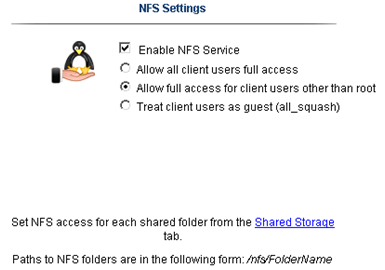
Yes folks, it’s that easy to enable NFS on the ix12…
The only step not show here was setting up a storage pool for NFS and associating the shared folder to it.
Back to ESXi… Let’s setup the NFS Connection…
In vCenter server simply click on the host > Configuration > Storage > Add Storage
A new window appears, choose Network File System then next
Fill in the IP of the ix12, the folder name, and datastore name > click next
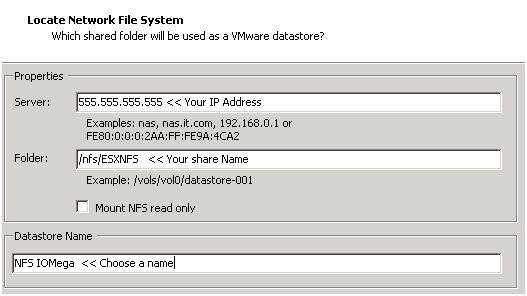
Confirm and you’re done!

Next steps are to use Storage vMotion (aka Migrate Virtual Machines datastore) the Test vCenter Server from local storage to our new NFS Share..
When I completed this step we transferred about 40GB from the local ESXi storage to the IOMega ix12 in about 20Mins.
Summary…
Today was mainly about configuring ESXi and shared storage.
We were able setup all our ESXi hosts to the Xsigo, configured the shared storage, enable NFS and get a vCenter Server VM up and running.
Tomorrow the fun begins… Testing and more Testing!
Test Lab – Day 2 CLI with the Xsigo!
Yesterday I did about 90% of the hardware install. Today, Day 2, our Xsigo SE will be here to assist with the installation and configuration of the Xsigo to the ESX Hosts..
Today’s Goals..
- Install 2nd Xsigo VP780
- Install vmware ESXi 4.1 on 4 servers with Xsigo Drivers
- Configure both Xsigo vp780’s
Install 2nd Xsigo VP780…
Day 2 started out with a gift from Mr. FedEx, it was the parts we needed to install the 2nd Xsigo. Only yesterday afternoon we discovered we were missing some power cords and mounting brackets. A couple quick calls to Xsigo and viola parts are on their way. Props to Xsigo for a VERY quick response to this issue!
Based on the lessons learned from Day 1 we mounted the 2nd Xsigo VP780 and it went much smoother. Notice the WE part of installing the VP780, these things are heavy & large and you’ll need some help or a giant with huge hands to install them into a rack. See their install manual for more information.
When we powered them up I was amazed by the amount of air they moved through the device >> Very NICE!
Keep in mind at this point all the test lab hardware including the Xsigo fiber modules (2 x 10gig Fiber modules per device), and networking is mounted and interconnected…

Install vmware ESXi 4.1 on 4 servers with Xsigo Drivers…
You’ll need the Xsigo Drivers installed for ESXi to recognize the infiniband cards and for proper communication.
There are two installation options…
- Install ESXi 4.1 and add the Xsigo Drivers after the install.
- Download the drivers and re-master the ESXi ISO yourself (This is a good option if your building / rebuilding lots of servers)
We chose to re-master the ESXi ISO with the Xsigo drivers.
Here is the link to master the ISO
I won’t bore you with the details of installing ESXi, however the only gotcha I ran into was the Dell R5400 SATA RAID controller.
I setup a SATA RAID group, during the ESXi install it recognized the RAID volume, and ESXi installed to it without issue.
However after the reboot of the host it would not boot to this volume.
I didn’t have time to troubleshoot, for now we just broke the RAID group, reinstalled, and it worked perfectly.
ESXi Management NICS’s..
Our test lab network will be isolated from production network traffic. However, one of our servers will need to be in the production environment. We setup one physical NIC (pNIC) on to our production environment. This will allow us to temporarily transfer VM’s from production to test, we’ll then disconnect this pNIC and setup ESXi to use the Xsigo NIC for management.
(More to come on this on Day 3)
Configure both Xsigo vp780’s…
Configuring the vp780 was very simple. We attached a laptop to the Xsigo and in about 20 commands our Xsigo was up and running..
These are the basic commands we used to setup our pair of Xsigo’s (A and B), the commands below reflect B only.
The commands would be the same for the A Xsigo simply change the appropriate parameters…
NOTE: I don’t recommend you execute these commands in your environment, keep in mind these are for my reference ONLY… I also recommend you contact your Xsigo representative for assistance.
Here are the commands we executed..
Getting into the Xsigo VP780…
We used a standard Xsigo provided rollover cable plugged into Serial1. (Serial2 is for Tech / Debug – Don’t use)
We connected to the console via Putty or Absolute Telnet (COM Settings are 115200,8,1,None,None)
Tip: All default passwords are in the CLI Config Guide by Xsigo
Setup the Xsigo via the Wizard…
Once the connected we used the XgOS config Wizard and entered in the following..
|
Welcome to XgOS Copyright (c) 2007-2010 Xsigo Systems, Inc. All rights reserved.
Enter “help” for information on available commands.
Would you like to use the XgOS Configuration Wizard? [Y/n] Hostname: xsigo-b Domain: YOURDOMAIN.COM Is this Director to be designated as the IB subnet manager (leave as Y unless using an external, non-Xsigo subnet manager) ? [Y/n] Do you want this Director to send diagnostic data to Xsigo periodically? [Y/n] Please input the ‘root’ password: **** Please confirm the ‘root’ password: **** Please input the ‘admin’ password: ***** Please confirm the ‘admin’ password: ***** Please input the ‘recovery-password’: **** Please confirm the ‘recovery-password’: **** IP Address [static/DHCP]: 555.555.555.555 IP Address [static/DHCP]: Enter NTP Server 1: 555.555.555.555 Enter NTP Server 2: Enter Timezone [<Tab><Tab> for the list of Timezones]: America_Phoenix Welcome to XgOS Copyright (c) 2007-2010 Xsigo Systems, Inc. All rights reserved.
Enter “help” for information on available commands. admin@xsigo-b[xsigo] |
Now it’s time to setup the Xsigo…
Place the Xsigo into Trunk Mode..
Port 10 and Port 11 are the 10gig Fibre Modules; this command places them in Trunk Mode
set ethernet-port 10/1 -mode=trunk << Port 10 will be used for our IP Network (Vlans for Guests, vmotion, hosts, etc)
set ethernet-port 11/1 -mode=trunk << Port 11 will be used for our NFS
Rear of VP780

Ensure Trunk Mode is activated..
Use the command ‘show ethernet-port ‘
|
admin@xsigo-b[xsigo] show ethernet-port
name type state descr mode flags lag access-vlan vnics vlans ——————————————————————————- 10/1 nwEthernet10GbPort up/up trunk -s— 1 0 none 11/1 nwEthernet10GbPort up/up trunk -s— 1 0 none 2 records displayed |
Setup Phone Home for Support…
set system phone-home -customer-name=”YOUR COMPANY NAME HERE”
set system phone-home -contact-email-address=YOURNAME@YOURDOMAIN.COM
set system phone-home -contact-phone-numbers=”555-555-5555″
set system phone-home proxy [YOUR PROXY IP HERE] [PROXY PORT if needed, default is 3128]
Note: For this command the syntax is [PROXY IP Address] one space [PROXY PORT], don’t use ‘:’ to as the separator.
Once completed then check confirm your information…
Enter the command ‘show system phone-home’
|
admin@xsigo-b[xsigo] show system phone-home ——————————————————————————- enabled true freq weekly next Fri Jan 14 12:44:52 MST 2011 notify no strip yes alarm yes name COMPANYNAME email EMAIL@EMAIL.com phone 5555555555 copy p-host 555.555.555.555:3128 p-user ——————————————————————————- 1 record displayed admin@xsigo-b[xsigo] |
Check on the Phone Home Log….
admin@xsigo-b[xsigo] showlog phonehome.log
Wed Jan 5 17:30:33 MST 2011: Phone home successful to http://phone-home.xsigo.com:6522
Wed Jan 5 18:04:14 MST 2011: Phone home successful to http://phone-home.xsigo.com:6522
Wed Jan 5 18:04:38 MST 2011: Phone home successful to http://phone-home.xsigo.com:6522
[Press CRTL-C to Exit]
admin@xsigo-b[xsigo]
Tip: your log might be empty until it has something to send
Ensure your Physical servers are attached…
As expected all 4 servers are attached to this Xsigo.. (If they don’t show up here it could be an interconnect or ESXi issue)
Enter the command ‘show physical-server’ to view your connected servers.
|
admin@xsigo-b[xsigo] show physical-server ——————————————————————————- name localhost <<< This is the ESXi Hostname guid 2c903000b4df5 descr port xsigo-001397001:ServerPort2 << This is the Xsigo Port the Server is connected to os VMware/ESXi-4.1.0:xg-3.5.0-1-246491/x86_64 << This is the version of ESX & Xsigo Driver version 2.7.0/3.0.0 server-profile << Notice this is blank, We configured it next ——————————————————————————- name localhost guid 2c903000b4ea5 descr port xsigo-001397001:ServerPort3 os VMware/ESXi-4.1.0:xg-3.5.0-1-246491/x86_64 version 2.7.0/3.0.0 server-profile ——————————————————————————- name localhost guid 2c903000b4ea9 descr port xsigo-001397001:ServerPort4 os VMware/ESXi-4.1.0:xg-3.5.0-1-246491/x86_64 version 2.7.0/3.0.0 server-profile ——————————————————————————- name localhost guid 2c903000b5095 descr port xsigo-001397001:ServerPort1 os VMware/ESXi-4.1.0:xg-3.5.0-1-246491/x86_64 version 2.7.0/3.0.0 server-profile ——————————————————————————- 4 records displayed |
Create Server Profiles…
Creating a server profile enables you to assign devices to your specific host.
In our case we used the ESX Hostname as the Xsigo Server Profile name.
This will help us to keep the profiles well organized.
Keep in mind YOURSERVERNAME# equals your ESX Hostname and it will become your Xsigo Server Profile Name…
Long way to create a Server Profile…
add server-profile [server profile name]
View the new server profile…
|
admin@xsigo-b[xsigo] show server-profile name state descr connection def-gw vnics vhbas ——————————————————————————- YOURSERVER1 up/unassigned 0 0 1 record displayed |
Assign the server profile to a port on the Xsigo…
set server-profile YOURSERVER1 connect localhost@xsigo-001397001:ServerPort1
Short way to create a Server Profile…
add server-profile YOURSERVER2 localhost@xsigo-001397001:ServerPort2
add server-profile YOURSERVER1 localhost@xsigo-001397001:ServerPort3
add server-profile YOURSERVER1 localhost@xsigo-001397001:ServerPort4
Then use show server-profile to confirm your entries…
|
admin@xsigo-b[xsigo] show server-profile name state descr connection def-gw vnics vhbas ——————————————————————————- Yourserver3 up/up localhost@xsigo-001397001:ServerPort3 0 0 Yourserver4 up/up localhost@xsigo-001397001:ServerPort4 0 0 Yourserver1 up/up localhost@xsigo-001397001:ServerPort1 0 0 Yourserver2 up/up localhost@xsigo-001397001:ServerPort2 0 0 4 records displayed admin@xsigo-b[xsigo] |
Set Up and attach the virtual NICS to your server profile…
In this step we created our Xsigo vNICS, attached them to the appropriate server profiles, and the 10gig Modules.
When complete each of our ESXi servers will have 4 Xsigo vNICS.
(2 vNICs for IP Network, 2 vNICs for Storage network)
Decoding the command…
The command ‘add vnic xnb.yourservername1 10/1 -mode=trunk’ breaks down to…
add vnic << Add vNIC Command
xnb << The vNIC Name (xnb = Xsigo, IP Network, B Xsigo Device, Xsb = Xsigo, Storage Network, B Xsigo Device)
yourservername1 << Which profile to attach to
10/1 << Which Module on the Xsigo to attach to
-mode=trunk << What transport mode
These are the command we entered..
|
IP Network vNICS admin@xsigo-b[xsigo] add vnic xnb.yourservername1 10/1 -mode=trunk admin@xsigo-b[xsigo] add vnic xnb.yourservername2 10/1 -mode=trunk admin@xsigo-b[xsigo] add vnic xnb.Yourservername3 10/1 -mode=trunk admin@xsigo-b[xsigo] add vnic xnb.Yourservername4 10/1 -mode=trunk
Storage vNICS admin@xsigo-b[xsigo] add vnic xsb.Yourservername1 11/1 -mode=trunk admin@xsigo-b[xsigo] add vnic xsb.Yourservername2 11/1 -mode=trunk admin@xsigo-b[xsigo] add vnic xsb.Yourservername3 11/1 -mode=trunk admin@xsigo-b[xsigo] add vnic xsb.Yourservername4 11/1 -mode=trunk |
Results from ESXi…

Other Information…
Set System back to factory Defaults…
If needed, you can set the System back to factory Defaults by the following command.
When complete you will need to access the system via Serial Cable.
Here are the steps:
set system factory-default
confirm << type in Confirm, my Putty will exited and the system will shutdown
NOTE: This command will erase the configuration from the Xsigo. Do it with caution
Tip: Note this will cause the system to shutdown, this means someone will have to manually power it back on.
Upgrade the XgOS via USB…
Download the GOS 2.8.5 to a USB Stick..
We inserted the stick into the USB Port on the VP780, then executed this command
system upgrade file://usb/xsigo-2.8.5.xpf
Other Handy commands…
show system status
show system
show system version
show system warnings
show serial
show system info
history
CLI Fun…
One thing I like about the CLI for Xsigo is TAB at the end of the command (most modern CLI’s have this and it sure is handy)
If I type in set system phone-home[Press TAB] it displays possible completions and qualifiers and then it displays the last command I typed in.
admin@ xsigo-b[xsigo] set system phone-home [Press TAB]
Possible completions:
disable Disable phone home
enable Enable phone home
noproxy Don’t use HTTP Proxy
proxy HTTP Proxy config
snooze Hit the snooze button
[Optional qualifiers]
-contact-email-address Email address for Xsigo technical support to contact when a problem is discovered. (or ‘none’)
-contact-phone-numbers Telephone number for Xsigo technical support to contact when a problem is discovered. (comma separated, or ‘none’)
-copy-url URL to send audit copy to
-customer-name Customer name (or ‘none’)
-frequency Phone home frequency (relative to when it is set)
-notify Will Xsigo notify you when problems are detected?
-send-alarms Send major alarms to Xsigo?
-strip-private Strip private information from phone-home data
Repeat ‘?’ for detailed help.
admin@xsigo-b[xsigo] set system phone-home
Day 2 Summary..
The pair of Xsigo’s were very easy to configure and install. I enjoyed working with Xsigo CLI, it is very well thought out, and I plan do to write additional blog about it alone.
Besides for the very few and sometime self-inflicted gotchas things went smooth.
It was nice to have a Xsigo SE on site to assist with the initial install and I’m looking forward to tomorrow when we spin up some VM’s and then test!
Still to do…
- Copy vCenter Server & other VM’s from Production to this test environment
- Test, Test, Test and more testing..
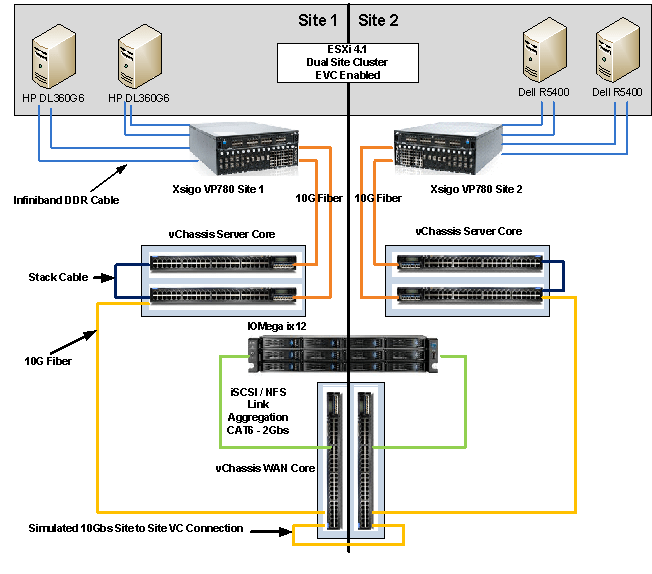
Test Lab – The Plan and Layout with Xsigo, juniper, IOMega, vmware, and HP/Dell servers)
This week I have the pleasure of setting up a pretty cool test lab with Xsigo, juniper, IOMega, vmware, and HP/Dell servers.
I’ll be posting up some more information as the days go on…
The idea and approval for the lab came up pretty quickly and we are still defining all the goals we’d like to accomplish.
I’m sure with time the list will grow, however here are the initial goals we laid out.
Goals…
-
Network Goals
- Deploy the vChissis solution by Juniper (Server Core and WAN Core)
- Deploy OSPF Routing (particularly between sites)
- Multicast Testing
- Layer 2 test for vm’s
- throughput Monitoring
-
VMware Goals
- Test EVC from Old Dell QuadCores Servers to new HP Nehalem
- Test Long Distance vMotion & long distance cluster failures from Site1 to Site 2
- Play around with ESXi 4.1
-
Xsigo Goals
- Test Redundant Controller failover with vmware
- Throughput between sites, servers, and storage
Caveats…
- We don’t have a dual storage devices to test SAN replication, however the IOMega will be “spanned” across the metro core
- Even though this is a “Site to Site” design, this is a lab and all equipment is in the same site
- The Simulated 10Gbs Site to Site vChassis Connection is merely a 10Gbs fibre cable (We are working on simulating latency)
- Xsigo recommends 2 controllers per site and DOES NOT recommend this setup for a production enviroment, however this is a test lab — not production.
The Hardware..
2 x Xsigo VP780’s with Dual 10Gbs Modules, All Server hardware will be Dual Connected
2 x HP DL360 G6, Single Quad Core Nehalem , 24GB RAM, Infinband DDR HBA, gNic’s for Mgt (Really not needed but nice to have)
2 x Dell Precision Workstation R5400, Dual QuadCore, 16GB RAM, Infiniband DDR HBA, gNic’s for Mgt (Really not needed but nice to have)
6 x Juniper EX4200’s (using Virtual Chassis and Interconnect Stacking Cables)
Using BGInfo to help determine VM Guest partition alignment (Starting offset and allocation unit size)
We use BGInfo quite a bit to help us with basic VM guest information (IP Address, name, HD Space, etc)
Today I was thinking about the partition alignment (Starting offset and allocation unit size) on my Windows guests and wondered about their alignment.
There are programs made for this, some are quite good, but it wouldn’t be more convenient to have it come up with BGinfo?
I thought it would be especially handy because we have multiple templates some are aligned differently, and I could use this as a double check to those programs which correct this issue.
By adding the Starting Offset and volume block size(aka allocation unit size) to our BGinfo.bat file we can now see how are VM guest partitions are aligned!
From this screenshot we see 3 Volumes..
C: has a 32K Offset / 4K Allocation | D: 64K offset / 32K Allocation | E: 64K offset / 4K Allocation
The only volume that is optimal is our D: volume, the rest need some work…

Want to know more about alignment?
Go here >> http://www.vmware.com/pdf/esx3_partition_align.pdf and here >> http://www.vmware.com/pdf/Perf_Best_Practices_vSphere4.0.pdf
Here’s how to setup BGInfo…
- Download BGInfo from sysinsterals
- Create your *.bgi file (this file contains all the fields you want displayed, see below for the offset)
- Create a simple batch file to launch your *.bgi file on logon
- @echo off
- cd\
- CALL “C:\Files\bginfo.exe” “C:\Files\YOUR.bgi” /timer:0 /nolicprompt
-
Place all the files in a simple folder like c:\Files
-
Files Needed
- Bginfo.exe
- YOUR.bgi
- Startbgi.bat
-
- In Windows 2003 – Copy Startbgi.bat into “c:\Documents and Settings\All Users\Start Menu\Programs\Startup”
Every time you logon to the server, bginfo will launch and update your background with useful information..
Once you have created your basic *bgi file, then it’s time to add the WMI Query for Starting Offset and volume block size(aka allocation unit size)
- In BGInfo click on Custom, then New, Enter a name under Identifier, Choose WMI Query, then click on Browse
- Under WMI Class Choose Win32_DiskPatition and under Class Property choose StartingOffset
- Save it up and add it to your *.bgi file
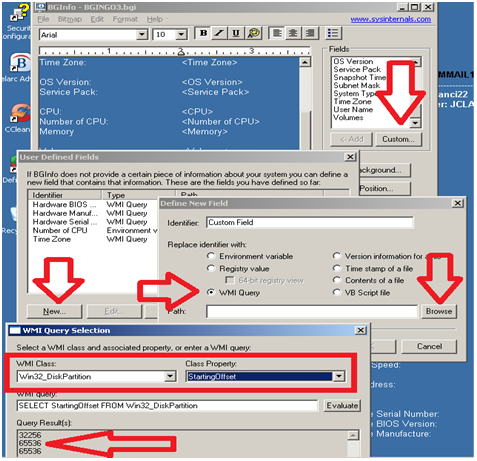
Follow the same steps as above only this time…
Under WMI Class Choose Win32_Volume and under Class Property choose BlockSize (aka allocation unit size)

I hope this works for you as well as it did for me!
Enjoy!
Matt..
Working with the IOMega ix12-300r
I installed an IOMega ix12-300r for our ESX test lab and I must say it’s just as feature rich as my personal ix4 and ix2.
I enjoy working with this device for its simplicity and feature depth. It’s very easy to deploy and it’s a snap to integrate with ESX.
Here are some of the things I like about ix12 and a high level overview to enable it with esx.
Note: Keep in mind most of the
features below are available on the ix2 and ix4 line but not all..
See http://iomega.com/nas/us-nas-comp.html for more information about the ix line and their features…
The Drives…
Our ix12 (the ix## is the amount of possible drives in the unit, ie ix2 = 2 drives, ix4 = 4drives) is populated with 8 x 1TB drives.
By default the 8TB unit will come with 4 x 2TB drives, I opted to buy a 4TB unit and expand it by 4TB, giving us the 8 x 1TB drives.
The drives are Seagate Barracuda Green SATA 3Gb/s 1TB Hard Drive – ST31000520AS – SATA II (Rev 2.6 Drives) 5.9K RPM, they should perform nicely for our environment…
(Buts like most techies, I wish they were faster)
More information here about the drives and SATA 2.6 vs 3.x
http://www.serialata.org/documents/SATA-6-Gbs-The-Path-from-3gbs-to-6gbs.pdf
Storage Pools…
A storage pool is not a new concept but in a device this cost effective it’s unheard of.
Basically, I’m dividing up my 8 drives like this..
Storage Pool 0 (SP0) 4 Drives for basic file shares (CIFS)
Storage Pool 1 (SP1_NFS) 2 drives for ESX NFS Shares only
Storage Pool 2 (SP2_iSCSI) 2 drives dedicated for ESX iSCSI only
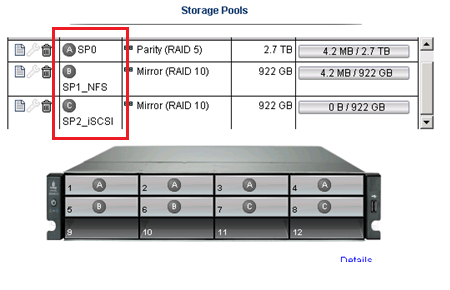
I could have placed all 8 drives into one Storage pool but…
One of our requirements was to have SP0 isolated from SP1 and SP2 for separation reasons…
NO Down time for RAID Expansion… Sweet…
Another great feature is NO down time to expand your RAID5 Set..
Simply edit the Storage pool, Choose your new drive, and click apply.

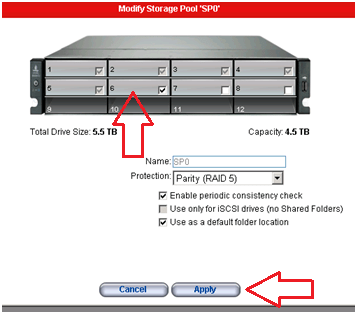
The Raid set will rebuild and you’re all done!
Note: the downside to this… If you decide to remove a drive from a RAID set, you’ll have to rebuild the entire set.
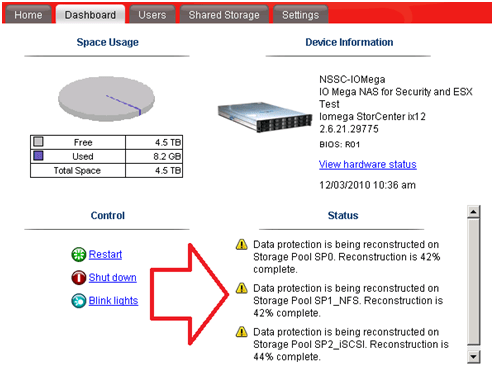
TIP: To check the status of your RAID reconstruction check on the Dashboard under status or the home page at the bottom.
Mine reconstructed the 3 Storage Pools or all 12 drives at the same time in about 4.5 hours…
Teaming your NIC’s!
The ix12 comes with 4 x 1gb NICS, these can be bonded together, stay separate, or a mix of both.
You can setup your bonded NICs as Adaptive Load Balancing, Link Aggregation (LG), or Failover modes.
In our case we bonded NIC 3 and 4 with LG for ESX NFS/iSCSI Traffic and set NIC 1 up for our CIFS traffic.
For the most part setting up the networking is simple and easy to do.
Simply enter your IP’s, choose to bond or not and click apply.

Note: Don’t uncheck DHCP from unused adapters, if you do you’ll get an invalid IP address error when you click apply.
Also, making changes to the network area, usually requires a reboot of the device.. Tip: Setup your Network First..
Adding the NFS Folder to your ESX server
Note: These steps assume you completed the Iomega installation (Enabled iSCSI, NFS, Files shares,etc), networking, and your ESX Environment…
From the ix12 web interface simply add a folder on the correct Storage pool.
In our case I choose the folder name of ESX_NFS and the SP1_NFS storage pool
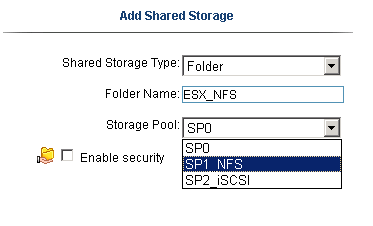
Tip: ALL Folders are broadcasted on all networks and protocols… I haven’t found a way to isolate folders to specific networks or protocols.
If needed make sure your security is enabled… I plan to talk with IOMega about this…
In vCenter Server, Add NAS storage and point it to the ix12.
Note: use /nfs/[folder name] for the folder name…
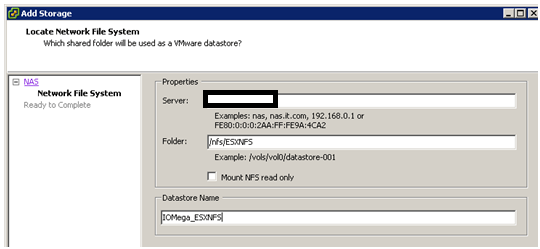
Once it’s connected it will show up as a NFS Data store!

Adding iSCSI to your ESX Server..
Note: This assumes you setup your esx environment to support iSCSI with the ix12…
Add your shared storage as an iSCSI Drive, set your iSCSI Drive name, and Select the correct Storage Pool.
Next is to set the Size of the iSCSI device, in this case we have 922GB free, but can only allocate 921.5GB

After clicking on apply, you should see the information screen…

In vCenter Server ensure you can see the iSCSI drive..

Add the iSCSI disk…
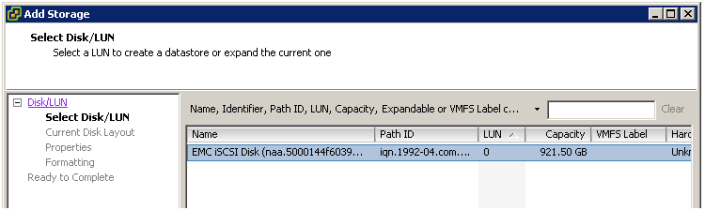
Give this disk a name…

Choose the right block size…

Finally there she is… one 920GB iSCSI disk…

Summary…
From a price vs. performance stand point the IOMega line of NAS devices (ix2, ix4, and our ix12) simply ROCK.
It will be hard to find such a feature rich product that will cost you so little.
This post has merely scratched the features of these devices. It is really hard to believe that 10+ years ago Iomega was known only for ZIP and Jazz Drives…
There new logo is IOMega Kicks NAS, and from what I’ve seen they do!
Follow up posts…
Over the next couple of months I hope to performance test my VM’s against the ix12
I’d like to figure out their protocol multi tendency issue (CIFS, NFS, iSCSI broadcasting over all NICS)
I’ll post of the results as they come in..
VM ESX and ESXi 4.1 Comparison
I’m reposting this for my reference, but I thought you might like it too..
I recommend you go to the link below for the most updated information…
See this URL –
VMware ESX and ESXi 4.1 Comparison
Purpose
This article provides a detailed comparison of VMware ESX and ESXi 4.1. The article is separated into capabilities or features and compared at that level.
Resolution
|
Capability |
VMware ESX |
VMware ESXi |
|
Service Console |
Service Console is a standard Linux environment through which a user has privileged access to the VMware ESX kernel. This Linux-based privileged access allows you to manage your environment by installing agents and drivers and executing scripts and other Linux-environment code. |
VMware ESXi is designed to make the server a computing appliance. Accordingly, VMware ESXi behaves more like firmware than traditional software. VMware has created APIs through which monitoring and management tasks – traditionally done through Service Console agents – can be performed. VMware has provided remote scripting environments such as vCLI and PowerCLI to allow the remote execution of scripts and commands. Tech Support Mode (TSM) provides a command-line interface that can be used by the administrator to troubleshoot and correct abnormal conditions on VMware ESXi hosts. |
|
CLI-Based Configuration |
VMware ESX Service Console has a host CLI through which VMware ESX can be configured. VMware ESX can also be configured using vSphere CLI (vCLI) or vSphere PowerCLI. |
The vSphere CLI (vCLI) is a remote scripting environment that interacts with VMware ESXi hosts to enable host configuration through scripts or specific commands. It replicates nearly all the equivalent COS commands for configuring ESX. VMware vSphere PowerCLI is a robust command-line tool for automathing all aspect of vSphere management, including host, network, storage, virtual machine, guest operating system, and more. Notes:
|
|
Scriptable Installation |
VMware ESX supports scriptable installations through utilities like KickStart. |
VMware ESXi supports scriptable installations using a mechanism similar to Kickstart, and includes the ability to run pre- and post-installation scripts. VMware ESXi also provides support for post installation configuration using PowerCLI- and vCLI-based configuration scripts. |
|
Boot from SAN |
VMware ESX supports boot from SAN. Booting from SAN requires one dedicated LUN per server. |
VMware ESXi may be booted from SAN. This is supported for Fibre Channel SAN, as well as iSCSI and FCoE for certain storage adapters that have been qualified for this capability. Please check the Hardware Compatibility List for supported storage adapters. |
|
Serial Cable Connectivity |
VMware ESX supports interaction through direct-attached serial cable to the VMware ESX host. |
VMware ESXi does not support interaction through direct-attached serial cable to the VMware ESXi host at this time. |
|
SNMP |
VMware ESX supports SNMP. |
VMware ESXi supports SNMP when licensed with vSphere Essentials, vSphere Essential Plus, vSphere Standard, vSphere Advanced, vSphere Enterprise, or vSphere Enterprise Plus. The free vSphere Hypervisor edition does not support SNMP. |
|
Active Directory Integration |
VMware ESX provides native support for Active Directory integration. |
VMware ESXi provides native support for Active Directory integration. |
|
HW Instrumentation |
Service Console agents provide a range of HW instrumentation on VMware ESX. |
VMware ESXi provides HW instrumentation through CIM Providers. Standards-based CIM Providers are distributed with all versions of VMware ESXi. VMware partners include their own proprietary CIM Providers in customized versions of VMware ESXi. These customized versions are available either from VMware’s web site or the partner’s web site, depending on the partner. Remote console applications like Dell DRAC, HP iLO, IBM RSA, and FSC iRMC S2are supported with ESXi. |
|
Software Patches and Updates |
VMware ESX software patches and upgrades behave like traditional Linux based patches and upgrades. The installation of asoftware patch or upgrade may require multiple system boots as the patch or upgrade may have dependencies on previous patches or upgrades. |
VMware ESXi patches and updates behave like firmware patches and updates. Any given patch or update is all-inclusive of previous patches and updates. That is, installing patch version “n” includes all updates included in patch versions n-1, n-2, and so forth. Furthermore, third party components such as OEM CIM providers can be updated independently of the base ESXi component, and vice versa. |
|
vSphere Web Access |
vSphere Web Access is only experimentally supported in VMware ESX. |
VMware ESXi does not support web access at this time. |
|
Licensing |
For licensing information, see the VMware Sphere Editions Comparison. |
For licensing information, see the VMware Sphere Editions Comparison. |
|
Diagnostics and Troubleshooting |
VMware ESX Service Console can be used to issue command that can help diagnose and repair support issues with the server. |
VMware ESXi has several ways to enable support of the product:
|
|
Jumbo Frames |
VMware ESX 4.1 fully supports Jumbo Frames.
|
VMware ESXi 4.1 fully supports Jumbo Frames.
|
Additional Information
- For a comparison of ESX and ESXi 4.0, see VMware ESX and ESXi 4.0 Comparison (1015000).
- For a comparison of ESX and ESXi 3.5, see VMware ESX and ESXi 3.5 Comparison (1006543).
- For a list of new features in vSphere 4.1, see What’s New in VMware vSphere 4.1.
- For a comparison of the different ESX 4.1 editions, see Compare vSphere Editions for Mid-size and Enterprise Businesses.
vSphere 4 – Increase a VMs Hard disk under Windows 2008
Here’s how I recently changed the C: boot drive on a Windows 2008 VM
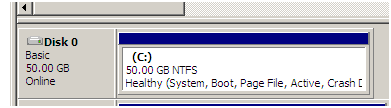
One of our older Windows 2008 templates has a 40GB C:\ hard disk, however I’d like it to be 50GB.
With the combination of vCenter Server 4, Windows 2008 and vSphere 4 this couldn’t be easier!
Prerequisites:
- Have admin access to vCenter Server and the Windows server
- A quick snapshot is always a good idea
Steps:
- While the server is still ON, yes I said “While the server is still on”, in vCenter Server right click on the VM
-
Choose Edit Settings, Choose the Hard disk you want to expand and type in the new size, Choose OK

- In Windows 2008 server open Server Manager, Click on Storage, Click on Disk Manager
- Note the extra space on your hard disk

- Right Click on the C: drive and choose Extend Volume
- Choose Next on the Welcome Screen
- Type in the amount you want to extend by or just click next the max
-
Click Finish to start the expansion, in about 2 seconds you’re done…
vSphere: NUMA 706: Can’t boot system as genuine NUMA
If you install vSphere on NON-NUMA hardware the following warning message will be displayed on the Service Console splash screen
cpu0:0)NUMA: 706: Can’t boot system as genuine NUMA. Booting with 1 fake node(s)
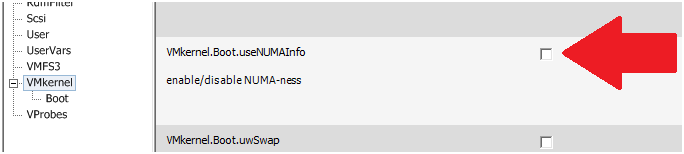
To resolve the warning message uncheck the option setting vmkernel.boot.usenumainfo
 vmexplorer