Upgrading Workstation 25H2 to 25Hu1
Last February 26 2026 VMware released Workstation Pro 25H2u1. It’s an update that does repair a few bugs and security patches. In this blog I’ll cover how to upgrade it.
Helpful links
- Release Notes: VMware Workstation Pro 25H2u1 Release Notes
- Free Download: Download 25H2U1 < Recommend logging into support.broadcom.com first, then paste this link into your browser.
- Documentation: VMware Workstation Pro 25H2 Documentation
Meet the Requirements:
When installing/upgrading Workstation on Windows most folks seem to overlook the requirements for Workstation and just install the product. You can review the requirements here.
There are a couple of items folks commonly miss when installing Workstation.
- The number one issue is Processor Requirements for Host Systems . It’s either they have a CPU that is not supported or they simply did not enable Virtualization support in the BIOS.
- The second item is Microsoft Hyper-V enabled systems. Workstation supports a system with Hyper-V enabled but for the BEST performance its best to just disable these features.
- Next, if you’ve upgraded your OS but never reinstall Workstation, then its advised to uninstall then install Workstation.
- Lastly, if doing a fresh OS install ensuring drivers are updated and DirectX is at a supportable version.
How to download Workstation
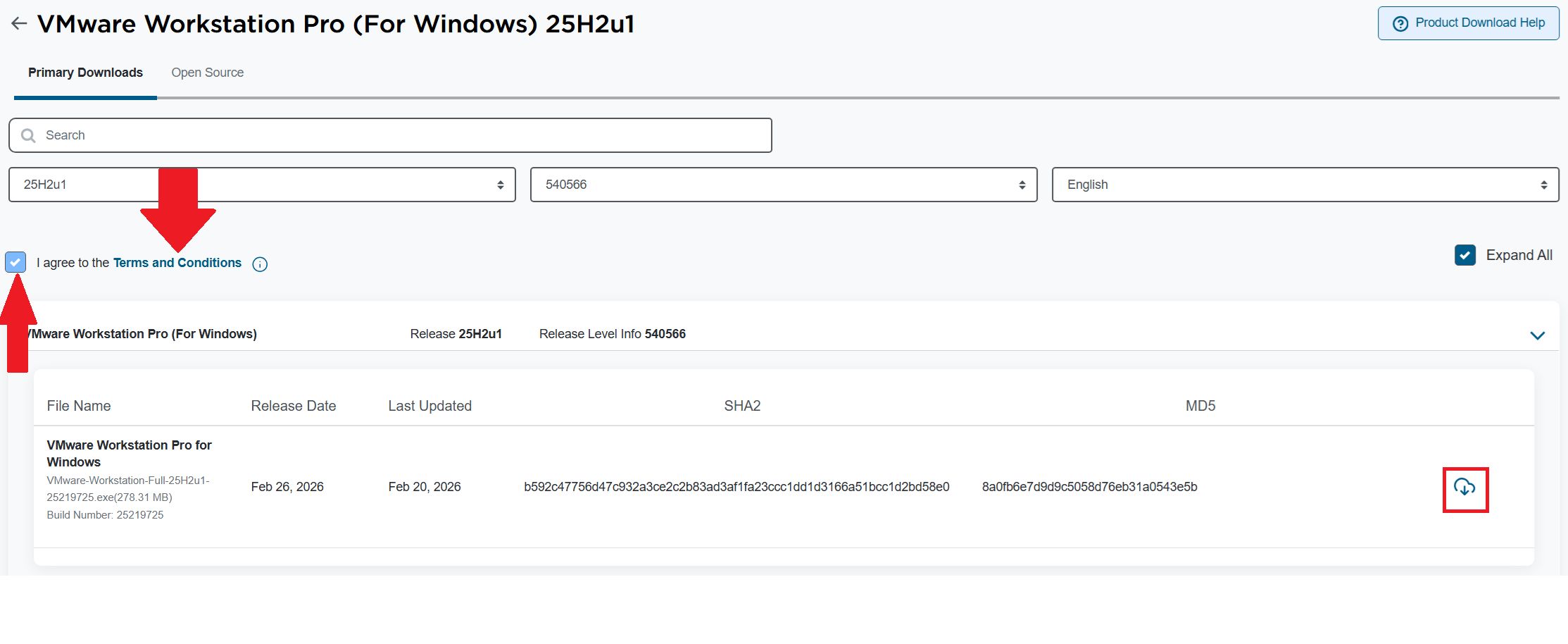
Download the Workstation Pro 25H2u1 for Windows. Make sure you click on the ‘Terms and Conditions’ AND check the box. Only then can you click on the download icon.
Choose your install path
Before you do a fresh install:
- Comply with the requirements
- For Accelerated 3D Graphics, ensure DirectX and Video card drivers are updated
- Review: Install Workstation Pro on a Windows Host
If you are upgrading Workstation, review the following:
- Ensure your environment is compatible with the requirements
- If you have existing VMs:
- Document your network settings
- Shut down your current version of Workstation
- Review: Upgrading Workstation Pro
Note: If you are upgrading the Windows OS or in the past have done a Windows Upgrade (Win 10 to 11), you must uninstall Workstation first, and then reinstall Workstation. More information here.
Upgrading Workstation 25H2 to 25Hu1
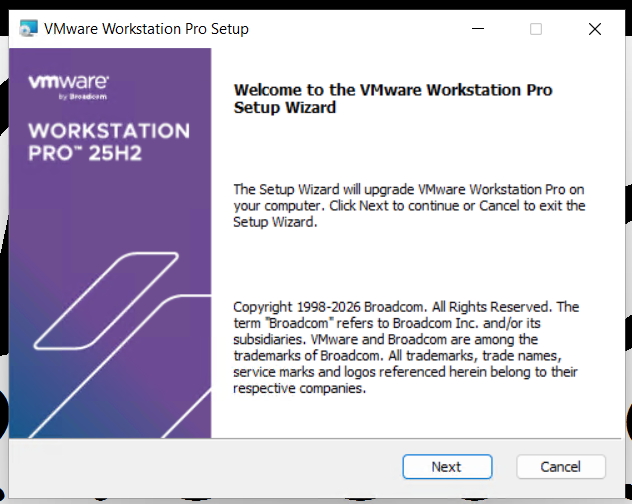
Run the download file, wait a min for it to confirm space requirements, then click Next
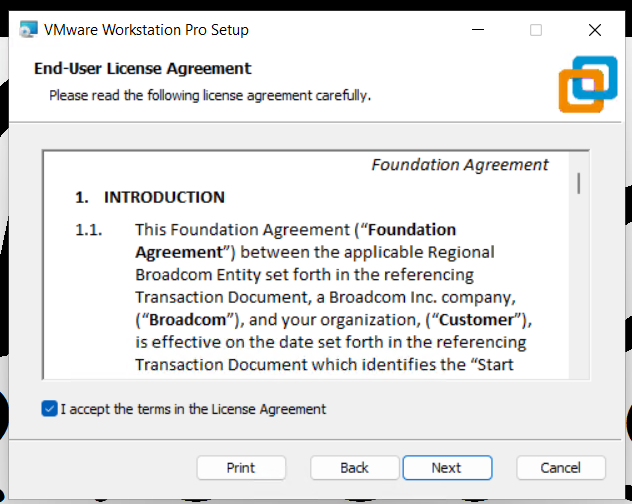
Accept the EULA.
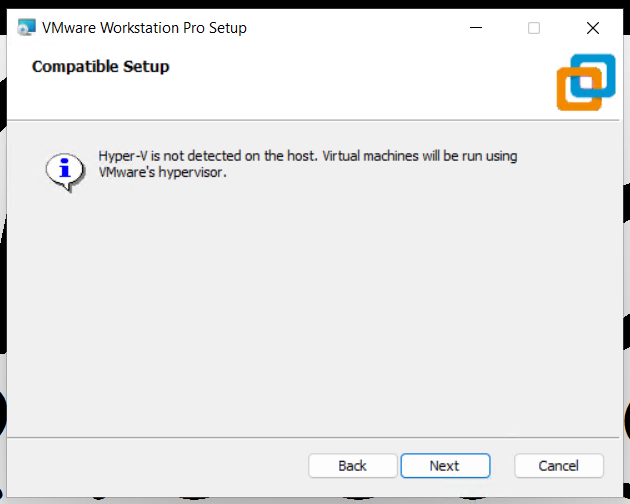
Compatible setup check
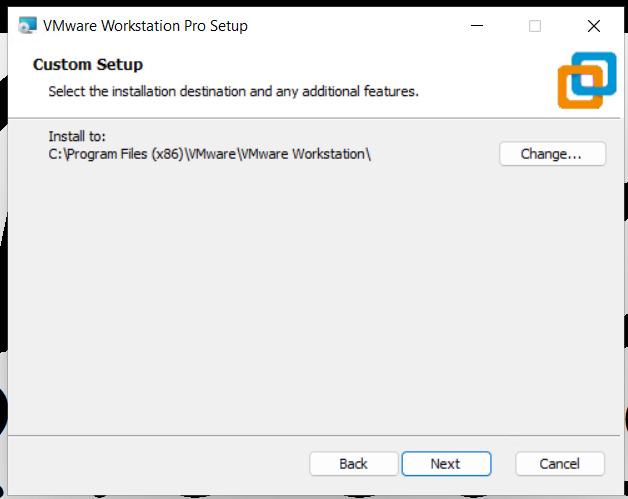
Confirm install directory
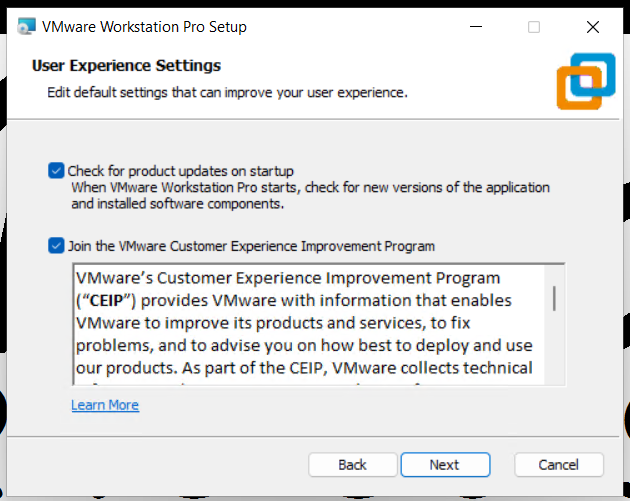
Check for updates and join the CEIP program.
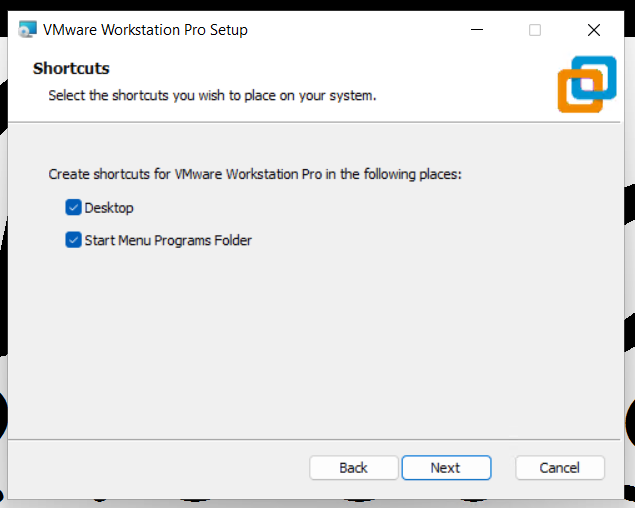
Allow it to create shortcuts
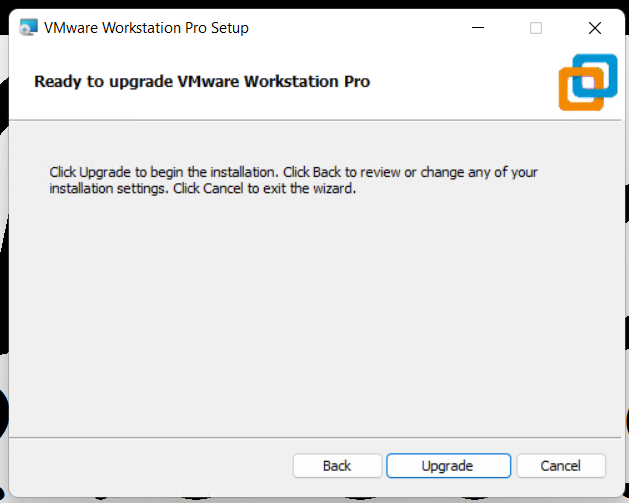
Click Upgrade to complete the upgrade
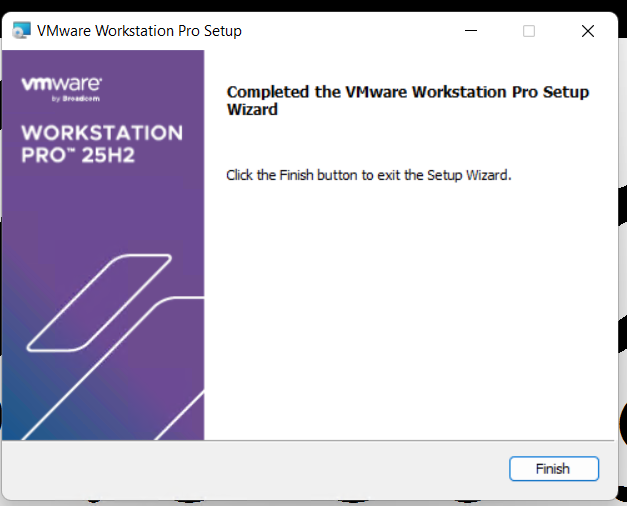
Click on Finish to complete the Wizard.
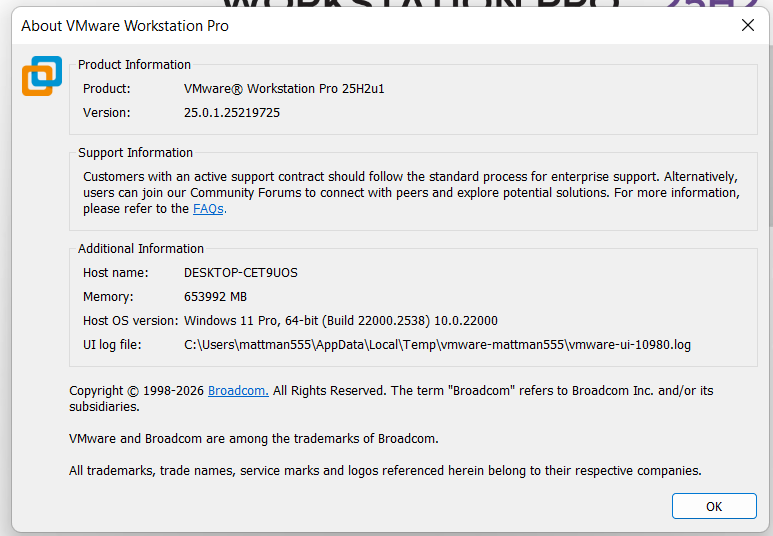
Lastly, check the version number of Workstation. Open Workstation > Help > About


March 2, 2026 at 2:49 pm
[…] Once confirmed I install Workstation Pro 25H2u1. For more information on how to install Workstation 25H2u1 see my blog. […]
LikeLike
March 3, 2026 at 7:14 am
[…] Update – Workstation 25H2u1 has been released 02/2026. Upgrade 25H2 to 25H2u1 blog here […]
LikeLike